WordPress Media URLs Broken After a Domain Change
Review old and new media URLs before updating references.
Why Do WordPress Images Break After Changing Domains?
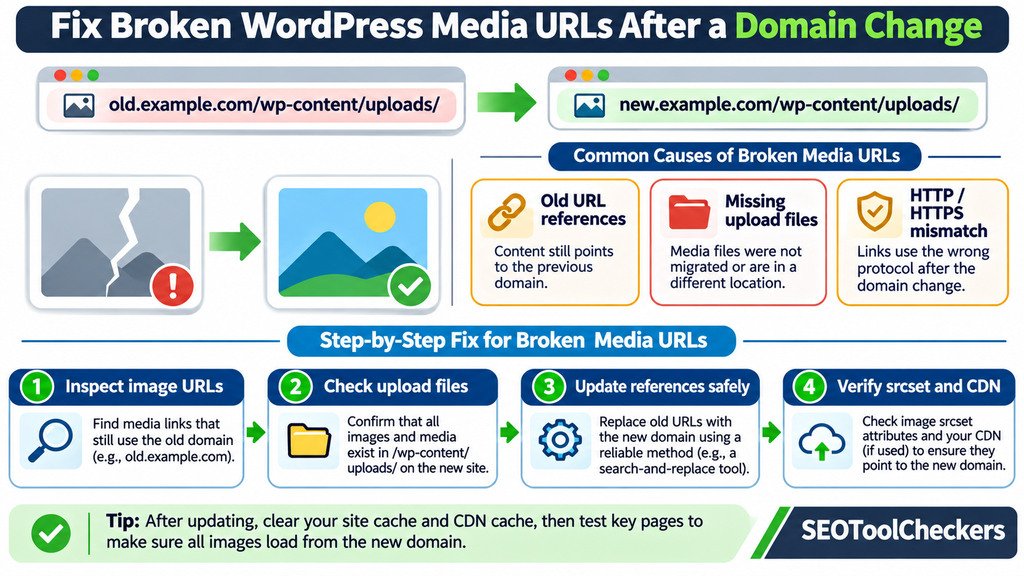
WordPress media URLs can break after a domain change when saved image links still reference the old host, upload files were not transferred, or the new server cannot serve the requested path. HTTPS mismatches, stale CDN settings, and outdated responsive-image URLs can produce similar symptoms. Fix the underlying cause by checking the exact image request, locating the file, and updating references safely rather than replacing every URL blindly.
WordPress Media URL Mapper
Review old and new media URLs before updating references.
Match old WordPress media URLs to new media files
Matched URLs are suggestions. Choose a target and tick Approve for each mapping you want exported. Nothing changes in your WordPress database or media library.
How to Repair Broken WordPress Media URLs Without Losing Images
A domain migration is not complete when the homepage loads. WordPress can serve pages from a new address while older posts still request images from a previous host. Some attachments appear in the Media Library but fail on the public page. Others work on desktop yet disappear on mobile because a different image candidate loads through srcset.
Start with evidence: identify one broken image, record its requested URL and HTTP result, and determine where the correct file actually lives. Use the WordPress Media URL Mapper as a URL-planning companion, but verify changes in WordPress and the browser before applying them in bulk. The steps below distinguish URL errors, file-transfer problems, HTTPS issues, and caching so you can fix the right layer.
First, Identify the Type of Broken Image
Open a page with a missing image, right-click the empty area, and inspect the image element in browser developer tools. Look for src, srcset, and any <picture> sources. Then open the Network panel, reload the page, and filter image requests. Record the requested host, path, response code, and response type. A visible broken-image icon does not tell you whether the problem is a URL, a missing file, or blocked delivery.
| What you observe | Likely explanation | Next test |
|---|---|---|
| Image request still uses old domain | Saved URL or CDN configuration was not updated | Inspect post content, metadata, and offload settings |
404 Not Found |
Wrong path, absent file, or wrong filename case | Compare URL with actual upload file on server |
403 Forbidden |
Server, hotlink, object-storage, or security restriction | Review permissions and delivery rules |
| Request goes to an unexpected host | Stale CDN domain or image offload setting | Review CDN and image optimization configuration |
| HTTP image on an HTTPS page | Mixed-content handling or missing HTTPS asset | Inspect the browser console and actual network request |
| Thumbnail works, full size fails | Original file or one generated size is missing | Check attachment path and intermediate files |
| Works when logged in, fails publicly | Cache, access rule, or authentication difference | Retest in a private browser window |
Some servers send an HTML error page with an HTTP 200 response instead of image bytes. Check the response’s content type as well as its status. For a large migration, prioritize images used on high-traffic pages, product listings, logos, and editorial content.
Check Where WordPress Expects the File to Live
On many single-site installations, uploaded files live under wp-content/uploads/YYYY/MM/, but that is a convention, not a guarantee. Custom upload paths, multisite storage, media offload plugins, and CDNs can change the address. Open the affected item in Media Library and compare the attachment URL with the browser’s failed request. Then check the actual file using your hosting file manager, SFTP, or storage provider.
WordPress stores attachment-related file information, including the attached-file path and image metadata. Its wp_get_attachment_url() function resolves an attachment URL; wp_get_attachment_image_srcset() generates responsive image candidates from image metadata. These mechanisms help explain why manually editing one post’s HTML may not repair every rendered size or theme-generated image.
If the original image is missing from the destination server, restore that file from the migration backup first. A database search-and-replace cannot recreate an image that was never transferred. If filename capitalization differs between systems, fix the underlying file or reference carefully; case-sensitive servers may treat Header.jpg and header.jpg as different files.
Make an Old-to-New Media URL Map Before Editing Anything
Not every old URL should receive the same new hostname. Images may have moved into a new year/month folder, a dedicated /images/ directory, or a managed CDN. A disciplined mapping record prevents replacing valid third-party assets or sending many different files to the same destination. Use the Website Migration URL Mapper to organize the broader migration, and keep a media-specific list for exceptions.
| Old requested asset | Approved destination | Decision |
|---|---|---|
https://old.example.com/wp-content/uploads/2024/03/chart.jpg |
https://new.example.com/wp-content/uploads/2024/03/chart.jpg |
Change hostname if the file exists |
http://old.example.com/wp-content/uploads/logo.png |
https://new.example.com/wp-content/uploads/logo.png |
Confirm new HTTPS asset |
https://old.example.com/wp-content/uploads/2023/06/report.pdf |
https://new.example.com/files/report.pdf |
Explicit path mapping required |
https://assets.thirdparty.example/photo.jpg |
Unchanged | Do not replace unrelated domains |
All addresses in this table are fictional examples. For each real file, record an owner, existence test, replacement method, and final response. Keep the original URL list in case you must roll back.
Back Up the Database and Use Serialization-Aware Replacement
When old image addresses are embedded in WordPress post content, widgets, or plugin settings, a database update may be needed. Take a verified database backup and a media-file backup before changing either. WordPress data can contain PHP-serialized values, so a naive SQL text replacement can invalidate length information and break settings. Prefer a trusted serialization-aware method such as WP-CLI or a carefully vetted replacement plugin.
For an administrator who has confirmed that the entire old-domain reference should move to the new hostname, WP-CLI provides a dry run. Execute commands from the correct WordPress installation and adapt the example to the site’s actual domains:
wp search-replace 'https://old.example.com' 'https://new.example.com' --skip-columns=guid --dry-runReview the reported matches and affected tables. Only after validating the scope should an administrator remove --dry-run to apply the same replacement. If the problem concerns only upload files, evaluate a narrower path-specific replacement instead of replacing an entire domain. Test on staging when possible, especially with page builders, multilingual plugins, multisite, or media offloading.
Keep --skip-columns=guid. The WordPress migration handbook explicitly warns against changing the post GUID during a domain move. A GUID is a stable identifier, not a broken image URL to rewrite. A broad replacement can also overwrite historical references that should remain intact, so inspect the affected records rather than relying only on a replacement count.
Repair Mixed Content Without Hiding the Cause
Moving a WordPress website from HTTP to HTTPS can leave old http:// image links in posts or theme settings. Modern browsers may automatically upgrade some image requests, but other resource types and certain responsive-image cases can be blocked. An automatic upgrade also fails when the target does not support HTTPS.
Confirm that the image URL opens successfully over HTTPS and that the SSL/TLS certificate covers the asset hostname. Inspect the Console and Network panels rather than assuming that every warning causes a visibly broken image. Update the stored or generated link to its working HTTPS address, and review the site’s WordPress Address and Site Address settings under Settings > General when those fields are applicable.
Mixed-content plugins or Content Security Policy rules can mask old links by rewriting requests in the browser. They do not transfer missing media or necessarily correct database references. For a durable repair, serve the correct asset over HTTPS from the expected location.
When Images Still Fail, Inspect Srcset, CDN, and Cached Markup
An image element can contain a valid src while its srcset lists old-domain or missing resized files. The browser chooses a candidate based on viewport, pixel density, and image sizing. That is why the same post can work on one device and fail on another. Use the Responsive Image Loading Checker to guide a separate review, and inspect the actual image requests at mobile and desktop widths.
WordPress may need to regenerate intermediate image sizes after a move or theme change. Where the original files and metadata are correct, an administrator can consider wp media regenerate or a reputable regeneration plugin. This recreates supported derivative sizes; it does not retrieve a lost original file, and it should not be the first remedy for an incorrect domain name.
If a CDN, object-storage plugin, or image optimization service is active, compare the origin URL with the public delivery hostname. Confirm that the new domain is allowed, storage keys still exist, and image transformations are configured correctly. Purge page, object, and CDN caches after correcting the source. Clearing caches alone is not a substitute for repairing stale URLs or missing assets.
Do Not Confuse Attachment Pages, Media Files, and Image Dimensions
A WordPress attachment can have a public attachment page and a direct media-file URL. These are not interchangeable. A redirect that sends an old JPG request to an HTML attachment page may return 200, but the browser still cannot decode that HTML as a JPEG. Test direct asset URLs, not just the pages containing them.
Likewise, cropping or resizing an image does not fix broken routing. The Image Resizer and Cropper is useful when you intentionally need a new dimension, but it cannot repair an old-domain link, a missing upload, or a blocked CDN request. If a source file is corrupted, inspect a known-good backup or check its format with the Image File Inspector before replacing it.
Check the Most Important Pages After the Fix
- Retest the original failure: reload without stale browser cache and inspect the final image URL and response.
- Check several page types: a homepage hero, an article with inline media, a featured image, a category archive, and any product or download page.
- Check responsive variations: confirm that
srcsetcandidates load at different viewport widths. - Inspect old URLs: when assets have moved permanently, serve an appropriate permanent redirect to the matching file where feasible.
- Check cross-page differences: compare migrated content with the Before-and-After Migration Page Comparison tool and inspect old links with the Broken Links Finder.
- Record acceptance: log the tested URL, status, visible result, tester, and whether the fix can be rolled back.
For permanent domain migrations, Google’s site-move guidance says to include images and other embedded content in the migration plan. Redirect old media URLs to their new equivalents when practical, update internal references, and monitor errors. Avoid redirecting unrelated missing image URLs to the homepage; that does not restore the requested resource.
Common Questions About Broken WordPress Media URLs
Why do images appear in Media Library but not on the website?
The attachment record may exist while its physical file is missing or the public URL is generated incorrectly. Compare the Library URL, server file location, and actual browser request. Also inspect CDN and access restrictions.
Will changing WordPress Address and Site Address fix every image?
No. Those settings affect site URLs but do not automatically rewrite every hardcoded image address in post content, theme options, external services, or cached HTML.
Should I edit the WordPress GUID column during a migration?
No. The official migration handbook instructs site owners not to change GUID values during a domain change. Fix content and attachment references through appropriate mechanisms instead.
Can I just regenerate thumbnails to fix all broken images?
No. Regeneration can recreate derived image sizes when valid originals are present. It cannot fix a missing original, an unavailable storage bucket, or a URL pointing at the wrong domain.
Does every old image need a redirect?
Prioritize permanently moved assets that have meaningful visits or links. Where a valid equivalent exists, a direct permanent redirect is appropriate. Where an asset was genuinely removed without replacement, return an honest error rather than redirecting to an unrelated image or homepage.
For the next step in this WordPress workflow, see how to build a WordPress migration URL map.
You can also understand what a WordPress XML export includes.
Authoritative References for WordPress Media Migration
For implementation details, consult the WordPress migration handbook, the WP-CLI search-replace reference, the WordPress attachment URL function, MDN’s mixed-content explanation, and Google’s site-move documentation. The tool name and shortcode are confirmed in the supplied SEOToolCheckers inventory; particular features of its live interface were not independently tested.