Can a WordPress Theme Change Affect Your SEO?
Identify public theme stylesheet and asset clues on a website.
Can Changing a WordPress Theme Affect SEO?
Yes. Changing a WordPress theme can affect SEO when it alters page titles, headings, internal links, structured data, mobile content, or loading performance. The act of switching themes is not a Google ranking penalty, and your existing posts and URLs do not automatically disappear. The risk is that the new design may hide important content, change indexing signals, or remove navigation that helps people and search engines find pages. Compare key pages before and after activation rather than judging the redesign by appearance alone.
WordPress Theme Detector
Identify public theme stylesheet and asset clues on a website.
Inspect a website's public theme clues
Checks HTML and publicly exposed theme stylesheets. Hidden, renamed, customized or headless themes may not be identifiable. A detected folder name is only a clue unless a theme stylesheet confirms its name.
Protecting Your Search Visibility During a WordPress Theme Switch
A new WordPress theme can improve readability, accessibility, mobile usability, and page performance. It can also change how the same article is presented to search engines. A redesigned homepage might replace crawlable category links with a decorative menu. A new single-post template could output a second H1, omit the article’s author, or display a thinner version of the original content. Those are page-level changes worth inspecting—not evidence that Google dislikes new themes.
The safest approach is to capture a baseline, compare representative pages on staging, and check the live pages after launch. Use the WordPress Theme Detector to investigate publicly visible theme clues when reviewing a site. Its observations do not substitute for an SEO audit, and theme detection can be incomplete on heavily customized websites.
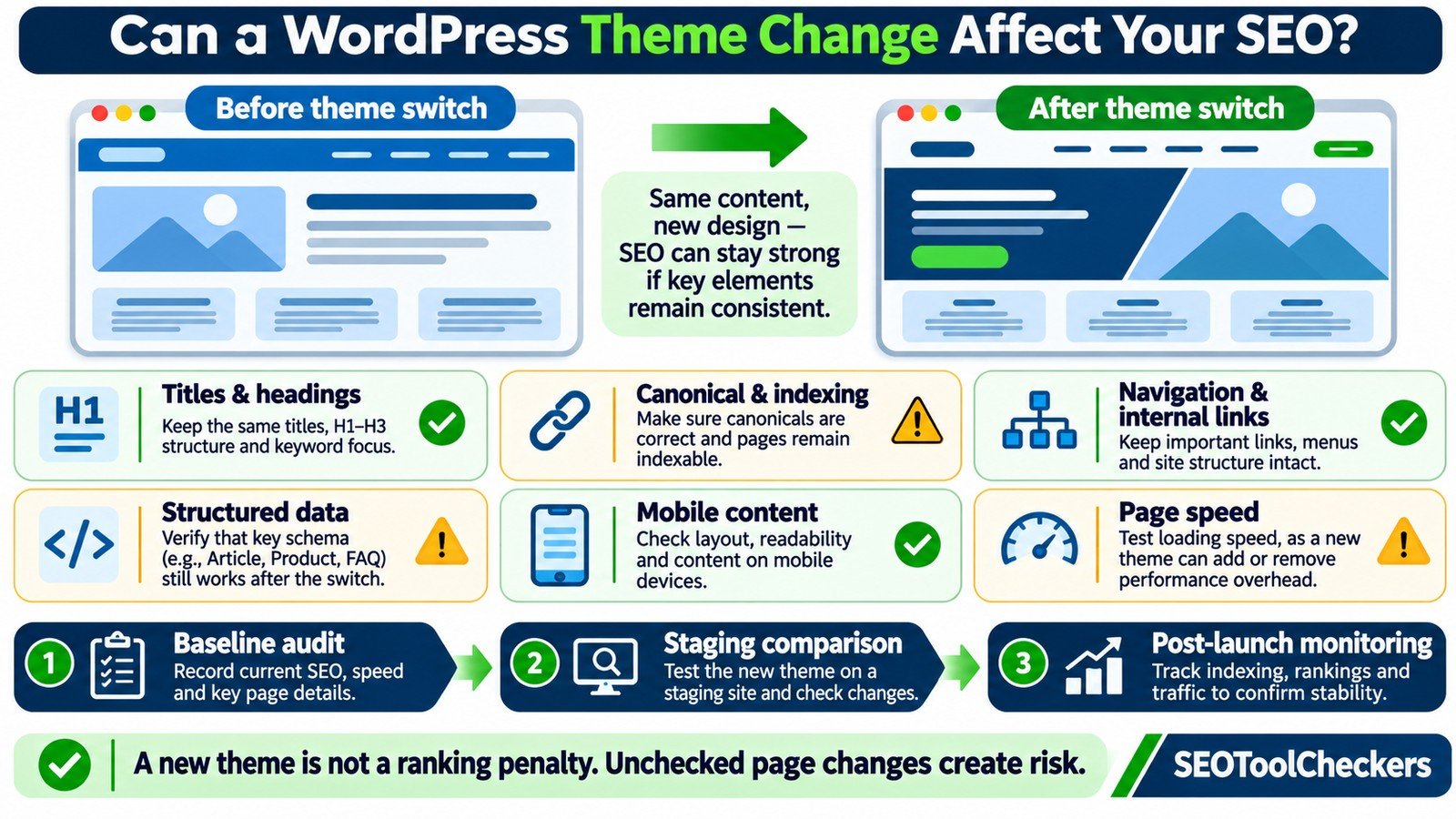
What Actually Changes When You Activate a Different Theme?
WordPress generally stores posts, pages, taxonomies, and media records separately from the active theme. Activating another theme ordinarily changes presentation and theme-specific behavior, not the existence of those records. However, a page’s final HTML depends on templates, blocks, widgets, plugins, and theme features working together. A page can keep the same URL and still produce very different content or metadata.
Classic themes and block themes may manage navigation, templates, and widget areas differently. Menus may need reassignment, previous widgets can move to inactive areas, and theme-specific blocks or shortcodes may not carry over cleanly. Treat the switch as a template migration even when your domain, permalink settings, and content database stay unchanged.
Compare the SEO Elements Most Likely to Be Affected
Build a checklist for the homepage, one category archive, a high-traffic post, a page with a featured image, and any special template such as a product or tool page. The following example is illustrative, not a test of a particular site.
| Element | Before switch | Potential change | Action |
|---|---|---|---|
| Title and meta description | Unique, relevant | Theme or plugin output differs | Compare rendered head tags |
| H1 and headings | Clear article heading | Duplicate H1 or decorative headings | Review heading order and text |
| Canonical and robots | Correct URL, indexable | Staging noindex or wrong canonical remains | Inspect live URL signals |
| Navigation links | Categories discoverable | Menus, breadcrumbs, pagination disappear | Restore crawlable links |
| Structured data | Valid, page-appropriate | Markup removed, duplicated, or inaccurate | Compare extracted schema |
| Mobile content | Main article visible | Tabs or responsive controls hide key copy | Inspect mobile rendered HTML |
| Loading experience | Recorded baseline | New CSS, fonts, scripts, or layout shifts | Test comparable URLs and devices |
Give each item a status: Pass when its essential function remains correct, Review when behavior has changed but the impact is uncertain, and Fix when a critical element is missing or wrong. Save screenshots and URLs with the notes so changes can be reproduced.
Check Titles, H1s, and the Actual Article Text
A new theme might add a page heading above the post title, swap heading styles, or change how the title is rendered. Google may use the document title, the main visual heading, and other visible page content when generating title links. That makes a before-and-after title comparison more useful than counting H1 tags alone.
Inspect the main title, heading hierarchy, intro paragraph, full body text, author information where relevant, and related content. The Heading Structure Checker can help you identify changes in heading order. Avoid replacing useful descriptive headings with generic labels merely to match a design mockup.
Some page builders store layouts in theme-specific templates. If those templates stop rendering, the database may still contain the content while the public page appears empty. Compare the source and rendered HTML to identify text that appears only after scripts run—or does not appear at all.
Keep Indexability and Canonical URLs Consistent
Switching a theme normally does not require new URLs or redirects. Still, a staging-to-production process may leave a noindex directive in place, and custom templates can conflict with canonical tags generated by an SEO plugin. Check a sample of final pages rather than assuming that a working browser view means the page is indexable.
Confirm that important pages return an appropriate successful HTTP status, have no unintended noindex directive, and indicate the intended canonical URL. A self-referencing canonical is common for a page you want indexed under its own address, but canonical selection depends on the site’s duplicate-URL strategy. Use the Website Indexability Checker and Canonical Tag Checker for focused follow-up.
Do not remove a legitimate noindex setting from a deliberately excluded archive, search results page, or temporary staging environment. The goal is to preserve intentional rules, not force every URL into the index.
Why Menus, Breadcrumbs, and Archive Links Matter
Navigation is more than decoration. Internal links help visitors reach important resources and help search engines discover pages and understand their relationships. A theme may replace a text menu with JavaScript-only controls, omit footer links, or change category archives from paginated lists to endless scrolling.
Open the homepage, category archive, and several posts. Make sure important destinations remain linked with standard HTML anchors containing real href values. If a menu only opens after interaction, test whether the links are present in rendered HTML without relying on a click. The Internal Links and Anchor Text Analyzer can support a review of link coverage and descriptions.
Also check breadcrumbs, previous/next controls, sidebar links, and the automatically updated latest-post section if the old design had one. A redesign that looks cleaner but leaves deep pages isolated is an SEO and usability regression.
Audit Schema Without Accidentally Duplicating It
Structured data may come from an SEO plugin, the theme, a product plugin, or a custom template. Changing themes can remove markup from theme-controlled templates or introduce duplicate objects. A new theme may also output information that no longer matches visible content, such as a missing author or an outdated business detail.
Check representative pages with the Structured Data Extractor and Syntax Checker and Google’s Rich Results Test. Compare the types and important properties actually produced, not simply whether JSON-LD is present. Keep schema managed by one appropriate source where possible, and avoid adding identical Article or Breadcrumb objects through multiple layers.
Valid structured data does not guarantee a rich result, and syntax validation does not prove that the content satisfies Google’s quality requirements.
Measure Theme Performance Rather Than Guessing by Design
A lightweight-looking theme can still load extra scripts, remote fonts, oversized hero images, or third-party widgets. Conversely, a better template may improve performance even if the page becomes visually richer. Run the same representative URLs through the PageSpeed Insights Checker before and after the change.
Review Largest Contentful Paint (LCP), Interaction to Next Paint (INP), and Cumulative Layout Shift (CLS). Google’s good-experience thresholds are LCP at or under 2.5 seconds, INP at or under 200 milliseconds, and CLS at or under 0.1, evaluated from field data at the 75th percentile where available. Lab measurements help diagnose individual changes but are not interchangeable with field performance.
Check images, caching, responsive media, and loading priority if scores worsen. A theme may lazy-load a prominent hero image or change its dimensions, which can affect perceived load time and layout stability.
Test the Mobile Version, Including Hidden Content
Desktop and mobile designs may use different menu arrangements, sidebars, and content blocks. Verify that important text, navigation, and links remain available in the mobile rendering. An accordion is not inherently an SEO problem, but critical content should still be accessible and correctly rendered rather than omitted from the mobile page.
Use the Mobile vs Desktop Content Comparison tool to compare key elements. Then test the site by hand on a narrow screen: open menus, follow links, expand content, and confirm that text is readable without horizontal scrolling.
A Three-Stage Theme Change SEO Audit
1. Record a baseline before activation
- Export a list of priority URLs and record current SEO titles, canonicals, heading structures, important internal links, and page templates.
- Save screenshots of the homepage, category pages, and a few representative posts at desktop and mobile sizes.
- Capture current performance reports, Search Console indexing information, and relevant search traffic trends.
- Back up the site and note any custom code, widgets, menus, tracking tags, and theme-specific settings.
2. Compare the replacement theme on staging
- Install and preview the new theme on a separate, access-controlled staging copy where possible.
- Compare the same pages using a consistent audit checklist, including rendered content and working navigation.
- Check special templates: search pages, archives, products, forms, tool shortcodes, and 404 pages.
- Resolve critical failures before launch and record the remaining accepted differences.
3. Verify production after launch
- Check the final live pages, not only staging previews; remove any staging-only indexing restrictions from production.
- Recheck canonicals, metadata, menus, mobile output, schema, and analytics tags.
- Monitor Search Console, crawl errors, performance, and landing-page traffic over time, allowing for normal data delays.
- Roll back or repair the change if core content, indexability, or navigation has clearly broken.
If the redesign also changes domains or permalinks, it becomes a separate URL migration project. In that case, plan destination mappings and redirects with the Website Migration URL Mapper; do not redirect URLs merely because the visual theme changed.
How to Interpret a Traffic Drop After Switching Themes
Start with evidence and timing. Compare the same pages and queries across equivalent date ranges; account for seasonality, reporting delays, other site deployments, and algorithm changes. A decline that begins after launch is worth investigating, but chronology alone does not establish causation.
If pages drop from the index, investigate robots rules, canonicals, HTTP responses, and missing content first. If pages remain indexed but engagement worsens, inspect mobile usability and load performance. If only a section loses visibility, review its template, internal links, and heading changes. Keep a written list of the fixes and their deployment dates so you can see which changes correspond with recovery.
Frequently Asked Questions
Will changing a WordPress theme automatically hurt rankings?
No. There is no automatic penalty simply for activating a different theme. Rankings may change if the new implementation changes important content or technical signals, and outcomes depend on what actually changed.
Does switching themes change my WordPress permalinks?
Normally it does not. WordPress permalink settings are separate from theme appearance. Verify the live URLs anyway, particularly if you also migrated content, changed plugins, or modified rewrite rules.
Can I keep Rank Math or another SEO plugin when changing themes?
Usually, yes. SEO plugins are separate from the theme. After switching, verify the metadata and schema rendered on live pages and look for any competing output from the new theme.
Should I switch back immediately if traffic drops?
Not without diagnosis. Identify whether the issue is missing content, broken navigation, technical directives, or a reporting fluctuation. Rollback is sensible when a serious, reproducible regression cannot be fixed quickly.
For the next step in this WordPress workflow, see how to identify the WordPress theme a site uses.
You can also compare important pages before and after migration.
Official Technical References
- WordPress — Work with themes explains activation and theme behavior.
- WordPress — Manage widgets explains widget-area changes after switching themes.
- Google Search Central — Link best practices describes crawlable internal links.
- Google Search Central — Core Web Vitals documents loading, interaction, and visual stability metrics.
- Google Search Central — Structured data guidelines explains quality requirements and eligibility limitations.