
How to Inspect Googlebot-Accessible Content on JavaScript Pages
Compare source HTML with a captured rendered DOM.
How Can You Check What Googlebot Can See on a JavaScript Page?
To inspect Googlebot-accessible content on a JavaScript page, compare the server’s initial HTML with the page’s rendered HTML, then check Google’s own rendering through Search Console’s URL Inspection tool. Look for essential text, real links, indexing directives, and resources that fail to load. A browser displaying the page correctly is a useful first check, but it does not prove Google fetched the same resources, rendered the same content, or indexed it.
Source vs Rendered HTML Comparison
Compare source HTML with a captured rendered DOM.
Compare server HTML with the browser DOM
Load the public server response or paste source HTML. Then paste the rendered DOM copied from your browser after scripts have run. The comparison is real, but a browser capture is required for JavaScript-rendered pages.
At the target page, open Developer Tools → Console, paste the copied capture code, and paste the resulting HTML into the rendered field below. Review code before running it. This code copies HTML locally; it does not send data to our server.
A Practical JavaScript SEO Audit for Content, Links, and Rendering
JavaScript can build a page after the server sends its first HTML response. That makes a site feel interactive, but it also creates several different versions of the same URL: the initial source, the browser’s finished document, and the content Google’s rendering system actually processes. Those versions may agree, or they may omit different pieces of an important page.
Use the Source vs Rendered HTML Comparison tool as part of the investigation, alongside your browser’s developer tools and Google Search Console. This guide focuses on observable evidence rather than assuming a third-party rendering test exactly reproduces Googlebot. The workflow applies to JavaScript-heavy product pages, single-page applications, interactive directories, and sites that progressively load article sections or navigation.
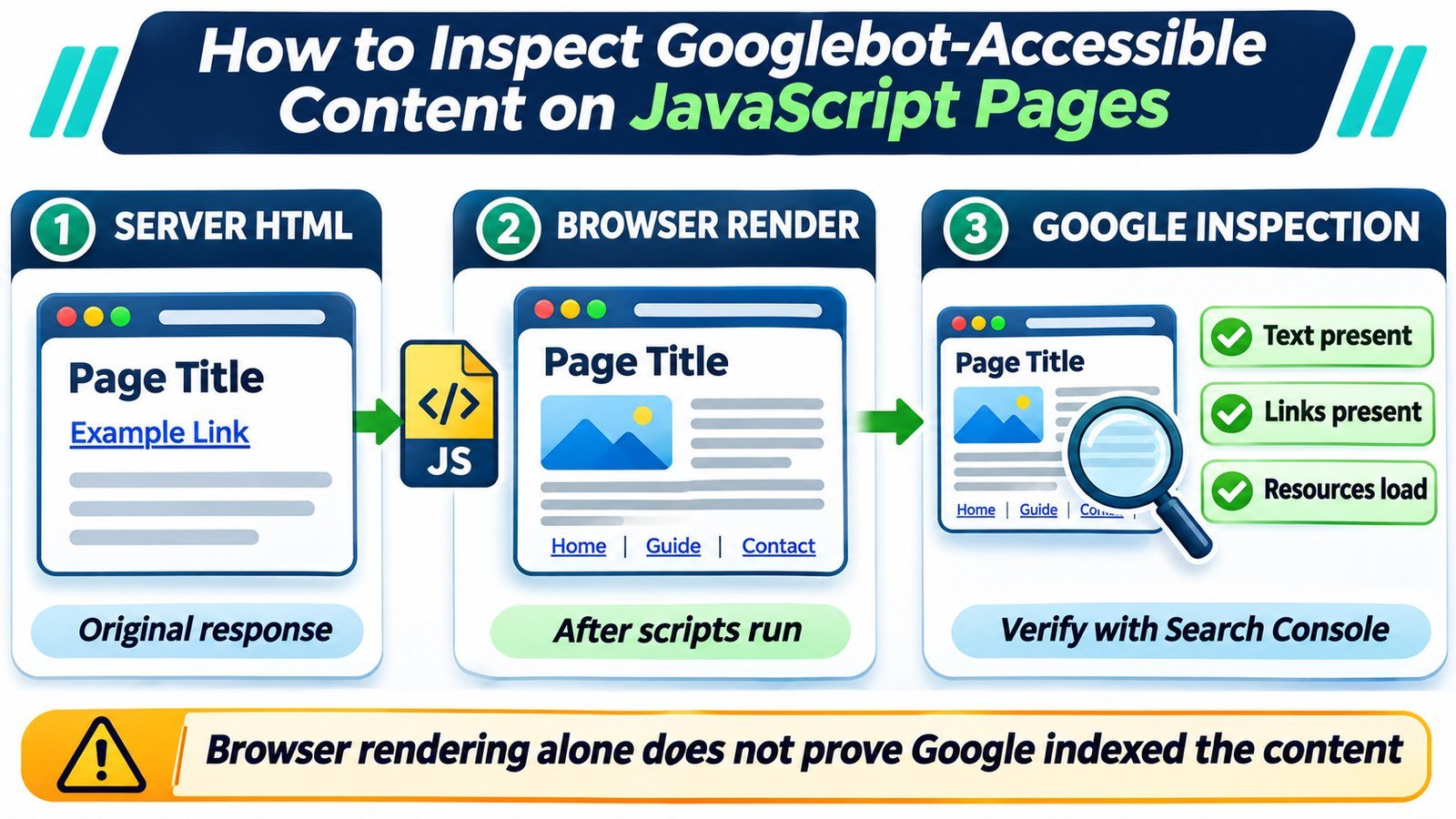
Visible browser content is only one part of an indexing diagnosis. Compare your findings with the distinction between indexable and indexed pages, and check the final page against the technical SEO pre-publish checklist.
1. Compare Three Different Views of the Same URL
The first question is not whether the webpage looks correct on your laptop. It is where the content becomes available. Google’s documented process includes crawling a URL, rendering pages when appropriate, and using the resulting HTML during indexing. That is why the original response and the rendered result should be examined separately.
| View | What it shows | What it cannot establish |
|---|---|---|
| Server response / View Source | HTML received before browser JavaScript modifies the document | Whether later scripts successfully add missing content |
| Browser-rendered DOM | Content and links after scripts run in your current browser session | What Google’s renderer fetched under its own conditions |
| Search Console rendered HTML | What Google’s inspection system retrieved and rendered for the tested URL | A guarantee that the page or every displayed element is indexed |
A missing paragraph in the source is a dependency to investigate, not an automatic failure. Google can execute JavaScript. The more serious finding is that the paragraph is also missing from Google’s rendered HTML or fails to load reliably.
2. Start with the Actual HTML Response and HTTP Status
- Open a representative URL in Chrome and use View page source. Search for a unique phrase from the page’s main content, its H1, and a link to an important child page.
- Open Developer Tools, select Network, reload, and inspect the main document request. Confirm its final URL, HTTP response, and any redirects. A successful response alone does not prove the content is present.
- Check the response for robots directives and a canonical reference. If a page intended for indexing starts with
noindex, do not assume JavaScript can safely remove that directive later. - Note whether the source contains real article or product text or merely an application shell such as
<div id="app"></div>.
For an unexpected redirect or failure, follow up with the Bulk HTTP Status and Redirect Checker. For conflicting indexing directives, use the Website Indexability Checker as another external diagnostic. Neither replaces inspection of Google’s reported indexing data.
3. Inspect the DOM After JavaScript Runs
Right-click the same page and select Inspect. In the Elements panel, find the precise sentence, price, heading, or navigation link you looked for in View Source. The Elements panel reflects the live document after JavaScript has changed it. Compare the actual text and link destinations rather than just the visual layout.
Use Chrome DevTools’ Command Menu to Disable JavaScript, then reload. This reveals which visible elements depend on client-side execution. Treat the test as a dependency check: Google can render many JavaScript pages even if a browser without JavaScript cannot. Re-enable JavaScript afterward.
Next, compare the two versions with the Source vs Rendered HTML Comparison tool where its installed interface supports your inputs. Record missing headings, article paragraphs, href links, canonical elements, and structured data. Because the live tool implementation has not been independently verified here, confirm the available comparison and rendering modes before interpreting results.
Important distinction: An element hidden by CSS can exist in the DOM without being visually prominent. An element missing from the DOM has a different failure mode. Check both the underlying HTML and the visible result.
4. Confirm the Render with Google Search Console
- Open your verified property in Google Search Console and inspect the exact canonical candidate URL.
- Read the initial URL Inspection result first. This describes Google’s recorded index information, not a live fetch of today’s page.
- Select Test live URL. If the test succeeds, open View tested page and inspect the HTML, Screenshot, and More info panels where available.
- Search the rendered HTML for a distinctive line from the main content, important internal links, and any structured data relevant to the page.
- Review page resources and JavaScript console output for loading failures. The screenshot is useful, but a cropped image or content outside the viewport is not enough to prove the content is absent.
- Compare these findings with the indexed-version report and its crawl date, because the older indexed snapshot may differ from the live test.
Google’s URL Inspection documentation explains the difference between indexed data and live-test information. A successful live render is evidence that the test could access content; it is not an indexing guarantee. If content is missing in the Google test but present in your browser, prioritize the network requests and access conditions that differ.
5. Trace Missing Content to the Request That Supplies It
Many JavaScript pages fetch their actual content from an API. In DevTools’ Network panel, filter for Fetch/XHR and identify the request that supplies the missing text or product data. Check its status, response body, redirect chain, and whether a cookie, logged-in session, or browser storage is needed.
Then check whether robots rules block essential JavaScript files or API endpoints from being fetched. The Robots.txt Generator and Tester can help review published rules, but a local simulated result is not proof of the precise response Googlebot received. Site security systems, rate limiting, regional responses, and intermittent backend errors may also affect retrieval.
| Observed symptom | Investigate first | Possible remedy |
|---|---|---|
| Browser shows content; Google test does not | Blocked scripts, failing fetches, session dependencies, or delayed execution | Make essential resources publicly accessible and load content deterministically |
| Only an empty app shell appears in source | Client-only rendering and reliance on APIs | Consider server-side rendering or pre-rendering for core content |
| Links appear only after a click | Event handlers and navigation that is not in anchor markup | Expose important destinations as real <a href="..."> links |
| Products load after scrolling | Scroll-triggered fetches and infinite-scroll navigation | Provide accessible paginated URLs and load visible content without user action |
Raw response says noindex |
Template settings or mismatched page state | Remove the unintended directive from the original response |
| Desktop content differs from mobile | Viewport conditions, responsive DOM swaps, and API responses | Ensure essential content is available on Google’s mobile view |
6. Check Whether Crawlers Can Discover Real Links
Navigation rendered through JavaScript can be discoverable, but important destinations should use standard HTML anchors with real href values. Google warns against relying on URL fragments to load distinct pages in single-page applications. A button with only an onclick handler is not a reliable replacement for a crawlable link.
For example, this is an accessible destination that a crawler can identify once it encounters the markup:
<a href="/guides/javascript-seo/">JavaScript SEO guide</a>By contrast, an interface that reveals the URL only after a user presses a button may hide that path from a crawler that does not interact with the page. Examine the rendered link list and follow up with the Internal Links and Anchor Text Analyzer. For product listing pages with infinite scroll, make sure meaningful chunks have stable, directly accessible URLs rather than relying exclusively on continuous scrolling.
7. Test Mobile Content, Lazy Loading, and Metadata Separately
Google predominantly uses the mobile version of website content for indexing. A desktop-only audit may therefore overlook missing mobile paragraphs, collapsed navigation that never loads, or a script that behaves differently under a narrow viewport. Compare versions with the Mobile vs Desktop Content Comparison tool and inspect mobile rendering in Search Console.
Google Search does not scroll or click through a page to trigger every lazy-load interaction. Implementations that load relevant content when it enters the viewport can work, but do not require a deliberate click or scroll to reveal critical text or links. For infinite-scroll articles and catalogs, provide sensible paginated URLs.
Check SEO metadata as well as visible content. A JavaScript application can accidentally replace a correct server title, inject conflicting canonical tags, or create multiple robots directives. Use the Meta Tags Analyzer and Canonical Tag Checker to inspect the declarations your tools can observe, then confirm what appears in Google’s rendered HTML.
8. Example: A Product Page That Looks Complete but Renders Blank
Illustrative scenario: An ecommerce product URL returns HTTP 200 and a minimal HTML document. After loading in an ordinary browser, JavaScript calls an endpoint and inserts the product name, specifications, reviews, and related products. Your screen looks complete. However, Search Console’s live rendered HTML contains only a loading message and navigation shell.
That difference suggests the problem is not simply that the content is JavaScript-generated. The Google test may not have received the API data, may have encountered a runtime exception, or may have stopped before delayed content appeared. Investigate the specific fetch request and resource list before changing unrelated meta tags.
Once the failing request is identified, a durable solution might be to make the API publicly retrievable, remove a session-only dependency, or render essential product text on the server while keeping interactive features client-side. Retest the exact URL in Search Console. If the live HTML now contains the missing material, you have confirmed a rendering improvement, not guaranteed indexing or higher rankings.
9. A Practical Fix Order for Teams
- Fix access first: Resolve failed document requests, blocked critical scripts, API errors, and unintended robots directives.
- Make primary content reliable: Prefer rendering article text, product details, and crucial links in the initial response or through dependable server-rendered output when practical.
- Stabilize routing: Use persistent URLs and meaningful
hreflinks for important pages. - Review mobile parity: Confirm that the mobile-rendered page includes the same essential information and indexing signals.
- Retest with Google’s tools: Save the live-test findings and compare them after deployment; allow time for Google’s recorded indexed version to update.
Keep one small audit record per URL: date, source status, whether key text is in source, whether it appears in the browser DOM, whether it appears in Google’s rendered HTML, resource errors, and the change made. This makes follow-up testing reproducible. Avoid using a single JavaScript-rendering score as a substitute for examining the evidence.
Frequently Asked Questions
Does Googlebot execute JavaScript?
Yes. Google’s rendering system uses a modern Chromium environment and processes many JavaScript pages, but access, directives, resource failures, and rendering timing can still affect the result.
Is View Source the same as Inspect Element?
No. View Source shows the initial HTML response; Inspect Element displays the browser’s current DOM, including changes made by JavaScript.
Can a tool that renders JavaScript show exactly what Google indexed?
No. A third-party browser render is a diagnostic snapshot. Google Search Console supplies Google’s reported inspection and indexing information, and even a successful live test does not guarantee inclusion.
Must every important paragraph appear in the initial HTML?
Not as an absolute requirement for Google, which can render JavaScript. Including primary content in server-rendered HTML can make delivery more reliable and help crawlers that do not render JavaScript.
Why does Google show a loading message instead of my content?
Possible causes include an API request failure, a blocked resource, delayed execution, an authentication dependency, or a JavaScript error. Inspect the Google test’s HTML, resource list, and available console output.
Official Technical References
For the underlying rules, read Google’s JavaScript SEO basics, JavaScript troubleshooting guidance, lazy-loading recommendations, and URL Inspection help. Google’s rendered-source instructions provide an additional explanation of source HTML versus rendered HTML. Consult these alongside your own URL-specific evidence.