Source HTML vs Rendered HTML: Why Google May See Something Different
Compare source HTML with a captured rendered DOM.
What Is the Difference Between Source HTML and Rendered HTML?
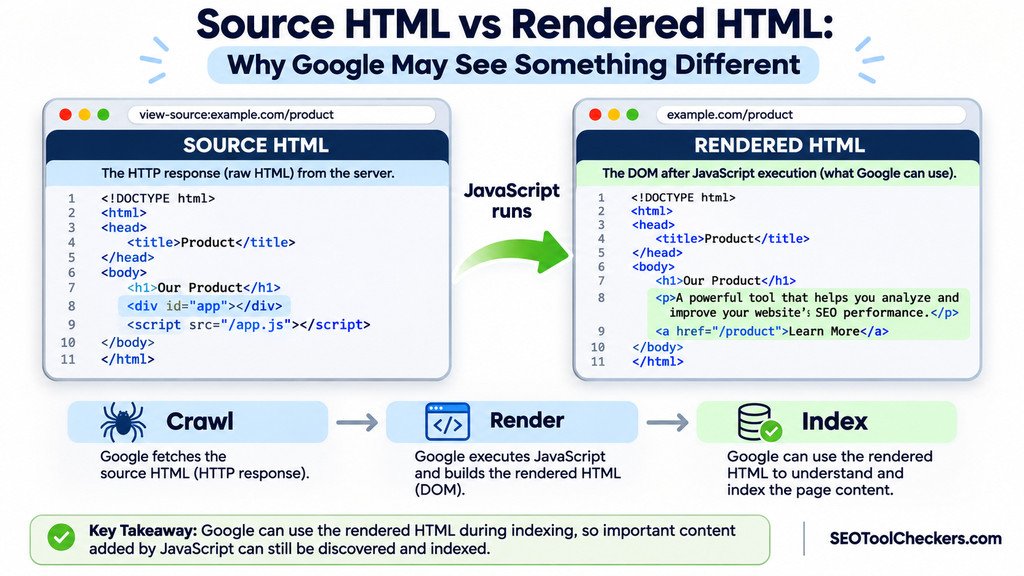
Source HTML is the markup a server initially sends to a browser or crawler. Rendered HTML is the page’s document structure after the browser has parsed that markup and JavaScript has had a chance to change it. Google can render JavaScript and use the resulting content for indexing, but scripts, blocked resources, and loading conditions can create differences. Comparing both versions helps you find important text and links that may be missing when Google processes your page.
Source vs Rendered HTML Comparison
Compare source HTML with a captured rendered DOM.
Compare server HTML with the browser DOM
Load the public server response or paste source HTML. Then paste the rendered DOM copied from your browser after scripts have run. The comparison is real, but a browser capture is required for JavaScript-rendered pages.
At the target page, open Developer Tools → Console, paste the copied capture code, and paste the resulting HTML into the rendered field below. Review code before running it. This code copies HTML locally; it does not send data to our server.
How to Find the HTML Google Can Actually Use
A webpage can look complete in your browser while delivering very little meaningful content in its first HTML response. This often happens when a JavaScript application sends an empty container and builds its product details, headings, or navigation after loading. Google is capable of processing many JavaScript-powered pages, but a successful render is not guaranteed in every situation.
The useful question is not simply whether JavaScript appears on the page. It is whether a crawler can access the page, load the necessary resources, and find the content and links in its rendered document. A source-versus-rendered comparison identifies what changes. Google Search Console then helps establish what Google’s own testing environment could retrieve. The two methods answer related, but different, questions.
Source code, DOM, and rendered output are not the same thing
View Page Source shows the HTML received for the document request, including markup and script references, but not later JavaScript changes.
The Document Object Model (DOM) represents the live page. JavaScript can change its nodes. Chrome DevTools’ Elements panel shows this current DOM, not necessarily the original source.
Rendered HTML represents the document after scripts execute. It may differ from what a person sees after clicking, logging in, or scrolling; every snapshot reflects particular conditions.
| Question | Source HTML | Rendered HTML or DOM |
|---|---|---|
| When is it captured? | At the initial document response | After parsing and some or all script execution |
| Can it contain JavaScript-added text? | Not unless the server already included the text | Yes, when the script finishes successfully |
| Where can you inspect it? | View Page Source or document response | Browser Elements panel or a rendering test |
| Does it prove what Google indexed? | No | No; Google-specific inspection provides stronger evidence |
| Main SEO use | Check content and metadata available immediately | Check content and links available after rendering |
A simple example of content that appears after JavaScript
Imagine a product page whose server response contains a heading and an empty application container. The description arrives from an API and is inserted later. The initial response might resemble this simplified example:
<main>
  <h1>Trail Running Shoes</h1>
  <div id="product-details"></div>
</main>
After JavaScript runs successfully, an inspection of the DOM might reveal:
<main>
  <h1>Trail Running Shoes</h1>
  <div id="product-details">
    <p>Water-resistant shoes with a grippy outsole.</p>
    <a href="/shipping/">Shipping information</a>
  </div>
</main>
The description and link are real page content, but they depend on the script and its data request. If that request fails for a crawler, the content may never appear in the rendered document. Conversely, content that renders reliably can be used by Google. Missing from source does not automatically mean missing from Google’s index.
How Google crawls, renders, and processes JavaScript
- Crawl: Googlebot requests the URL, checks applicable crawling restrictions, receives an HTTP response, and can discover links in the returned markup.
- Render: Eligible pages can enter a rendering queue. Google’s rendering system uses Chromium to execute JavaScript and build a rendered document. Rendering can occur after the original crawl, rather than instantly.
- Process and index: Google can extract additional links and content from rendered HTML, then consider the page for indexing. Being renderable or technically eligible does not guarantee indexing or ranking.
Google supports JavaScript rendering, but putting essential text and links in the initial HTML reduces dependencies. Server-side rendering, static generation, and hydration can help.
Compare both versions without mistaking browser output for Google output
- Start with the intended public URL. Confirm it loads without logging in and returns the correct page rather than an error or redirect to unexpected content.
- Inspect the source. Open the URL in a desktop browser, choose View Page Source, and search for a distinctive sentence, the page’s main heading, and one internal link.
- Inspect the DOM. Open DevTools, choose Elements, and search for exactly the same items. If they appear only now, identify which script or API request supplies them.
- Compare the page systematically. The Source vs Rendered HTML Comparison tool is the planned starting point for investigating differences between the original and rendered versions. Confirm its available input modes and comparison output on the live interface before relying on a specific feature.
- Check Google’s view. In Search Console, inspect a property URL, choose Test live URL, then View tested page and its HTML output where available. Search for the same sentence and link. Review the screenshot, console messages, and resource information when provided.
- Separate live testing from indexed evidence. A successful live test shows what Google’s test could access now. It is not proof that the current version was indexed or that Google will choose it for search results.
For mobile discrepancies, use Mobile vs Desktop Content Comparison. Layout differences are normal; missing text or links deserve investigation.
Which differences are normal, and which deserve investigation?
| Difference found | Likely significance | Next check |
|---|---|---|
| Navigation opens or closes dynamically | Often a normal interface change | Confirm destination links have real href values |
| Article body absent from source but present in rendered DOM | May be indexable, but depends on successful rendering | Inspect Google’s rendered HTML |
| Important content absent from both versions | Likely a content-delivery or application problem | Inspect failed API requests and script errors |
| Different canonical tags before and after scripts | Can send conflicting URL signals | Review the initial and final canonical |
| Content appears only after clicking a button | May not be discovered by crawlers that do not click | Make essential content accessible without interaction |
| Description changes according to a logged-in account | Google may see the anonymous version instead | Test the public, signed-out page |
Five reasons Google may receive an incomplete render
1. Scripts or data requests fail
JavaScript exceptions, failed API requests, or reliance on stored browser data can leave elements empty. Check network responses and console errors, including in a signed-out session.
2. Important information requires user interaction
Crawlers do not explore pages like human visitors. Avoid requiring clicks or manual scrolling to expose essential text and links. Implement lazy loading with crawler access in mind.
3. Crawling restrictions prevent resource access
If robots.txt blocks a page or a script needed for rendering, Google’s rendering system may not be able to assemble the intended content. Use the Robots.txt Generator and Tester to review intended rules, then confirm actual crawler access in Google’s tools.
4. The HTML sends conflicting indexability signals
A noindex directive in the initial HTML can cause Google to skip rendering. Do not rely on JavaScript to remove that directive later. Similarly, conflicting canonical tags can confuse the preferred URL signal. The Website Indexability Checker and Canonical Tag Checker help organize these separate checks.
5. The page renders differently in a test environment
Rendering varies with viewport, user agent, timing, caching, and resource access. Compare representative conditions; no single screenshot guarantees how every crawl will behave.
What to fix first when a key paragraph is missing
Prioritize the elements that carry page meaning: unique product details, the primary description, navigational links, headings, and content that differentiates one URL from another. Then work through this order:
- Restore access. Resolve HTTP failures, authentication barriers, and blocked essential resources.
- Repair application errors. Fix failed JavaScript or API calls, and make empty states meaningful instead of silently returning blank containers.
- Deliver critical content reliably. Consider server-rendering or pre-rendering core text and anchor links rather than waiting for a client-only fetch.
- Align document signals. Keep the intended title, canonical, and robots directives consistent between the response and rendered document.
- Retest with Google. Check live rendered HTML, review the indexed inspection data when available, and allow time for Google’s systems to revisit the URL.
A WordPress page builder does not automatically create a rendering problem. Inspect the actual response: article content may be server-rendered while embedded widgets behave differently.
Frequently asked questions about rendered HTML and SEO
Does Google index JavaScript-generated content?
Yes, Google Search can render JavaScript and use content found in the resulting HTML. The practical limitation is whether that content is accessible when Google’s rendering system processes the URL.
Is View Page Source the same as Inspect Element?
No. View Page Source shows the initial document markup, while Inspect Element shows the browser’s live DOM, including changes made by scripts.
If text is missing from source HTML, will it hurt rankings?
Not necessarily. If Google can render the text, it can use it. The risk rises when essential content requires unreliable requests or interactions, so confirm the rendered result rather than assuming a ranking problem.
Does a successful live URL test mean the page is indexed?
No. A live test evaluates the current accessible page under test conditions. The indexed record and Google’s indexing decisions are separate. A page can pass a live test and still not be indexed.
Should every site use server-side rendering?
No. Server-side or static rendering helps deliver critical content early, but correctly implemented client-rendered sites can also be discoverable.
The practical takeaway
Compare source and rendered HTML to discover where content changes, then use Search Console to check what Google could actually retrieve. Treat a source-versus-DOM difference as a diagnostic clue, not an automatic SEO penalty. If the key text, links, and indexing signals are accessible and consistent, JavaScript itself is not the problem.