Common WordPress CSV Import Errors and How to Prevent Them
Review WordPress import rows, fields and SEO metadata before uploading.
Why Do WordPress CSV Imports Fail?
WordPress CSV imports commonly fail when the file uses the wrong delimiter or encoding, contains malformed rows, lacks headers expected by the importer, or repeats an identifier that should be unique. Sometimes the import completes but places data in the wrong fields. The safest approach is to validate the CSV structure, confirm its column mapping and update rules, then test a small batch before importing the full dataset.
WordPress CSV Import Validator
Review WordPress import rows, fields and SEO metadata before uploading.
Review WordPress post or tool import CSV files
Checks headers, titles, slugs, duplicate rows, dates, post statuses, missing shortcodes and common data problems. CSV files stay in your browser. It does not publish or import posts, and cannot guarantee compatibility with every third-party importer.
Diagnose CSV Import Problems Before They Damage WordPress Data
A CSV file can look correct in a spreadsheet and still be unsuitable for a WordPress importer. Quoted commas, invisible characters, inconsistent column counts and unexpected identifiers may not become obvious until records are skipped, duplicated or written into the wrong fields.
The first question is which importer are you using? WordPress’s standard Tools > Import flow imports WordPress content from WXR/XML files; it is not a universal posts-and-pages CSV importer. CSV import workflows depend on the plugin or application, such as WooCommerce’s product importer or a dedicated posts importer. Each has its own expected headers, supported fields, matching rules and limitations. Start with the exact importer’s sample template and documentation, rather than assuming a CSV format will work everywhere.
Recognize the Error Before Editing the CSV
A failed upload, a rejected row and a successful import with incorrect values are different problems. Identify the symptom first. If an import log provides a record number or error message, preserve that evidence before changing the file.
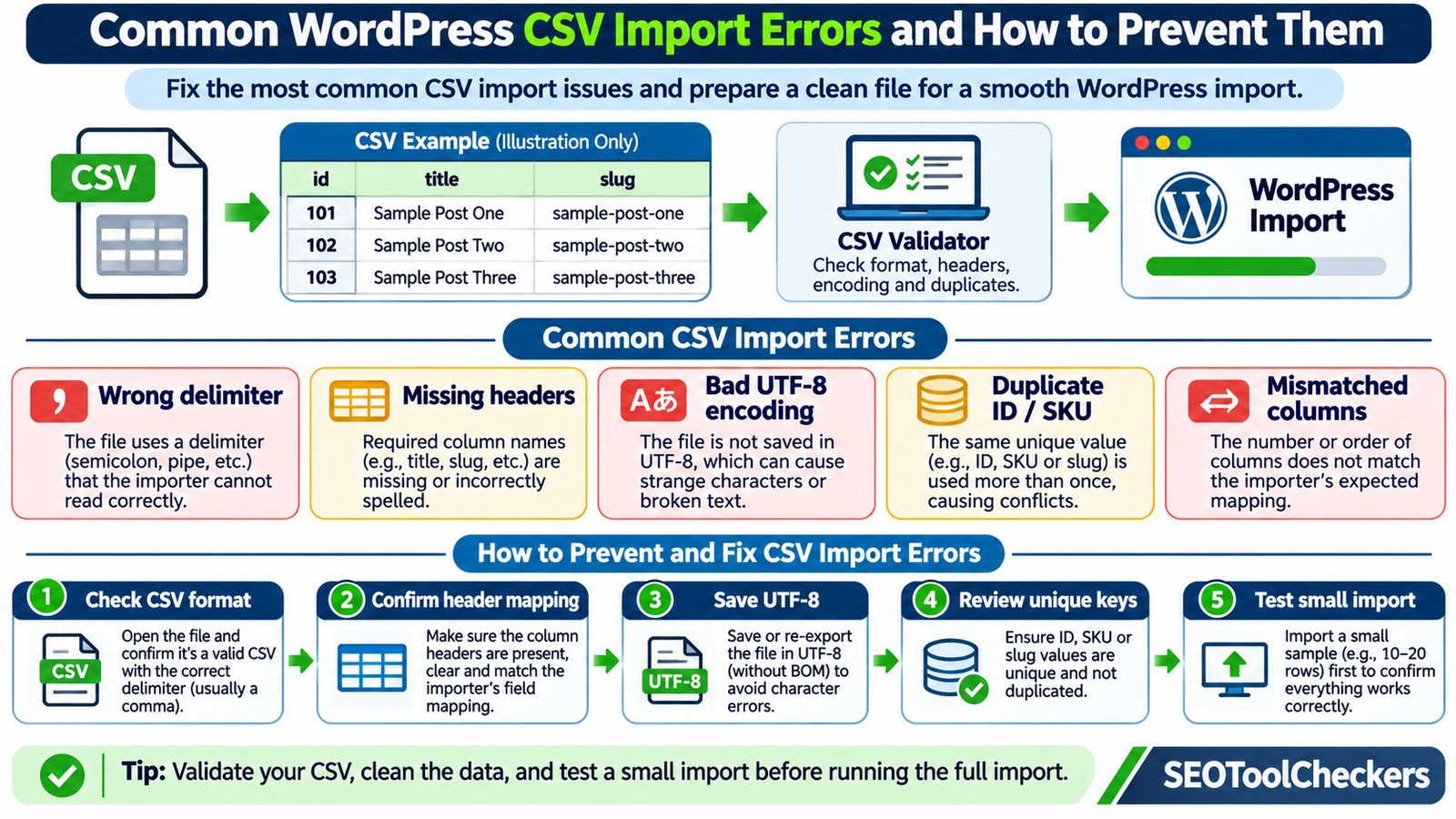
| Symptom | Likely cause | First check |
|---|---|---|
| Every row appears as one column | Wrong delimiter | Inspect commas, semicolons and mapping settings |
| Some records have shifted values | Unquoted separator or broken quotes | Compare parsed field counts |
| Required field is missing | Header mismatch or empty source value | Compare headers with the importer’s schema |
| Accents or non-Latin text look wrong | Character encoding mismatch | Check original encoding and export as UTF-8 |
| Rows are skipped or overwritten | Conflicting ID, SKU or unique key | Check duplicates and update settings |
| Import stops midway | Resource limit, malformed row or plugin failure | Read logs and inspect imported records |
For a structure-first inspection, open the CSV Structure Validator. Use its findings as a preflight aid, not as proof that a particular WordPress plugin will accept every column.
1. Wrong Delimiter Splits Columns Incorrectly
CSV usually means comma-separated values, but some spreadsheet exports use semicolons, tabs or another separator depending on software and regional settings. When an importer expects commas but reads semicolons, a row may be interpreted as a single field. When it assumes the wrong separator, the preview can show shifted columns.
Open the file in a plain-text editor and inspect the first few data records. A simple comma-separated row might look like this:
external_id,title,slug
101,First Post,first-post
102,Second Post,second-post
That is an illustrative template, not a universal WordPress import schema. If the source actually uses semicolons, change the export setting or the importer’s delimiter option when available. Do not blindly replace every semicolon with a comma; punctuation inside legitimate content could be damaged.
2. Commas and Line Breaks Inside Cells Are Not Quoted
CSV supports commas and even line breaks inside a field, provided that field is enclosed in double quotes. A title such as Design, Testing and Launch must not create an extra column. Embedded quotation marks are represented by two quotation marks inside a quoted field.
external_id,title,summary
201,"Design, Testing and Launch","A practical, staged guide"
202,"A ""Quick"" Checklist","Includes review steps"
Count parsed fields, not visual lines, because a quoted field may span multiple lines. The rules for quoted CSV fields are described in RFC 4180. If an import preview shows six columns where the header defines three, investigate unbalanced quoting before editing any other data.
3. The Importer Cannot Recognize Required Headers
A CSV may be technically valid yet incompatible with its destination. For example, one plugin might expect post_title while another uses title; a WooCommerce product import has its own column definitions. Hidden spaces and duplicate column names can also break mappings.
- Export a sample or download the template from the exact importer.
- Compare column names character by character, including spaces and capitalization where the importer cares about them.
- Confirm that each required field has a value in rows where it is mandatory.
- Review the mapping screen to ensure that every source column points to the intended destination field.
Do not assume a field called id, slug, price or status behaves the same in every importer. A field can be optional in one workflow and required in another.
4. UTF-8 Encoding Is Missing or Characters Become Corrupted
Encoding problems often appear as replacement symbols, garbled accented letters or damaged Urdu and other non-Latin text. Some importers expect UTF-8 and cannot correctly interpret an older Windows encoding. Reopening the file in an editor and saving it in UTF-8 is often effective only after the editor correctly decodes the original bytes.
Check whether your importer accepts a UTF-8 byte-order mark (BOM). A BOM may be recognized automatically, ignored or mistakenly included in the first header name, depending on the parser. Test the importer’s preferred UTF-8 variant using a small file containing real non-English characters.
Keep an untouched copy of the original CSV before making encoding changes. Repeatedly saving a file after text has already been misdecoded may make recovery harder.
5. Duplicate IDs, SKUs and Keys Cause Skips or Overwrites
Importers often need a stable way to decide whether a row represents a new object or an update to an existing object. The relevant identifier may be a product SKU, a numeric record ID or an importer-specific unique key. When two rows share the same key, one may be skipped or overwrite another, depending on import settings.
Check three separate conditions: duplicates within the CSV, keys that already exist in WordPress, and whether the import is configured to create new records or update matches. These are not interchangeable checks.
For a product catalogue, the Duplicate SKU Finder is a useful companion. For general text-based keys, the Duplicate Line Remover may help examine a separately extracted list; do not run it on the original multi-column CSV because removing whole lines could discard legitimate records.
In WooCommerce, existing products can be matched using supported identifiers such as ID or SKU. In WP All Import, a unique identifier is associated with the configured import, and matching existing records has separate settings. Always confirm the chosen importer’s documented behavior before retrying.
6. Numbers, Dates and Status Values Change During Export
Spreadsheet applications can silently alter data. A reference value such as 00125 may become 125, and long identifiers may be reformatted. Dates can be converted to an unexpected locale, while empty cells may be interpreted differently from zeros.
Preserve IDs, ZIP codes and other identifier-like values as text. Check decimal separators for numeric fields, date formats for the target importer, and any documented status values. For example, WooCommerce defines specific values for its Published column; those values should not be treated as universal WordPress post-status codes.
When importing prices or stock values, review a few source rows and the final mapped records before running a full catalogue update.
7. The File Uploads, but the Column Mapping Is Wrong
A completed import is not automatically a successful import. A row can reach WordPress with the title in the excerpt field, missing categories, an unexpected status or blank custom fields. This usually indicates a mapping or content-type mismatch, not a CSV syntax error.
Use the import preview to review at least one straightforward row and one row containing special characters, empty values or multiple categories. Verify parent-child relationships when the data includes product variations or hierarchical content. Check whether unsupported columns are ignored rather than imported.
If you also work with other data formats, the CSV and JSON Converter may help inspect field/value associations during preparation. Converting formats alone does not solve a WordPress plugin’s mapping requirements.
8. Large Imports Time Out or Leave Partially Created Content
Large CSV files can exceed memory, execution time or upload limits set by the hosting environment. A timeout does not necessarily roll back earlier rows: records may already have been created when the process stopped.
Before retrying, review the import history and inspect the destination for partial results. On a staging site, test a small batch, then use modest, traceable batches for the full job. Keep a record of which external identifiers appeared in each batch so you can avoid accidental duplicates if a run ends early.
Do not raise server limits or re-run an update import blindly. First establish whether the error is a real resource limit or a corrupt record that fails at the same position each time.
A Repeatable Preflight Workflow for Any CSV Import
- Back up the site and the source file. Work on staging when the import will update published content.
- Identify the destination schema. Get the correct CSV template and confirm required fields.
- Inspect the structure. Check the delimiter, quoting, column counts, header row and file encoding.
- Review identifier policy. Decide what qualifies as new, existing or duplicate, and confirm the importer’s update setting.
- Run a small representative test. Include blank cells, quoted commas, non-English text and existing keys where relevant.
- Inspect results in WordPress. Compare actual fields, statuses, taxonomy terms, media and URLs against the source.
- Import in controlled batches. Preserve logs and do not retry partial runs until existing records are reconciled.
For an import involving URLs or media attachments, check the destination paths and file availability separately with the WordPress Media URL Mapper. A syntactically valid CSV cannot guarantee that an external media URL is reachable.
How to Judge Whether a CSV Is Ready for WordPress
Use three distinct outcomes. Pass: the file parses consistently, headers match the importer and the test records produce correct WordPress objects. Review: the format is valid but optional fields, duplicate identifiers, or mapping decisions still need an owner’s approval. Fail: the CSV cannot be parsed reliably, required fields are absent, or a test import produces wrong or duplicate records.
Even after a clean preflight, manually inspect a sample of the completed content. File validation catches structural problems; it does not prove the imported pages, products or custom fields are editorially correct.
Frequently Asked Questions About WordPress CSV Imports
Does WordPress support CSV uploads for posts and pages by default?
The standard WordPress content import/export workflow uses WXR/XML for WordPress content. General CSV imports for posts and pages normally require an appropriate plugin or custom process. WooCommerce supplies a product-specific CSV importer.
Why does my CSV import create duplicate posts?
The update option may be disabled, the matching identifier may have changed, or a previous failed run may already have created records. Inspect import settings and the existing data before running the same file again.
Can I fix a CSV by changing its extension?
No. Renaming an Excel workbook or text file to .csv does not convert its internal format. Use the application’s actual CSV export function and inspect the resulting text.
Should every CSV file use a comma delimiter?
Not necessarily. CSV-compatible workflows may support other delimiters, but the file and importer must agree. Use the format documented by the destination tool.
Will a successful validation guarantee a successful import?
No. A parser can confirm consistent rows while a plugin still rejects unsupported fields, duplicate identifiers, invalid media URLs or an inappropriate update configuration. Always perform a controlled test import.
For the next step in this WordPress workflow, see how to review the contents of a WordPress XML export.
You can also convert redirect rules between WordPress plugins.