Markdown to HTML for WordPress: Formatting Without Broken Tags
Convert common Markdown and HTML content in either direction.
How Do You Convert Markdown to HTML for WordPress Without Breaking Formatting?
Convert Markdown with a parser that recognizes headings, paragraphs, lists, links, and fenced code blocks, then inspect the generated HTML before pasting it into WordPress. Use appropriate heading levels, preserve list containers, escape code samples, and check link destinations. A successful conversion creates well-structured markup; it does not automatically make untrusted HTML safe or guarantee that every WordPress block will accept the result unchanged.
Markdown and HTML Converter
Convert common Markdown and HTML content in either direction.
Safe HTML preview
A Reliable Markdown-to-HTML Workflow for WordPress Posts
Markdown is a convenient way to draft articles because it keeps formatting readable while you write. WordPress, however, ultimately displays HTML. Problems begin when a converter produces unexpected heading levels, incomplete lists, malformed links, or code samples that the browser interprets as markup rather than displaying as text.
The solution is not to remove all formatting. It is to convert deliberately, check the output, and use the appropriate WordPress editing method. Start with the Markdown and HTML Converter to transform a small representative sample. Review both its markup and the rendered result before processing a long post. The steps below show what correct structure looks like, where different Markdown implementations can disagree, and how to troubleshoot the WordPress editor without losing content.
Understand What Markdown Conversion Actually Changes
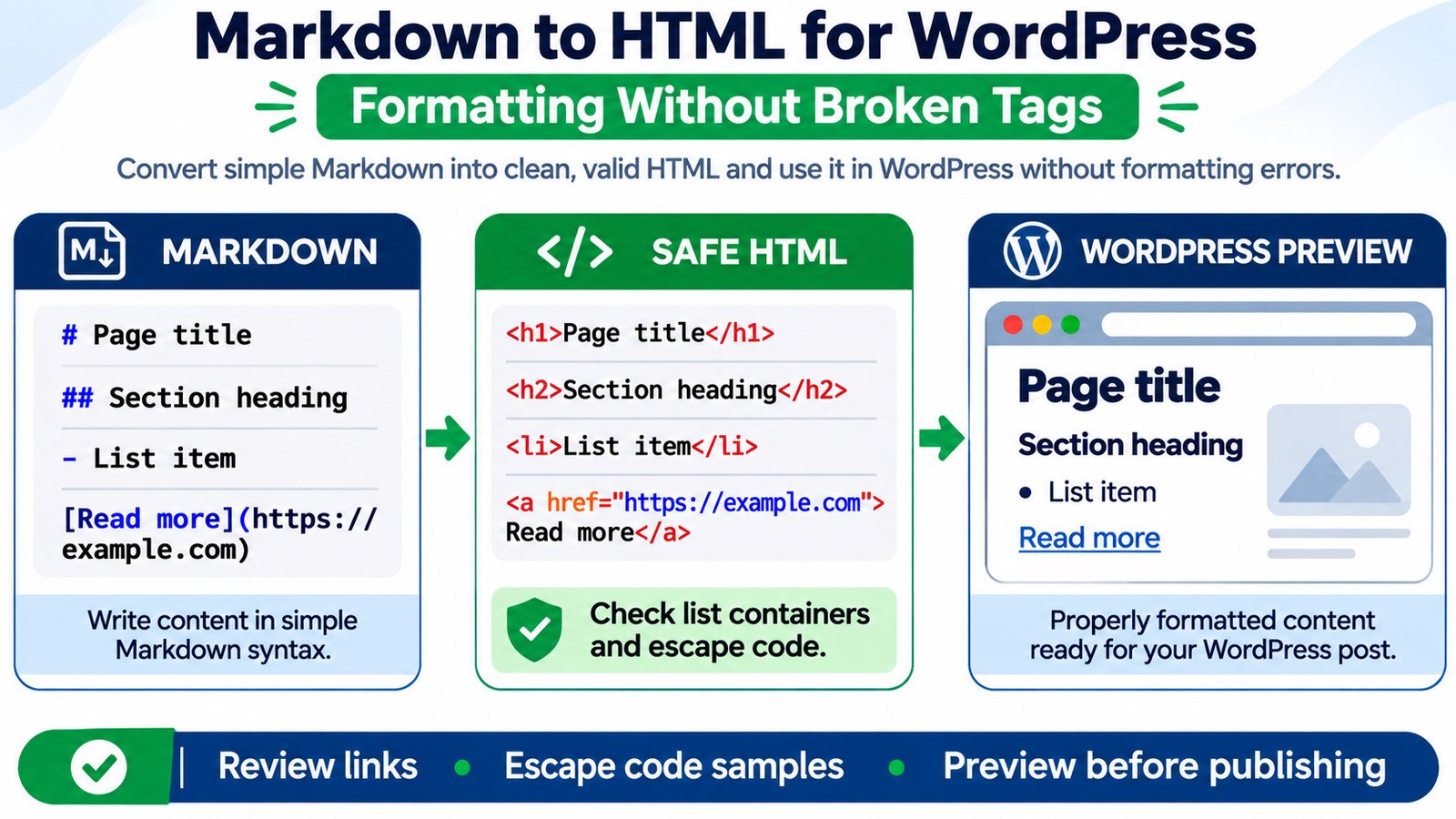
Markdown is plain text with markers such as ## for a second-level heading, ** for strong emphasis, and a hyphen followed by a space for a list item. A parser recognizes those markers and turns them into elements such as <h2>, <strong>, and <ul>. The browser then renders the HTML using the site’s stylesheet.
Conversion does not set your page title, SEO metadata, featured image, or WordPress permalink. It also does not fix incorrect statements in the copy. Most importantly, Markdown conversion and HTML sanitization are different operations: conversion handles syntax; sanitization restricts potentially unsafe markup and attributes.
Compare Common Markdown Patterns With Their HTML Structure
| Markdown pattern | Typical HTML output | What to check |
|---|---|---|
## Section name |
<h2>Section name</h2> |
Correct heading level beneath the post title. |
**Important** |
<strong>Important</strong> |
Balanced markers and readable emphasis. |
- First item |
<ul><li>First item</li></ul> |
The list has a parent container. |
[Read guide](/guide/) |
<a href="/guide/">Read guide</a> |
Correct destination and helpful link text. |
| Backtick-delimited inline code | <code>example</code> |
Code remains literal, not executed. |
| Three-backtick fenced code | Usually <pre><code>...</code></pre> |
Special characters are escaped and preserved. |
These are standard patterns, not a promise about an untested tool configuration. Some parsers add language classes to code blocks or support extensions such as tables; others do not. The output is the evidence of what the converter actually understood.
A Worked Example With Headings, Links, and Lists
Suppose an editor prepares the following Markdown fragment for the body of a WordPress article. It intentionally begins with an H2 because the WordPress theme already prints the post title as an H1.
Markdown input:
## Check Your Article Before Publishing

Review the **main heading** and link destinations.

- Confirm the page purpose.
- Check the [HTML converter](/markdown-html-converter/).
- Preview on mobile.
Expected semantic HTML:
<h2>Check Your Article Before Publishing</h2>
<p>Review the <strong>main heading</strong> and link destinations.</p>
<ul>
  <li>Confirm the page purpose.</li>
  <li>Check the <a href="/markdown-html-converter/">HTML converter</a>.</li>
  <li>Preview on mobile.</li>
</ul>
The exact whitespace may vary, but the element hierarchy should not. The list is enclosed by <ul>, each item uses <li>, and the link belongs inside its list item. If your preview displays the raw ## markers, the input was treated as plain text rather than converted Markdown.
Place Converted HTML Into the Right WordPress Editor
- Back up the draft. Save the Markdown source before changing formats, especially for long posts with tables and code examples.
- Convert a short sample first. Test a heading, a link, a list, and a code block before using the converter on the complete article.
- Inspect the HTML. Check tag pairs, heading order, link URLs, and any unusual attributes. Use the HTML Formatter to make dense markup easier to inspect; formatting code does not itself prove that it is valid.
- Choose the editing context. In the WordPress block editor, a Custom HTML block is appropriate when you intend to preserve an HTML fragment. The post-level Code editor is a different view of a block-based document and may include WordPress block comments. Pasting arbitrary HTML there is not always equivalent to creating ordinary blocks.
- Preview before publishing. Inspect desktop and mobile views. Follow at least one internal link, test any lists and tables, and check that code examples display as text.
- Reopen the editor after saving. Confirm that the content survives the save cycle. Role permissions or editor validation may alter markup.
If you want native Paragraph, Heading, and List blocks for future editing, consider creating those blocks from the Markdown or converting the inserted material with WordPress tools where supported. A Custom HTML block is a good fit for controlled markup, but its contents are not the same as separately editable native blocks.
Prevent Heading Levels From Colliding With the Page Title
A Markdown document often starts with # My Article Title. On a typical WordPress single-post template, the theme already generates the article’s visible H1 using the post title field. Pasting another H1 into the body can create an unnecessary duplicate heading. The practical editorial approach is to enter the title in WordPress and begin the article’s main sections at H2, with nested subsections at H3.
This is a structure recommendation, not a claim that every page must have exactly one H1. What matters is that headings describe the content in a sensible hierarchy. Use the Heading Structure Checker to review a published page, keeping in mind that a converter preview alone does not include the heading supplied by the WordPress theme.
Why Fenced Code Blocks Sometimes Break a Post
A fenced code block tells the Markdown parser to display code literally. For example, a code sample containing <section> must not accidentally open a real section in the article. Correct HTML output places escaped characters within a code container, commonly <pre><code>...</code></pre>.
Check four details: the opening and closing backtick fences are present; the converter recognizes the fence; angle brackets inside the output are escaped as < and >; and the WordPress preview shows the sample rather than treating it as active HTML. Language labels after the opening fence may become CSS classes if the parser supports them, but syntax highlighting is not guaranteed by HTML conversion alone.
When an HTML example appears to disappear, examine the saved source before blaming WordPress styling. If you accidentally pasted active tags rather than escaped code, the browser may have interpreted the snippet as markup.
Fix Links That Look Correct but Lead to the Wrong Place
Markdown links follow the pattern [visible text](destination). During conversion, the destination becomes the href attribute of an anchor element. That sounds straightforward until relative URLs, missing parentheses, unexpected spaces, or copied tracking parameters change the intended target.
- Check relative links. A path beginning with
/is relative to the site root; one without the leading slash may resolve relative to the current page’s path. - Review labels. Use descriptive anchors instead of repeating “click here.”
- Inspect protocols. Do not knowingly publish links with unsafe schemes or suspicious destinations.
- Confirm the final page. A link may be syntactically valid but point to a deleted article or redirect chain.
For site maintenance, evaluate important destinations using the Bulk HTTP Status and Redirect Checker where relevant, and always confirm the live navigation yourself.
Know the Difference Between Broken HTML and Sanitized HTML
If an element is present before saving but missing afterward, that is not necessarily a converter bug. WordPress can filter markup based on the user’s capabilities and the site environment. Its wp_kses() family of functions allows specified HTML tags and attributes while filtering disallowed ones. Do not assume that a contributor, author, and administrator can all save the same raw HTML on every site.
Equally important, do not treat a Markdown parser as an HTML security filter. Some Markdown implementations permit raw HTML in the input, and links or images can carry destinations that require validation. When importing third-party or AI-generated material, review it before use, keep WordPress updated, and rely on appropriate server-side sanitization for untrusted content. Avoid inserting scripts or event-handler attributes simply to make a visual element work.
Troubleshoot Common Markdown-to-WordPress Formatting Failures
| What you see | Likely area to inspect | First useful fix |
|---|---|---|
Raw ## or ** visible |
Conversion or paste method | Convert to HTML before inserting into a Custom HTML block. |
| Bullets missing or oddly indented | List containers and theme CSS | Confirm a complete <ul> or <ol> structure. |
| Code sample changes page layout | Escaping and code boundaries | Use escaped characters inside <pre><code>. |
| WordPress reports invalid block content | Block markup mismatch | Review the affected block; consider Custom HTML rather than editing generated block markup. |
| Markup disappears after save | HTML filtering and permissions | Check allowed markup and editor role; remove unsafe constructs. |
| Links open unexpected locations | Relative paths and URL formatting | Inspect every generated href and test the final URL. |
For difficult cases, compare the original Markdown, converted HTML, and saved WordPress markup as three separate artifacts. This prevents a misplaced fix: a converter cannot repair a theme CSS rule, and WordPress cannot infer what a malformed Markdown link was supposed to mean.
Check the Text That Survived Conversion
Formatting issues can also conceal missing words, truncated paragraphs, or changed punctuation. Extract the readable text from the final HTML with the HTML-to-Text Converter and compare it with the original draft. This is especially useful when converting long lists, block quotes, or content containing HTML entities such as &.
If text looks unexpectedly spaced after a copy-and-paste operation, the Unicode and Invisible Character Inspector can help you identify characters that are difficult to see. For substantive changes between drafts, use the Text Comparison Tool instead of relying on memory.
A Final Pre-Publication Check for Converted WordPress Content
- The WordPress title field contains the article title, and body headings follow a logical hierarchy.
- Paragraphs, lists, quotations, and any tables remain meaningful on narrow screens.
- Code samples are escaped and visible as text, not executable page markup.
- Internal and external links point to the intended destinations.
- Images have correct sources and useful alt text; Markdown image links do not automatically upload media to WordPress.
- The saved preview matches the intended reading experience, and no invalid-block warning remains unresolved.
- Unsafe or unsupported HTML has not been reintroduced just to bypass the editor’s checks.
The goal is not to create the shortest HTML possible. It is to preserve meaning, keep the markup predictable, and produce a page that remains readable and maintainable in WordPress. A small, verified Markdown sample is usually a better starting point than pasting an entire unreviewed document and fixing the damage afterward.
Frequently Asked Questions
Can I paste Markdown directly into WordPress?
Some editing workflows or plugins recognize particular Markdown patterns, but support varies. If you need predictable HTML, convert the text first and verify how the chosen WordPress editor handles it.
Does Markdown automatically make a page SEO-friendly?
No. Markdown controls writing syntax, not indexability, page usefulness, title optimization, or search visibility. Clear structure helps readers, but content quality and technical SEO require separate review.
Why does my HTML look different after saving in WordPress?
The block editor may normalize markup, a block may reject unexpected HTML, or site permissions may cause disallowed elements and attributes to be filtered. Compare the generated HTML with the saved post content to locate the change.
Is a Custom HTML block safer than converting content into native blocks?
It is a different editing format, not a security guarantee. Use it when controlled raw HTML is necessary; use native blocks when individual paragraphs, headings, and lists need ongoing visual editing. Follow the same safety review for either approach.
To review the text after conversion, consult Extract Plain Text From HTML for a Content Audit. If copied content has unusual spacing or invisible characters, inspect it using Invisible Unicode Characters That Break SEO Copy and URLs.