Know Which Search-Result Elements You Can Influence
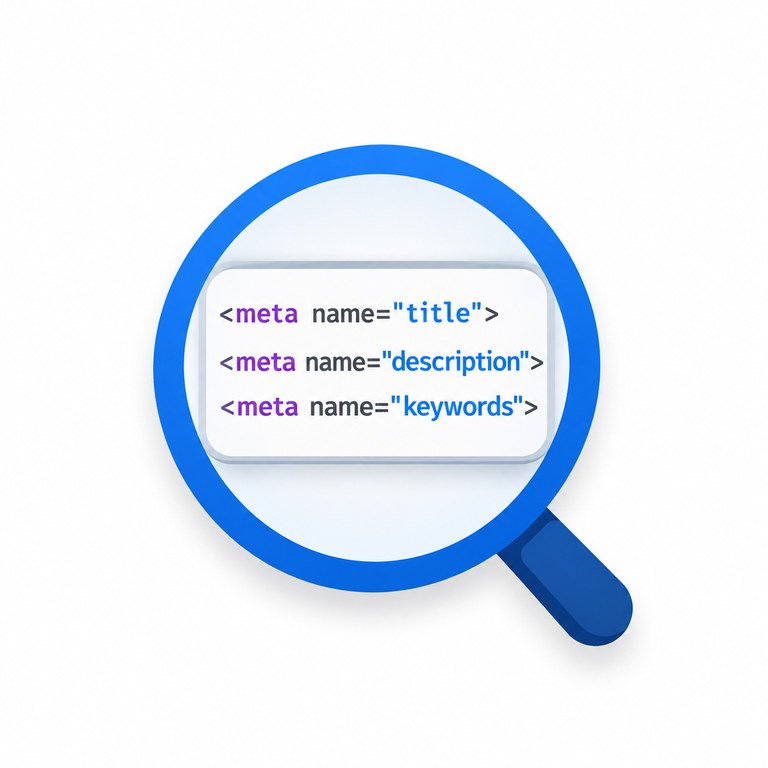
The visible parts of an organic result have different sources. The <title> element strongly influences its clickable title link. A meta description can supply descriptive text, but Google often selects text from the page when it better matches a query.
These differences are why the preview is best treated as a proposed presentation. It cannot establish what every searcher will actually see.
Prepare a Title That Names the Page’s Real Value
Write the most important subject and useful distinguishing detail early. A title such as How to Fix a Dishwasher That Will Not Drain communicates the task more clearly than Helpful Information About Appliances. Keep it consistent with the main heading and the article itself. A product page might instead prioritize its model name and major specification; a comparison page should make both compared items evident.
Google sets no fixed title-character limit. Display width varies by device, letter shapes and Google’s chosen text. Treat length or pixel indicators as editorial warnings, not search-engine rules.
Do not repeat the same keyword in several variations merely to fill space. If a brand name adds credibility or disambiguates a product, include it concisely; if it crowds out the topic, edit the wording.
Write a Description That Answers the Searcher’s Next Question
A meta description is an opportunity to explain the page, not a place to promise a ranking increase. Describe what readers will learn or accomplish. Include a meaningful detail that differentiates the page, such as supported device types, a specific calculation, or the kinds of steps covered.
Google has no universal meta-description character limit. Snippets can be shortened or replaced with page text. Make the central benefit visible early rather than padding to a fixed length.
For pages that answer a narrow question, a direct summary is often stronger than promotional language. For long tutorials, identify the precise problem, the method explained and any important scope limitation.
Compare an Unclear Snippet With a Useful Rewrite
Consider a fictional article about fixing a WordPress redirect loop. The following examples are written for demonstration only; they are not snapshots of live search results or verified outputs from this tool.
The rewrite is better because it helps a user recognize a relevant page. It does not guarantee that Google will show the exact words or that more people will click.
Use the Preview in an Efficient Editing Sequence
- Open the actual page or final draft and identify its primary purpose.
- Prepare the proposed title, a concise meta description and the final page URL.
- Enter the fields offered by the snippet preview; use manual entry if URL fetching is unavailable.
- Read the result as a searcher would, checking whether the subject is clear without extra context.
- If the interface offers desktop and mobile views or width feedback, compare them as estimates rather than fixed Google limits.
- Remove repeated terms, vague claims and words that push the main value out of view.
- Apply the accepted title and description to the real webpage, then confirm the published metadata.
Some preview interfaces offer automatic fetching, device switching or pixel measurements. If these options are unavailable, assess the proposed wording with manual entry.
Understand Why Google Sometimes Ignores Your Draft
Google creates title links automatically using several signals, including the HTML title, a visible main heading and other prominent page text. If the title is vague, repetitive, mismatched to the language of the content or inconsistent with the page, Google may select different text. Search-result descriptions are even more query-dependent: a sentence from the article may answer one search better than the site’s meta description.
For this reason, a mismatch between a preview and a live Google result is not proof that the preview tool is broken. First check what the page actually serves, whether Google has recrawled it, and which query produced the result. Google Search Console’s performance and URL Inspection reports can help with broader analysis, but they do not give you a guaranteed final snippet.
Check Width, Mobile Layout and Readability Without Chasing a Score
Many SERP preview products show character counts, pixel estimates or colored length bars. These can flag a title that is likely to be visually cramped, but no universal threshold reproduces every Google layout. Font metrics, language, devices, result types and Google’s chosen text all affect the display.
Check the start of each line first. If a title is shortened, will readers still understand the subject? Does the description lead with the answer rather than an empty introduction? When reviewing mobile layouts, consider narrower space and possible line wrapping, not just total characters. A readable title that naturally runs a little long can be more useful than a cryptic abbreviation designed to satisfy a preview meter.
Transfer the Finished Text Into WordPress and Rank Math
In WordPress, edit the intended post or page and open the Rank Math snippet or SEO title-and-description settings. Enter the final SEO title and meta description, then save or update the page. Confirm the result on the public page, since templates, theme settings, cache layers or another SEO plugin can affect the output.
The corresponding HTML typically resembles this illustrative example:
<title>Fix a WordPress Redirect Loop Step by Step</title>
<meta name="description" content="Trace a WordPress redirect loop, check URL settings and redirect rules, and learn when a plugin or CDN may be causing the problem.">
Do not paste these tags into a WordPress article body. They belong in the document’s <head>, which Rank Math or the site template should manage. Avoid adding a second SEO plugin or custom header snippet that emits conflicting metadata.
Keep the Display URL, Canonical and Indexing Signals Consistent
Use the intended public URL, not a draft address. Check redirects, conflicting canonicals and noindex directives; excellent metadata cannot override indexing restrictions.
For adjacent checks, use the Meta Tags Analyzer to review existing metadata and the Canonical Tag Checker to investigate preferred-URL declarations. These are complementary checks, not substitutes for inspecting Google’s actual indexing decisions.
Common Preview Problems and Their Practical Fixes
- The preview and live result disagree: Check for Google’s automated rewriting, different search queries or an old crawl.
- A title feels cut off: Move the essential topic earlier and remove redundant branding or repeated phrases.
- The description is missing: Confirm that the published page actually has a description, then remember Google may still use article text.
- Unexpected URL text appears: Verify the published URL, redirects and site structure rather than guessing from the preview.
- Every page has the same text: Review global WordPress templates and create specific metadata for important URLs.
- A character score looks poor: Evaluate meaning and display context; don’t assume the score predicts Google’s treatment or clicks.
What to Check After the Page Is Published
Inspect the published <title> and meta description, and align the visible heading with the same topic. Allow time for Google to recrawl changes. Search Console can help examine indexing, although snippets still vary by query.
Return to the preview when a page’s subject changes, when content is substantially updated, or when existing wording no longer describes the answer well. The goal is a trustworthy, specific summary of the real page. A convincing simulation is useful; a misleading promise that fits neatly into a box is not.