Why Word Counts Differ Between WordPress and HTML Tools
Count words, characters, paragraphs and reading time locally.
Why Does WordPress Show a Different Word Count Than an HTML Tool?
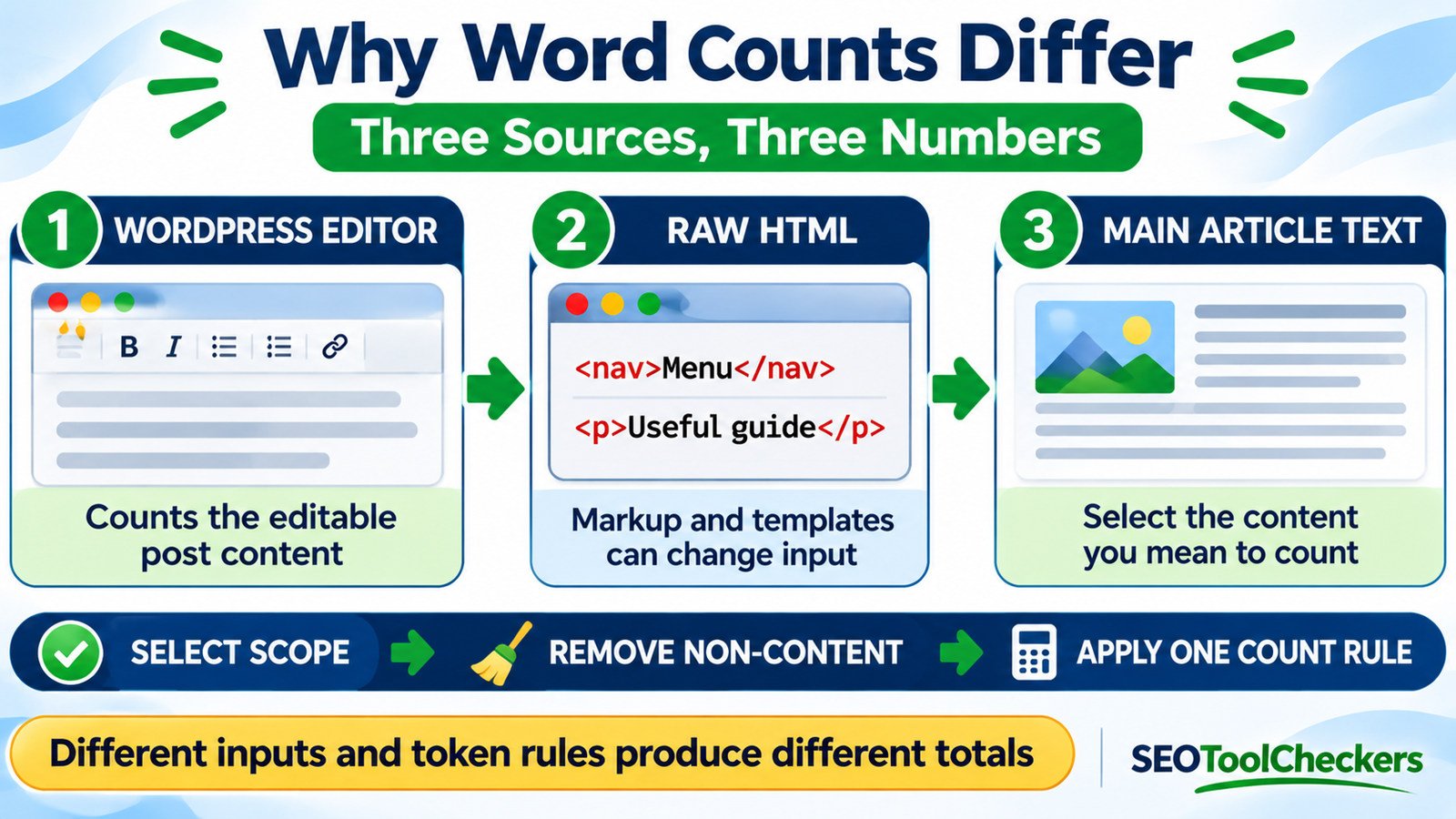
WordPress and HTML tools can show different word counts because they may process different text and apply different word-boundary rules. The WordPress editor generally measures content being edited, while a page-based counter may also receive navigation, footers, shortcode output, or JavaScript-generated text. Some HTML tools count raw markup unless it is removed first. For a meaningful comparison, select the same article text, exclude unwanted page elements, and apply a consistent counting method.
Word and Character Counter
Count words, characters, paragraphs and reading time locally.
Reconcile WordPress, Raw HTML, and Visible Page Word Counts
A post can read like a 900-word article in WordPress yet produce a larger or smaller total when copied from a browser, pasted as HTML, or checked with another counter. That does not automatically mean any tool is broken. The input may include different content, or the software may treat punctuation, invisible spaces, and languages differently.
First decide what you want to measure: the editorial body, the visible page, or the complete HTML source. Use the Word and Character Counter on a carefully selected sample, then repeat with the same sample in the other application. This guide explains the main sources of disagreement and shows how to reproduce a comparison that an editor, developer, or SEO reviewer can interpret without guessing.
Three Different Things People Call a Page’s Word Count
The phrase page word count can refer to three quite different datasets. An editor may be counting the material stored inside the post. A browser selection may contain the rendered article plus nearby widgets. An HTML source inspection may capture scripts, templates, attributes, and code that never appear as readable words on screen.
| Counting scope | Often includes | Often excludes or needs checking |
|---|---|---|
| WordPress editing view | Editable headings, paragraphs, and other supported blocks | Theme navigation, generated widgets, some shortcode output, dynamic frontend text |
| Visible webpage selection | Readable text in the selected region | Unselected material; hidden or collapsed text may be handled differently |
| Raw HTML or source counting | Everything supplied to the counter, potentially including markup and code | Nothing automatically unless the counter parses or filters it |
| Extracted main-article text | Text nodes chosen from the primary article container | Navigation, footer, scripts, sidebars, and unrelated templates when filtered correctly |
A larger count is not inherently a more accurate count. The right figure depends on whether your task is editorial length, visible information, accessibility inspection, or source-code auditing.
Worked Example: Seven Article Words Can Become Nine Page Words
Consider this simplified document. The example is deliberately small so the word boundaries can be checked by eye:
<nav>Home Deals</nav>
<main>
  <h2>Annual plan</h2>
  <p>Save time with clear pricing.</p>
</main>
The main content contains seven words using a basic whitespace-delimited count: “Annual plan” contains two; “Save time with clear pricing” contains five. The full visible example contains nine words because “Home Deals” adds two. Neither result is a contradiction. Both are correct for their stated scope.
If a source counter treats tags such as <nav> as input tokens, a third total may appear. If a page also contains footer links, menus, or related-post cards, the discrepancy can become much larger. For cleaner input, extract the main text with the HTML-to-Text Converter and verify that it does not accidentally include boilerplate.
HTML Tags Are Not Words, but a Counter May Still Receive Them
HTML structure has useful semantic meaning: <p> marks a paragraph, <h2> marks a heading, and attributes describe links or images. Those strings are not words in the displayed prose. However, a basic counter that splits pasted source code by spaces does not understand that distinction unless it first parses the markup.
Simply deleting anything between angle brackets is not always enough. It can remove meaningful text when markup is malformed, leave text from scripts or styles, or merge adjacent elements without inserting a space. For nontrivial documents, prefer an HTML parser that can select the intended article container and then extract its text. The HTML Formatter may help inspect messy source formatting, but formatting HTML does not itself decide what belongs in an editorial word count.
Why Scripts, Styles, Navigation, and Templates Inflate Results
Common page regions—header menus, cookie notices, filters, footers, recommended posts, and product cards—can add many words to the rendered page. They may be valuable site elements, but they are not automatically part of the article you are auditing.
Technical extraction methods also behave differently. In browser JavaScript, textContent includes text from descendant script and style elements, while innerText takes rendered styling into account and generally omits hidden text. Neither is a universal substitute for selecting the article body correctly. A plain HTML-to-text operation can therefore give misleading numbers if it does not explicitly filter unwanted nodes.
Theme updates, reusable blocks, and frontend widgets can alter displayed content without changing the editable WordPress body. When content is injected by JavaScript, the initial server HTML and rendered page can differ; the Source vs Rendered HTML Comparison provides a relevant follow-up comparison.
Why Word Boundaries Differ Even When the Text Is Identical
Two tools can receive the very same paragraph yet disagree because they define a “word” differently. A whitespace split, a punctuation-aware regular expression, and language-aware segmentation are separate approaches. Their results are not interchangeable.
| Input pattern | Possible variation | Editorial check |
|---|---|---|
| search-engine | One hyphenated term or two separated words | Check the counter’s hyphen handling |
| don’t | One contraction or multiple letter groups | Check apostrophes and curly quotation marks |
| 1,500 or 3.5% | Numbers and symbols may be grouped differently | Do not equate token counts with editorial words |
| Nonbreaking space | May be interpreted as whitespace or retained inside a token | Normalize only when appropriate |
| Chinese, Japanese, or Thai text | Whitespace splitting can miss language-specific word boundaries | Use a language-aware counting method |
Invisible characters copied from page builders or documents can also affect segmentation. Use the Unicode and Invisible Character Inspector when the same text appears visually identical yet behaves differently. Keep meaningful joiners and language-specific characters; indiscriminate cleanup can damage the copy.
WordPress Blocks, Shortcodes, and Dynamic Output Need Their Own Check
The block editor stores structured post content, while the public page can be assembled with a theme, plugins, reusable components, and dynamic blocks. A shortcode may expand into an interface or text on the frontend. A count in the editor does not necessarily represent every word a visitor sees after those components render.
Likewise, the displayed post title, author biography, breadcrumbs, comments, and related-content modules might be supplied by templates rather than written inside the post body. If you are checking an editorial brief that says “1,300 words,” confirm whether the requirement includes headings, captions, tables, and FAQs. Record the scope so the count can be repeated later.
A Reliable Eight-Step Workflow to Reconcile Two Counts
- Choose one goal. Specify “main article text, including headings” or another precise scope before counting.
- Save the version. Compare the same revision; avoid counting an autosave against a later published update.
- Copy the WordPress body. Note whether the source came from the editor, its code view, or the public page.
- Remove irrelevant regions. Exclude navigation, cookie banners, comments, sidebars, scripts, and site footers when they are outside the target scope.
- Normalize carefully. Decode HTML entities and review whitespace, nonbreaking spaces, and line breaks without destroying meaningful Unicode.
- Count identical text twice. Submit exactly the same extracted text to both counters and capture the numbers.
- Inspect edge cases. Check hyphenation, contractions, numbers, special characters, and non-space-delimited languages.
- Document the rule. Record the tool, input selection, time, and whether headings, captions, and tables were included.
The Text Cleaner and Formatter can support plain-text cleanup when formatting artifacts remain. After you normalize the two samples, the Text Comparison Tool helps spot accidental additions or omissions. Recheck the output rather than assuming that any automatic cleaner preserves every word.
What Different Word Counts Mean for SEO
A numeric discrepancy between two counting tools is not, by itself, an indexing error or a ranking problem. It is first a measurement issue. The more important question is whether the content visitors need is available in the published page and whether relevant search crawlers can access it.
For JavaScript-dependent pages, Google’s guidance explains a crawl, render, and index process. A word counter looking only at source HTML may miss content produced after rendering. Conversely, a browser-based counter can include interface words unrelated to the article. Compare the actual page source and rendered result if you suspect missing content, rather than using a single total as proof.
Word counts do not establish a universal minimum length for rankings. A concise page that answers the query completely can be more useful than a long page full of repeated explanations. For a separate reading-quality check, use the Readability Checker, while remembering that its numerical results are also approximations.
Frequently Asked Questions About Word Count Differences
Does the WordPress count include a page’s navigation menu?
Not generally when measuring the post’s editable body. The published page can add menus and theme components, so tools that scan the entire frontend may count them. The exact behavior depends on the counter and what text is selected.
Can the same pasted paragraph produce different totals?
Yes. Rules for hyphens, punctuation, numbers, Unicode spaces, and scripts that do not use visible spaces can differ. Confirm that both tools receive identical text before diagnosing their word-breaking rules.
Should I strip HTML tags before counting?
For an editorial count, use a parser to extract the chosen readable content. Blind tag removal can leave script text, remove meaningful content, or join words incorrectly.
Do image alt attributes count as article words?
Alt text is part of an image’s HTML attributes, not ordinarily a visible paragraph. A raw-source counter might see it, while a main-body visible-text counter may not. Alt text still matters for accessibility even when excluded from an editorial count.
Which number should I report to a content editor?
Report the count for the agreed scope, usually the primary article text, and state whether headings, captions, tables, and FAQs were included. Consistency is more useful than declaring a single tool universally correct.
If your count includes page markup, first isolate article copy with Extract Plain Text From HTML for a Content Audit. Then assess whether the wording reads naturally rather than relying on a density target in When Keyword Repetition Makes Content Harder to Read.