WordPress XML Export vs Full Site Backup: Key Differences
Is a WordPress XML Export the Same as a Full Site Backup?
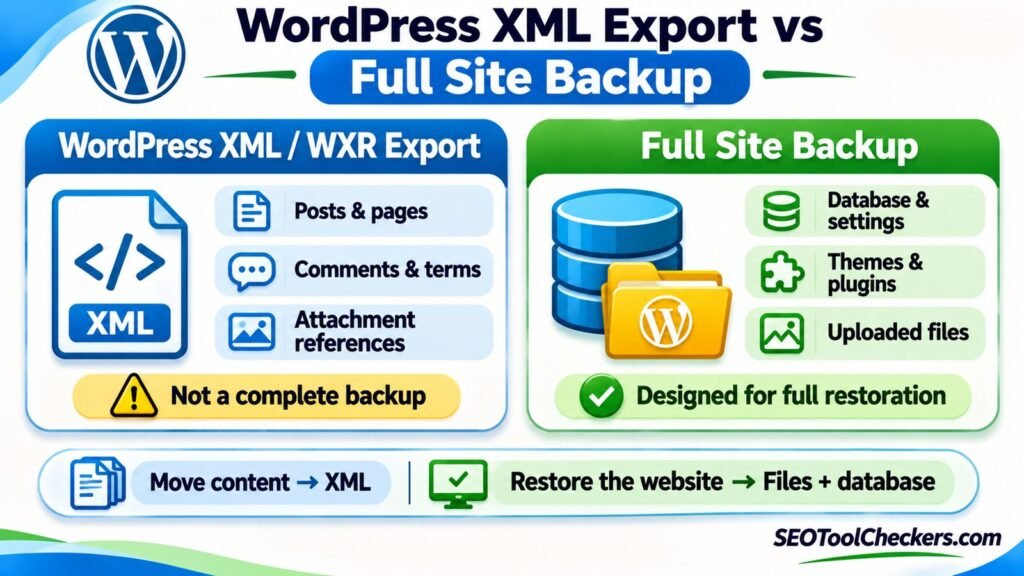
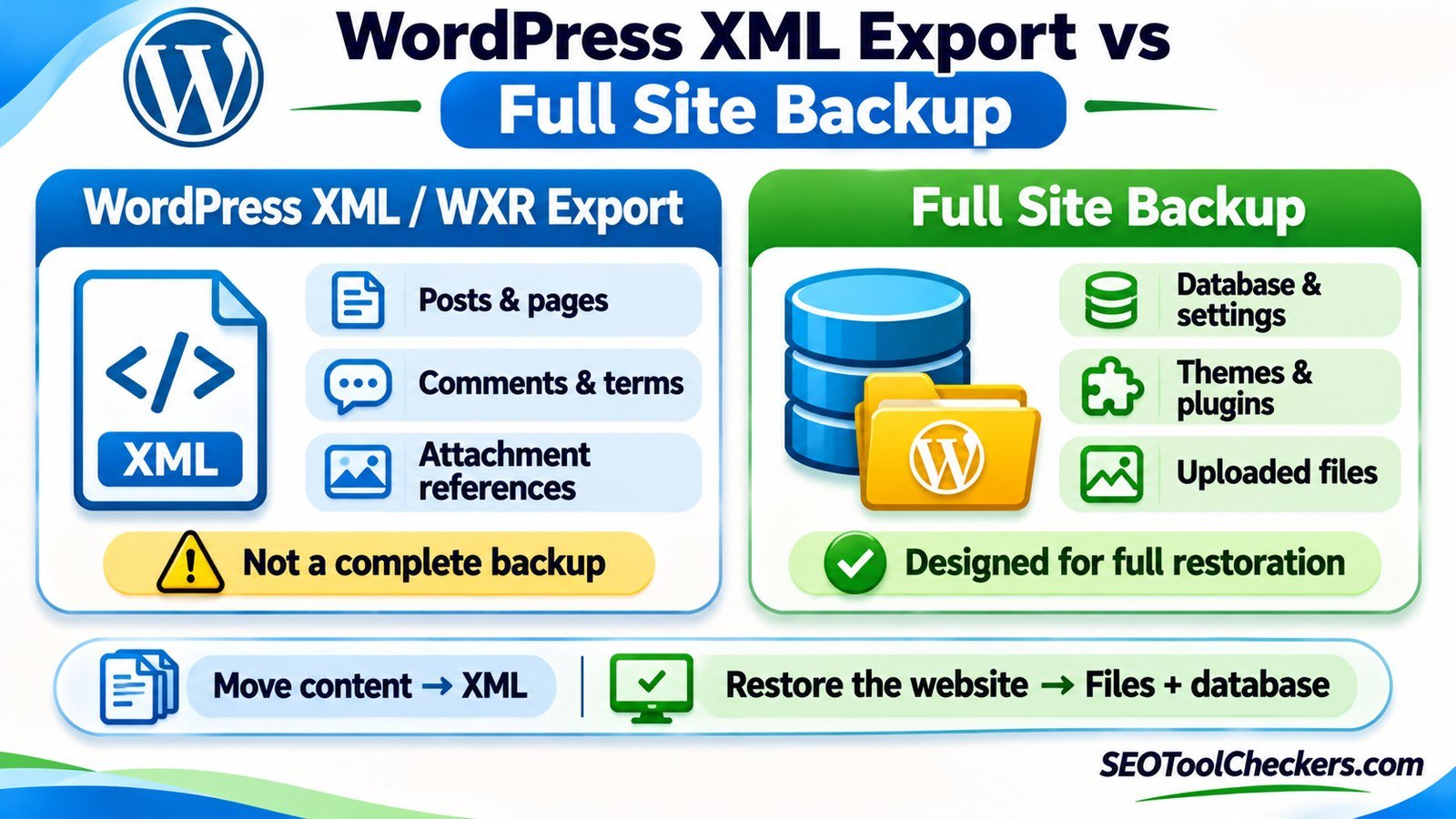
No. A WordPress XML export is a portable content file designed mainly for transferring posts, pages, comments, terms, and related records to another WordPress installation. A full-site backup preserves the database plus the website files needed for recovery, including themes, plugins, uploaded media, and configuration. An XML export can help move content, but it cannot independently restore a broken, deleted, or compromised WordPress website.
What WordPress’s Built-In XML Export Actually Saves
In the WordPress dashboard, Tools > Export creates a downloadable XML document called WordPress eXtended RSS, or WXR. Selecting All content generally includes exportable posts, pages, comments, terms, custom post types, custom fields, and navigation-menu records. You can also choose narrower filters, such as posts from a particular date range or author.
This file stores structured content records, not a working copy of the WordPress installation. It is particularly useful when your destination site already has WordPress installed and you want to import editorial material without replacing the destination’s theme or entire database.
Before transferring a large file, the WordPress XML Export Inspector is the relevant SEOToolCheckers resource to review. Use it for pre-import inspection according to its available interface; an inspection result cannot certify that every field, image, or plugin relationship will survive a real import.
What a True Full-Site Backup Needs to Contain
WordPress’s backup guidance separates a site into two essential components: the database and the files. The database typically holds posts, pages, comments, user accounts, options, menus, many theme and plugin settings, and other tables. The files hold WordPress code, installed themes and plugins, uploads, and configuration files such as wp-config.php.
Both components matter. A database dump without wp-content/uploads/ may restore image references but not the images. A copy of files without the database may restore PHP code and uploads but not posts, account records, or site settings. A hosting backup labeled full may still exclude off-server storage, third-party services, or external databases; verify the provider’s actual coverage.
A dependable recovery set should include the matching file archive and database snapshot, plus documentation about the server environment, any external dependencies, and the restore procedure. Its value is determined by whether you can restore and verify it, not by the filename or the size of the ZIP.
WordPress XML Export vs Full-Site Backup: Feature Comparison
| What you need | WordPress XML / WXR export | Full-site backup |
|---|---|---|
| Posts and pages | Yes, for selected exportable content | Yes, via database |
| Categories, tags, comments | Typically included with relevant records | Yes, via database |
| Uploaded JPEG, PNG, PDF, and other physical files | No; records and source URLs do not carry the file bytes | Yes, if uploads/storage are included |
| Themes, plugins, custom code | No | Yes, if the relevant files are included |
| Complete WordPress options and plugin database tables | No; some metadata may be present | Yes, if the complete database is included |
wp-config.php and server-specific files |
No | Yes, if files are included in backup scope |
| Restore a complete existing site after data loss | Not by itself | Intended for this, subject to backup integrity |
| Move selected posts into an already configured WordPress site | Well suited | Often unnecessarily broad |
| Typical restore method | WordPress content importer | Restore files and database with host, backup plugin, or administrator tools |
Important distinction: neither XML export nor a full backup automatically preserves an external service’s data. Check separately for email mailboxes, analytics accounts, payment services, CDN-hosted objects, or other systems your website depends on.
The Media Library Trap: Records Are Not Image Files
WXR can contain attachment entries and URLs pointing to media on the source website. However, the XML file does not embed the actual image or PDF files. During a WordPress import, the importer may offer to download and import file attachments from the original site. That step needs the source files to remain accessible, and downloads can fail because of permissions, timeouts, hotlink protection, incorrect URLs, or server restrictions.
Imagine exporting a travel blog containing 400 posts and 2,000 uploaded pictures, then deleting the old hosting account before importing. The XML may still contain the post text and image references, but the destination has nowhere to fetch the original pictures. A full backup that includes wp-content/uploads/ gives you the files needed for a separate recovery path.
When moving between domains, inspect existing attachment URLs and intended destinations with the WordPress Media URL Mapper. Mapping paths is a planning aid; it does not replace transferring missing image files or repairing broken attachment relationships.
Plugin Settings, Custom Tables, and User Data Can Be Missed
Some WordPress information lives in places an ordinary content export was never designed to reproduce. Plugins may store settings in the wp_options table, create separate tables, or save serialized data alongside post metadata. WXR may carry certain custom fields, but it is not a complete database copy and does not guarantee restoration of plugin-specific configurations.
For example, a forms plugin may have form definitions in custom post types but keep submission history in separate tables. An XML import might reconstruct some form content while leaving entries, notification settings, API tokens, or plugin configuration missing. Likewise, an ecommerce plugin may need orders, customer records, inventory, and custom database structures that cannot safely be assumed to round-trip through WXR.
An XML export can describe content authors, but it should not be treated as a secure way to migrate every user-account detail, password, role, and permission. Restoring a database, migrating user data, and recreating permissions require careful handling appropriate to the destination system and privacy requirements.
Choose the Right Method for the Job
| Your objective | Better starting point | What to check next |
|---|---|---|
| Move a few posts to a fresh WordPress site | Filtered XML export | Authors, categories, and reachable media URLs |
| Move a complete live site to new hosting | Full files-and-database migration | Environment compatibility, configuration, URLs, and testing |
| Recover after a bad update or server failure | Verified full-site backup from a suitable restore point | Restore procedure and known-good backup integrity |
| Transfer only selected articles into an existing website | XML export/import, with media migration as needed | Duplicate content, permalinks, and target taxonomy mapping |
| Transfer data provided by a third party as CSV | CSV-specific import workflow | Headers, field mapping, and a small test import |
For a domain or host move, plan old-to-new URL mapping separately using the Website Migration URL Mapper. A restored database can still contain old addresses, and a content import can create URL differences. Neither workflow automatically guarantees correct redirects or canonical destinations.
How to Create a Safe WordPress Export and Backup Set
If you are preparing for a migration or major update, keeping both formats is often useful: WXR for selectively reusing content, and a full backup for recovering the original site if something fails.
- Identify the purpose: Are you moving content into another site, or protecting the existing site against failure? Decide before choosing a file format.
- Make a full backup first: Capture the complete relevant database and WordPress files, including uploads, plugins, themes, and site configuration. Confirm the backup job reported success.
- Create an optional WXR export: In WordPress, open Tools > Export, select All content or the relevant filter, and download the XML file.
- Inspect the XML separately: Review the file structure and content entries. The XML Formatter and Validator is relevant to syntax inspection, but a well-formed XML document is not proof of a successful WordPress import.
- Protect copies: Store backups away from the public web directory and limit access. Database archives may contain private content, account information, and authentication-related settings.
- Test restoration or import: Use staging or another isolated environment. Confirm posts, media, logins, menus, plugin behavior, and representative pages.
- Verify the migrated website: Check critical pages, image loads, redirects, and templates. For a before-and-after review, the Before-and-After Migration Page Comparison is a relevant companion resource.
Keep the backup and export timestamps together. A WXR made on Monday and a database backup made on Wednesday may reflect different versions of the same posts; that matters if you later compare or restore them.
Two WP-CLI Commands That Produce Very Different Files
On a server with WP-CLI installed and appropriate permissions, the commands below illustrate the difference. They are examples, not instructions to run blindly in production.
# Content export: WordPress Extended RSS XML
wp export --dir=/secure/export-directory

# Database dump only: does not contain uploaded files
wp db export /secure/backup-directory/site-database.sql
wp export produces WXR content files. wp db export produces a database dump. Neither command by itself creates a full files-and-database backup. You must still capture the relevant site files, verify paths and permissions, and follow an appropriate restoration process. Use directories outside the public web root, and do not publish database files or backups as downloadable website assets.
Common Recovery Mistakes and Their Fixes
| What goes wrong | Why it happens | Better response |
|---|---|---|
| Imported posts appear but images are broken | Attachment URLs were exported; media files were not transferred | Recover uploads from backup and verify media URL mapping |
| Theme layout, widgets, or plugin behavior differ | XML did not restore installed files or full configuration | Use the necessary files and database, or configure the target manually |
| A database-only restore shows missing assets | File archive is absent or from a different restore point | Restore a matching uploads/plugins/themes set |
| XML validates but import fails | Valid XML does not prove compatible data, available memory, or accessible media | Inspect importer errors, file limits, and a smaller test export |
| New domain still shows old site links | Saved content and settings retain the old host name | Audit URLs and update safely using WordPress-aware tools |
If you are switching from XML to a structured CSV workflow, the WordPress CSV Import Validator may be useful for inspecting the CSV input. It is not an XML-to-backup converter and cannot restore WordPress site configuration.
Frequently Asked Questions
Can I restore my WordPress site with an XML export alone?
No. You may reimport content into an existing WordPress installation, but XML alone cannot restore the original themes, plugins, uploaded files, server settings, or full database state.
Does a WordPress export include the Media Library?
It can include media attachment records and URLs, but not the physical uploaded files. Importing media depends on successful attachment transfer or a separate file migration.
Is a SQL database export a full-site backup?
No. It preserves database information, but you still need the site files and any additional external resources required for restoration.
Should I create XML and full backups before moving hosting?
A full backup is the foundation for a complete hosting move. An optional WXR export gives you a separate route for moving selected content, but it does not replace the recoverable backup.
The Bottom Line: Export to Transfer, Back Up to Recover
Use WordPress XML export when you need portable editorial content. Use a verified full-site backup when the goal is disaster recovery or a complete migration. If both goals matter, keep both files, test them on staging, and inspect media and configuration separately. Choosing the right format before migration is far easier than discovering after a failure that the only file you kept cannot rebuild the site.