Canonical Tag Points to the Wrong URL: How to Find and Fix It
What Should You Do When a Canonical Tag Points to the Wrong URL?
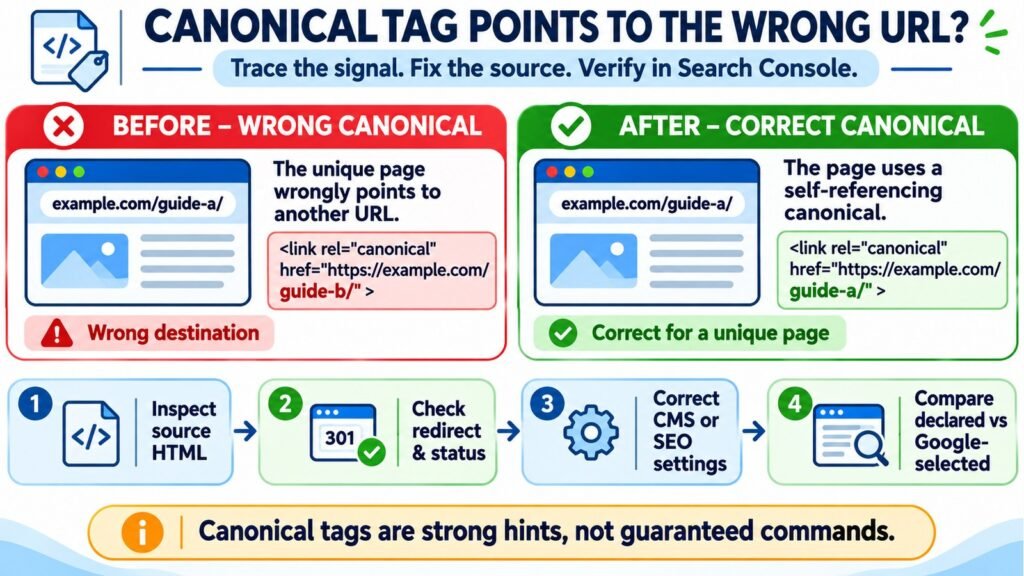
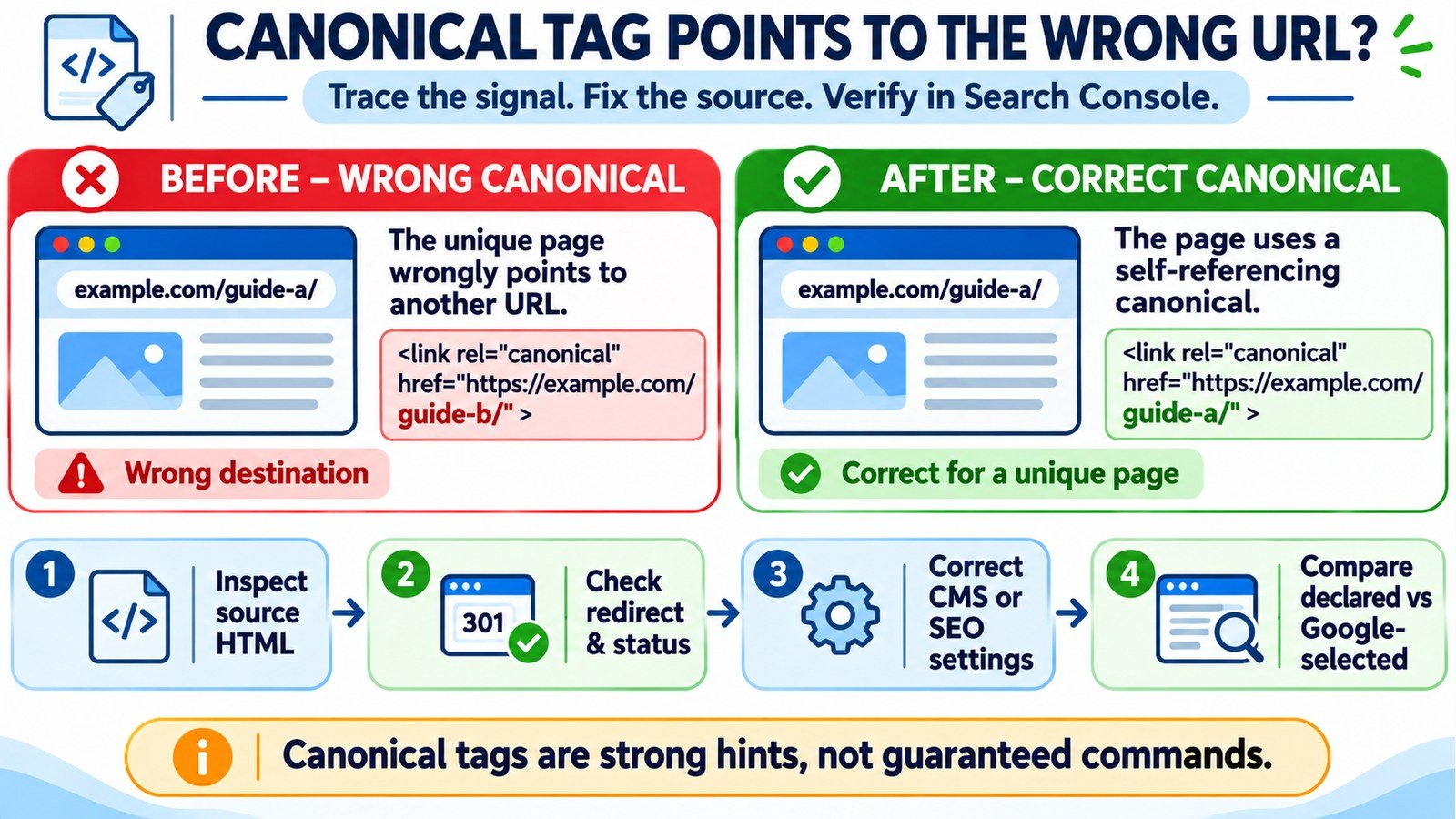
Inspect the page’s actual canonical tag, confirm which URL should represent the content, and correct the setting or template that generates the wrong destination. Check redirects, page status, sitemap entries, and the Google-selected canonical before making changes. A canonical is a strong hint rather than a guarantee. If two pages are genuinely duplicates, pointing one to the preferred version may be correct; if a unique page points elsewhere accidentally, fix the source and verify the change.
Find the Incorrect Canonical Before It Hides the Page You Want Indexed
After a domain migration, permalink change, theme update, or SEO plugin switch, a page can look completely normal while its HTML tells search engines that a different URL represents the content. The visible article may still load with HTTP 200, and visitors may never notice anything wrong. The problem surfaces when a new landing page is treated as a duplicate or Google Search Console reports an unexpected canonical.
The correct response is not to assign self-referencing canonicals to every URL automatically. Some URL variations are duplicates by design. You first need to decide which page actually deserves to appear in search, then trace the canonical signal back to the system generating it. Start with your exact page in the Canonical Tag Checker; compare the reported markup with the live page and your intended destination.
1. Establish Which URL Is Supposed to Be Canonical
Write down the address users should find in search results. It should ordinarily be a stable, accessible page containing the primary content. For a unique article at https://example.com/guides/guide-a/, a self-referencing canonical is often the sensible choice. For a tracking-parameter copy such as ?utm_source=newsletter, the preferred clean URL may be correct instead.
Ask whether the source and target are duplicates, near-duplicates, or genuinely different pages. Canonicalization helps consolidate similar content; it is not an appropriate way to hide unrelated pages. If two articles answer different questions, assigning the same canonical merely because the topics overlap can suppress a page that deserves its own identity.
Also confirm that the intended canonical is not an obsolete URL, staging host, translated page in another language, or generic category page replacing a specific article.
2. Inspect the Canonical Tag in the Delivered HTML
Open the problem URL in a browser, view the page source, and search for rel="canonical". A valid HTML example for a unique guide is shown below. The snippet belongs in the document’s <head>, not pasted into the WordPress article body:
<link rel="canonical" href="https://example.com/guides/guide-a/">Now compare it with the wrong output:
<link rel="canonical" href="https://example.com/guides/guide-b/">For this example, guide-a is a distinct resource, not a duplicate of guide-b. The second tag therefore sends an unintended preference. If guide-a really duplicates guide-b, however, that same tag may be entirely appropriate. Interpret the relationship, not just whether the URLs match.
Look for multiple canonical elements, a malformed URL, an unexpected HTTP version, or a canonical inserted only after JavaScript runs. Where scripts alter the page, the Source vs Rendered HTML Comparison tool can support a source-versus-rendered review. Google recommends keeping canonical information clear and consistent, ideally in the original HTML.
3. Check the Destination, Redirects, and HTTP Status
A canonical that points to a broken, redirected, blocked, or otherwise unsuitable destination is harder for search engines to interpret consistently. Use the Bulk HTTP Status and Redirect Checker to trace the source and its proposed target, then verify the final responses independently in your browser or server logs.
| Finding | Why it matters | Action |
|---|---|---|
| Canonical target returns 200 and contains the preferred content | Expected starting point for a valid canonical relationship | Check consistency with links and sitemap entries |
| Canonical target redirects elsewhere | The tag points to an intermediate rather than the final URL | Prefer the final intended canonical destination |
| Canonical target returns 404 or 5xx | The preferred page may be missing or temporarily unavailable | Restore the correct page or select a valid intended URL |
| Canonical points from HTTPS to HTTP | It contradicts a common HTTPS preference and may conflict with redirects | Use the stable HTTPS destination when appropriate |
| Source redirects before delivering HTML | The response may never expose the canonical element you expected | Inspect the final destination and redirect configuration |
Do not treat a canonical tag as a substitute for a needed permanent redirect. If an old page has moved and should no longer be visited at its previous address, a server-side redirect is usually the clearer choice. If both URLs must remain accessible because of user workflows, a canonical annotation may be more appropriate.
4. Trace the Mistake to a Migration, Template, or SEO Plugin
Old domain or permalink retained after a migration
Suppose a site moves from https://old.example.com/articles/ to https://example.com/guides/. The new pages load, but a copied canonical field still points to the old domain. Review imported SEO metadata, migration search-and-replace operations, redirects, and any cached HTML. Correcting only the visible permalink does not necessarily update stored custom canonical fields.
A global template points every post to the same URL
Custom themes sometimes hard-code a canonical using a fixed homepage URL or the wrong template variable. This can cause dozens of unique pages to claim the same canonical. Inspect several pages from different templates. If the error repeats across a group, fix the shared template or plugin output rather than manually editing every post.
Competing SEO plugins produce inconsistent markup
After replacing an SEO plugin, old settings, theme functions, or a second active SEO plugin may still inject canonical markup. A source inspection showing two conflicting canonical tags is a signal to identify which component generates each one. Avoid merely adding a third tag. Make one system responsible for the canonical output, then recheck the published HTML.
5. Correct the Canonical URL in WordPress and Rank Math
If your website uses Rank Math, open the affected post or page and navigate to Rank Math SEO → Advanced → Canonical URL. The Advanced tab may require Advanced Mode. A blank custom field typically leaves Rank Math to use its default self-referencing canonical; an explicit value overrides that preference. Save the page, clear relevant caches, and inspect the resulting HTML.
- Open the affected WordPress post and record its current permalink and any custom canonical value.
- Decide whether the page is unique or a genuine duplicate of another URL.
- Remove an obsolete custom canonical, or enter the full preferred destination when a non-self canonical is intentional.
- Update the post and purge WordPress, hosting, and CDN caches as applicable.
- Reopen the public URL and confirm the actual output contains one coherent canonical signal.
If the old value persists, a theme filter, custom code snippet, another plugin, or server cache may still be controlling it. Do not edit the HTML of the post merely to add a canonical; that is the wrong location for document-level metadata.
6. Compare the Declared and Google-Selected Canonicals
The canonical shown in page source is your declared preference. The one reported in Google Search Console URL Inspection is Google’s selection based on the signals it has processed. They can differ, and the difference is not automatically a technical error.
- Inspect the exact URL in Google Search Console.
- Open its indexing information and compare the user-declared canonical with the Google-selected canonical, where reported.
- Use a live test to inspect current accessibility and rendered content, but do not mistake it for proof of the current indexed canonical.
- Check whether the selected URL better represents duplicate content, or whether the site is sending conflicting technical signals.
Search Console’s indexed information can reflect Google’s earlier crawl. After correcting markup, allow time for recrawling and processing. Google’s public guidance notes that pages can remain in the same duplicate cluster for a period even after changes. A single live test or indexing request cannot force a different canonical.
7. Align Internal Links, Sitemaps, and Canonical Signals
Fixing the tag while leaving the rest of the website pointing at the wrong URL creates an avoidable contradiction. For important pages, update navigation, breadcrumbs, contextual links, and XML sitemap entries so they consistently favor the intended address. The XML Sitemap Validator helps review sitemap formatting and URL coverage as part of that audit.
Google treats redirects and canonical annotations as stronger signals than sitemap inclusion, but these signals work better when they agree. A sitemap full of obsolete URLs is not likely to help a migration. Likewise, repeatedly linking internally to non-preferred variants can make the site architecture harder to interpret.
Run the Website Indexability Checker on the intended canonical to review related accessibility and indexing signals. A correct canonical tag does not compensate for a blocked page, an accidental noindex, or unavailable primary content.
8. Follow a Practical Recovery Example
A WordPress publisher changes /blog/how-to-audit-links/ to /guides/how-to-audit-links/. The new URL loads with HTTP 200, but its imported SEO field still contains a canonical pointing to the old URL. That old address now redirects to the homepage. The publisher should not assume Google will interpret that chain as intended.
- Confirm that the new guide is the preferred published URL and contains the complete article.
- Replace the obsolete canonical with the new guide URL, or remove the unnecessary custom override.
- Change the old post URL’s redirect to point directly to the new equivalent guide, rather than the homepage.
- Update menus, contextual links, and the sitemap to reference the new guide.
- Inspect the published source and redirect chain, then use Search Console to monitor Google’s canonical choice.
This is a hypothetical example, not a live test of SEOToolCheckers or another website. It illustrates why migration problems often require correcting several connected signals instead of one field.
9. Recognize When You Should Not Change the Tag
| Situation | Likely canonical strategy |
|---|---|
| Unique editorial article with its own search intent | Usually self-reference its stable URL |
| Tracking parameters show identical page content | Point variations to a preferred clean URL |
| Permanent old URL after moving the article | Prefer a direct permanent redirect to the new location |
| Regional or language variant with meaningful localized content | Evaluate language and regional architecture; do not blindly canonicalize all versions together |
| Two intentionally different product or category pages | Keep separate canonicals if both pages offer distinct value |
| Temporary staging site that should be private | Use access control; canonical tags are not a privacy mechanism |
Do not use robots.txt to enforce a canonical choice, or noindex simply to steer Google toward a duplicate URL. The first controls crawling; the second excludes a page from indexing. Neither is the same as expressing a preferred representative URL.
10. Recheck the Fix Without Expecting an Instant Result
After deployment, confirm that the source outputs the desired canonical, the target works, redirects are direct, internal links are updated, and the sitemap contains the intended address. Save the before-and-after HTML and the time of the change. For a small number of priority pages, you can request indexing through Search Console, but the request does not guarantee indexing or a particular canonical decision.
Monitor Google’s selected canonical over subsequent crawls, rather than using search rankings or site: queries as the only evidence. If Google still favors another URL, inspect how similar the pages are and whether that alternative actually better serves users. You may need to make genuinely distinct pages more differentiated, not merely repeat the same canonical annotation.
Frequently Asked Questions About Wrong Canonical URLs
Can a wrong canonical tag stop my WordPress page from appearing in Google?
It can contribute to Google selecting another URL as the representative of very similar content. It is not an absolute block: Google weighs other signals and may ignore the declared preference. Diagnose the actual selected canonical before assigning cause.
Should every article have a self-referencing canonical?
A self-referencing canonical is a useful default for unique, indexable content. It is not universally right for duplicate parameter URLs, alternate versions, or pages intended to consolidate into another representative URL.
What if Rank Math shows the right canonical but page source shows another?
Check full-page caching, theme filters, custom snippets, and other SEO plugins. The HTML delivered to crawlers matters more than the value visible in an editor field.
Will fixing the canonical guarantee indexing?
No. Canonicalization and indexing are related but separate decisions. The page still needs to be accessible and useful, and Google must crawl and evaluate the change.
How long does Google take to recognize a canonical correction?
There is no guaranteed deadline. Google needs to recrawl and reassess signals; duplicate clusters may persist for a while after corrections. Use Search Console to monitor the updated evidence rather than requesting indexing repeatedly.