CSV Import Columns Not Matching WordPress Fields
Why Don’t CSV Import Columns Match WordPress Fields?
CSV import columns fail to match WordPress fields when an importer cannot recognize the header names, the file is parsed with the wrong delimiter, or a source column is mapped to an incorrect destination. A technically valid CSV can still put content in the wrong field or skip it altogether. Identify the importer first, inspect the actual header row, match each column to its intended WordPress field, and test a few draft records before running the full import.
First, Identify Which WordPress Importer You Are Using
There is no single CSV column naming standard that works for every WordPress content importer. WordPress’s standard WordPress-to-WordPress importer expects a WXR/XML export, not an arbitrary CSV of posts. A CSV workflow normally depends on a plugin, custom importer, or a specialized component such as WooCommerce’s built-in product importer.
This difference matters because one importer may recognize post_title, another may recognize Name, and a third may accept any source header as long as you assign its destination. Never assume a column heading is a reserved WordPress field merely because it looks technical.
| Import workflow | What it accepts | How columns are assigned |
|---|---|---|
| WordPress Tools > Import > WordPress | WordPress WXR/XML export | Its own XML import process, not generic CSV header mapping |
| WooCommerce Products > Import | Product CSV | Recognized product column names plus a mapping screen |
| WP All Import or a similar content importer | CSV files, subject to the plugin’s capabilities | Source columns mapped to post, taxonomy, or custom fields |
| Custom WordPress import plugin | Whatever format its developer implemented | Possibly fixed required headers, aliases, or custom mappings |
Start by opening the specific importer’s sample file, documentation, or field-mapping screen. That is the authoritative source for accepted names, required fields, and update behavior in your workflow.
Check the CSV Header Row Before Changing WordPress Settings
Open a copy of the CSV in a plain-text editor, not just a spreadsheet preview. The first record is often the header row. It should name the source columns once, without empty or duplicated labels. A CSV saved from a spreadsheet can contain invisible formatting changes or a different separator than the importer expects.
Use the CSV Structure Validator to help review the file’s layout, and the WordPress CSV Import Validator as a relevant pre-import check. Their names and URLs come from the SEOToolCheckers tool inventory; verify the live tools’ exact validation capabilities before relying on a result as a complete import test.
Inspect these common header problems:
- Duplicate names:
title,title,categorygives two columns an ambiguous identity. - Unexpected spaces:
post_titleandpost_titlecan be treated differently by strict importers. - Different spelling:
article_titlewill not necessarily map automatically to a field calledpost_title. - Missing labels:
title,,categoryleaves a source column without a usable header. - Wrong separator: a semicolon-delimited CSV read as comma-delimited may look like one enormous column.
- Byte order mark or encoding: a UTF-8 BOM or incorrectly encoded file may affect header detection in some importers.
Renaming headers can help when the importer expects exact names. It is not a substitute for checking how the importer processes rows and maps values.
Example: Map Four CSV Columns to Four WordPress Fields
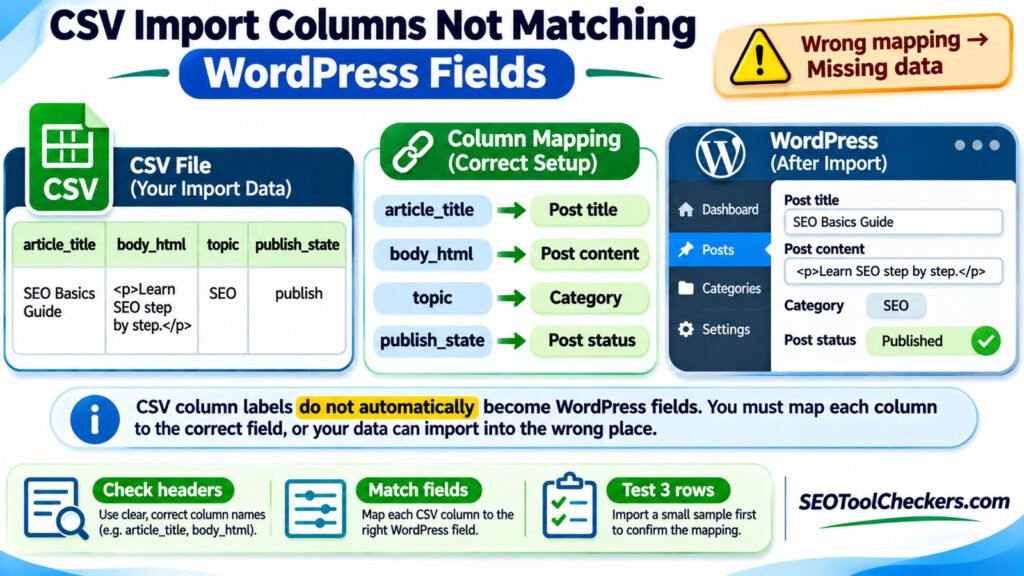
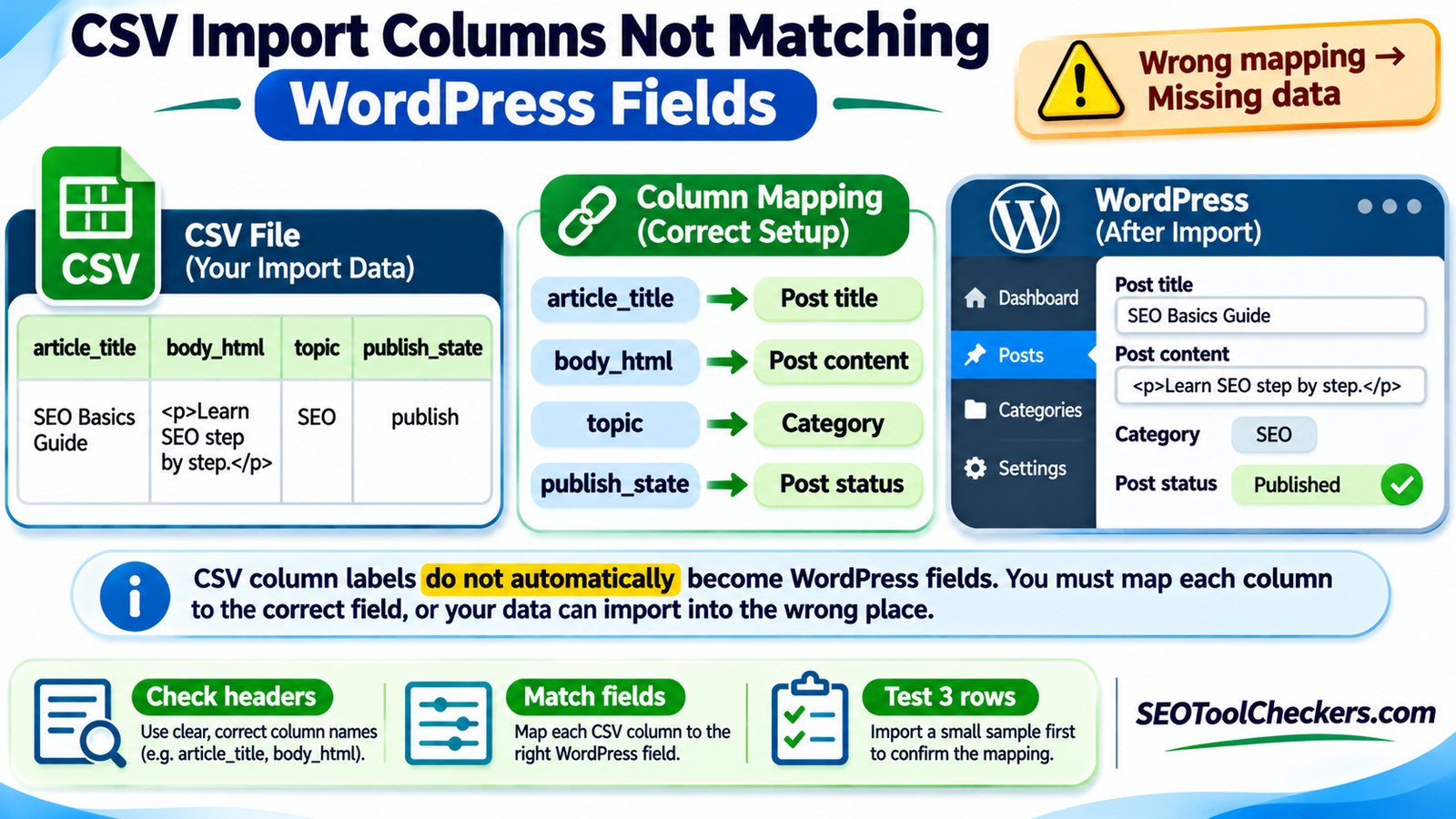
Suppose an editorial spreadsheet contains the following source columns. These names are illustrative source labels, not a universal WordPress CSV template:
article_title,body_html,topic,publish_state
"SEO Basics Guide","<p>Learn SEO, step by step.</p>",SEO,draft
"Crawl and Index","<p>Review crawl signals.</p>",Technical SEO,draft
A mapper that supports WordPress posts would need assignments such as these:
| CSV source column | Intended destination | What to verify |
|---|---|---|
article_title |
Post title (post_title) |
Imported title is not blank or stored as body text |
body_html |
Post content (post_content) |
Paragraph markup displays as intended |
topic |
Post category taxonomy | Categories are assigned to posts rather than saved only as text metadata |
publish_state |
Post status (post_status) |
Values are supported by the importer; test using draft first |
Mapping topic to a plain custom field named topic will not necessarily assign the WordPress category. Likewise, mapping publish_state to a generic text field will not change the post’s publication status. The destination is as important as the source header.
If the importer supports an import preview, inspect the generated title, content, category, and status for each of these two sample rows. Do not run a production import until the preview and a staging import agree.
Repair CSV Structure Errors That Look Like Mapping Errors
CSV data is a sequence of records and fields. If a description contains a comma or line break, the value must be quoted correctly for a standards-compatible parser. Doubled double quotes represent a literal quotation mark inside a quoted field. Otherwise, one text field can appear as several columns and shift every subsequent value into the wrong destination.
For example, this row is problematic because the title contains an unquoted comma:
article_title,body_html,topic,publish_state
SEO, Content Guide,Simple text,SEO,draft
With four headers but five parsed fields, a strict validator can flag the row. The corrected form encloses the entire title in double quotes:
article_title,body_html,topic,publish_state
"SEO, Content Guide",Simple text,SEO,draft
Do not fix this by deleting commas from normal writing or flattening valid multiline descriptions. Correct the CSV quoting and choose the delimiter supported by your importer. If the file came from Excel or another spreadsheet application, export it again as UTF-8 CSV, then inspect the raw output; simply changing a file’s extension does not convert its structure.
Additional traps include extra trailing delimiters, stray quotation marks, mismatched record lengths, and embedded tab characters. For a very large import, test the first row, a middle row, the last row, and any records with long HTML descriptions or non-English characters.
WordPress Categories, Custom Fields, and Images Need Separate Mapping
Even when a CSV has the correct number of columns, some values require destination-specific handling. Categories and tags are WordPress taxonomies, not ordinary post fields. A custom post type might use its own taxonomy instead of the built-in category taxonomy. Check the actual registered taxonomy and the importer’s settings before bulk-creating terms.
Custom fields can be especially misleading. A value placed in post meta may exist in the database without being recognized by the plugin or theme that reads it. Advanced Custom Fields (ACF) and other plugins can require specific field keys, formats, and relationships. Data such as serialized arrays, repeaters, or media attachment IDs is not interchangeable with plain text in a CSV cell.
For WooCommerce product imports, consult its product CSV schema instead of reusing a blog-post template. The built-in product importer recognizes fields such as Name, SKU, and Regular price, and it allows column review before import. Product metadata may use the WooCommerce-specific meta:field_key header convention. That convention should not be presented as a universal header format for all WordPress import plugins.
Image columns also need careful treatment. A CSV holding an image URL does not guarantee that a remote image can be downloaded, inserted into the Media Library, or assigned as a featured image. Confirm whether the importer supports URLs, existing media IDs, filenames, or separate image-mapping rules, and test the media result after importing a small sample.
Use a Row-Level Checklist Before Importing Hundreds of Posts
Once the headers are mapped, inspect data quality at the row level. A successful upload or a green CSV parse result does not prove that WordPress will create the intended records.
- Required values: Flag empty titles, missing product identifiers, or other required fields defined by the active importer.
- Consistent types: Keep dates, prices, quantities, and status values in the format expected by their specific destination fields.
- Leading zeros: Preserve SKUs, ZIP/postal codes, and identifiers as text; spreadsheet software can silently remove their zeros.
- Unique identifiers: Know how updates match existing records before running the same import twice. Different plugins use different matching keys.
- Potential duplicate slugs: Check whether WordPress will assign a different slug when one is already taken.
- HTML integrity: Check that content fields contain valid HTML if your importer and publishing process permit HTML.
- Blank-cell behavior: Determine whether an empty mapped cell is skipped, clears an existing value, or produces a default during an update.
- Media and taxonomy relationships: Confirm the destination field actually assigns the intended attachment or term.
The CSV and JSON Converter can be useful for inspecting how tabular records translate into key-value objects when debugging a data pipeline. Converting a CSV to JSON is not, by itself, a WordPress import or a correction to faulty field mapping.
A Safe Import Workflow That Avoids Bad Bulk Updates
Do not start by changing hundreds of field names or importing thousands of live records. A controlled test is faster to diagnose and safer to reverse:
- Preserve the original: Save a read-only copy of the source CSV and back up the WordPress database and relevant media files.
- Confirm the target: Select Posts, Pages, a custom post type, or WooCommerce Products in the correct importer. Open its field-map documentation.
- Validate the file: Check delimiters, quoting, duplicate headers, row lengths, and UTF-8 encoding.
- Set explicit mappings: Assign title, content, taxonomy, status, custom fields, and media separately. Ignore unused columns intentionally.
- Import a small sample: Use three to five representative records into staging, preferably as drafts, including one with punctuation or HTML.
- Inspect records: Open each imported post or product in the editor and on the frontend. Compare source values with the destination.
- Test update behavior: Re-run the same sample using the proposed unique key and ensure that existing records update appropriately instead of duplicating.
- Scale in batches: Import the complete file only after recording the successful settings, reviewing logs, and establishing a rollback procedure.
When a sample fails, keep its original CSV row and the importer’s log together. Record the source header, the selected destination, the actual saved value, and the expected value. This evidence distinguishes parsing, mapping, validation, and plugin-specific processing failures.
Quick Diagnosis for Common CSV Import Failures
| Symptom | Likely cause | First check |
|---|---|---|
| Only one CSV column appears | Wrong delimiter or incompatible file format | Inspect raw first line and configured separator |
| Titles import into post content | Incorrect source-to-destination mapping | Review field mapping and one sample row |
| Some columns are silently skipped | Unrecognized headers or unmapped fields | Find columns marked Do not import |
| Values shift across columns | Bad quoting, stray delimiter, or inconsistent field counts | Validate the affected CSV record |
| Accented characters become garbled | Incorrect character encoding | Re-export a test file as UTF-8 |
| Categories appear as text only | Mapped to custom field rather than taxonomy | Review taxonomy destination selection |
| Existing posts duplicate on re-import | Missing or incorrect record-matching key | Check the importer’s update/unique-ID rules |
| Images are blank after import | Unsupported image value or inaccessible source file | Check attachment URL, access, and mapping mode |
If the file looks correct but the importer rejects the same column repeatedly, compare it with a small CSV exported by that importer, where available. A known-good export reveals naming and value conventions more reliably than guessing field labels.
Frequently Asked Questions
Does WordPress import any CSV file automatically?
No. WordPress’s standard content importer uses WXR/XML for WordPress exports. General CSV imports require an appropriate plugin or custom importer; WooCommerce supplies a separate product CSV importer.
Should I rename every column to a post_ field?
No. Database-style names are not a universal CSV schema. Use the exact expected headers or the importer’s mapping interface, and choose the correct destination for each column.
Why does my CSV pass validation but import incomplete posts?
CSV validation mainly checks structure and parsing. It does not guarantee required values, valid taxonomy destinations, compatible custom-field formats, or successful image downloads.
Can I safely re-import the same file after fixing headers?
Only after confirming how that importer identifies existing records and treats blank fields. Test the update workflow on staging first to avoid creating duplicates or overwriting valid content.
The Reliable Fix Is a Verified Mapping, Not a Guess
When CSV import columns do not match WordPress fields, isolate the problem in this order: file structure, source headers, destination mapping, row values, then update behavior. Use representative test records to verify the complete chain from CSV to WordPress editor and frontend. That approach solves missing fields without turning a manageable import issue into a database-wide cleanup.