Featured Images Missing After a WordPress Migration
Why Are Featured Images Missing After a WordPress Migration?
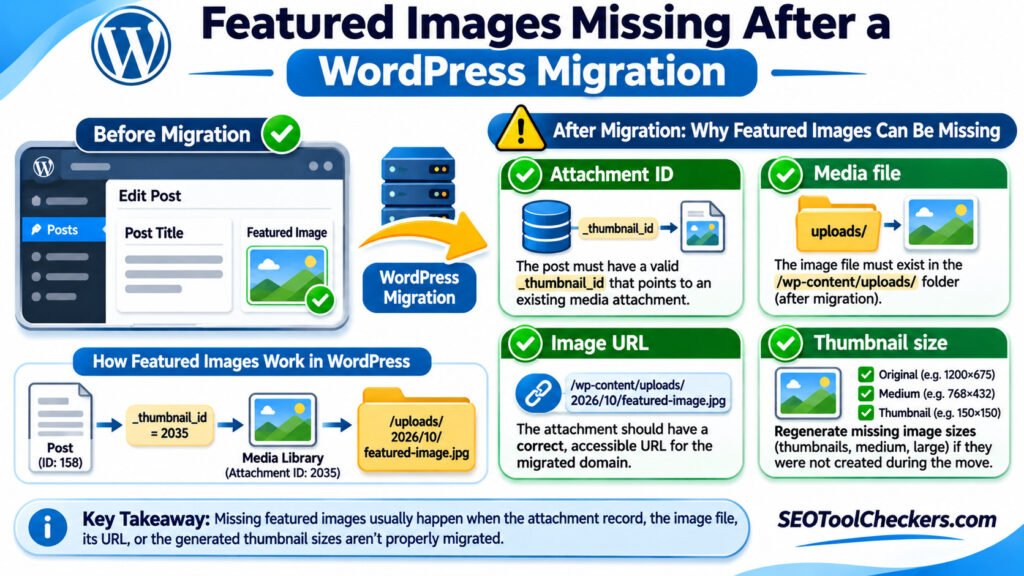
Featured images can disappear after a WordPress migration when their media files were not transferred, their attachment records are missing, or the posts still point to outdated attachment IDs. Incorrect upload paths, old-domain URLs, missing image sizes, and theme display settings can cause similar symptoms. Start with one affected post: check its Featured Image setting, find the associated item in the Media Library, and open the image URL. The result tells you whether to repair a relationship, a file, or the frontend display.
Understand What WordPress Actually Stores as a Featured Image
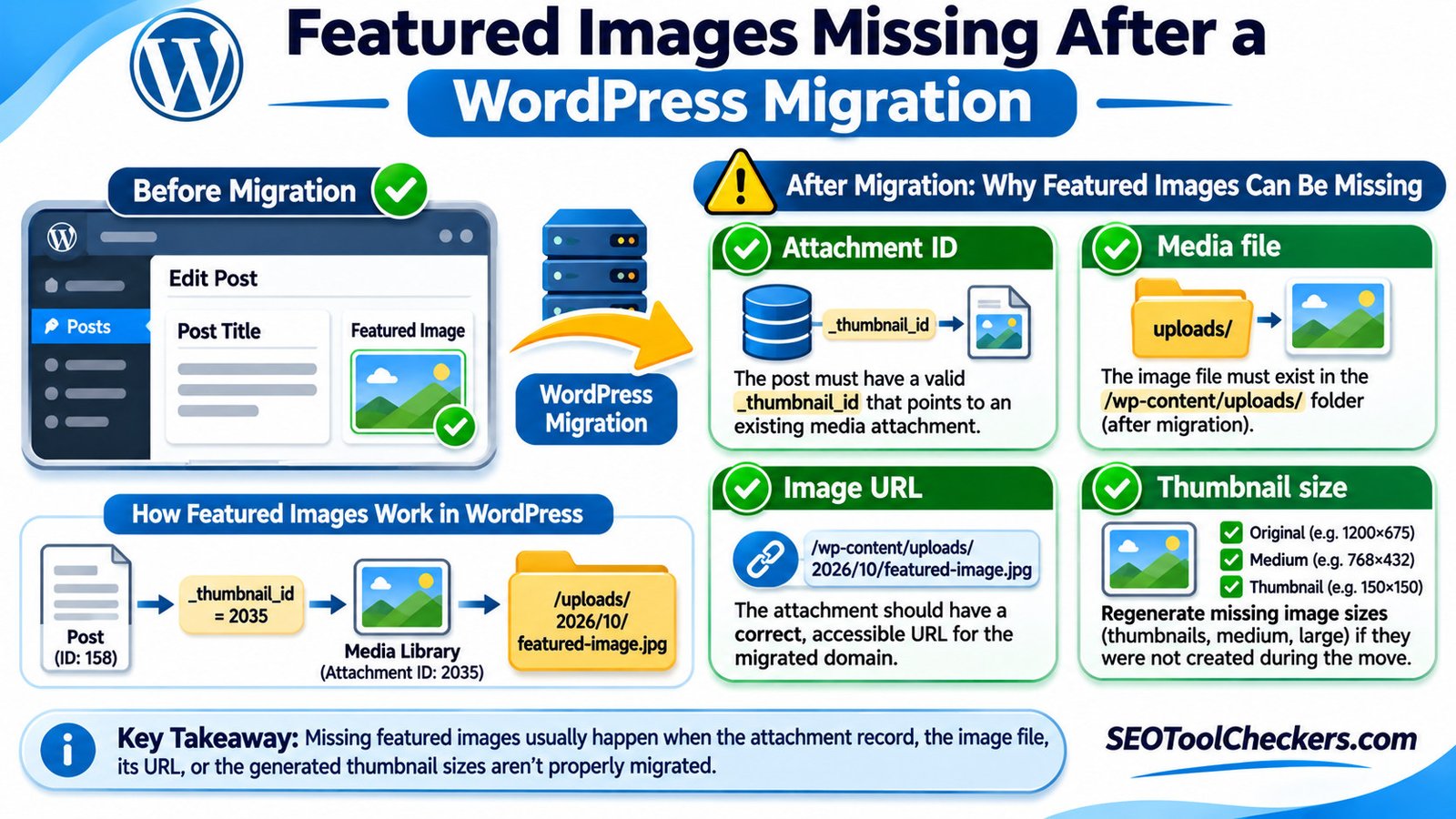
A featured image is not just a picture inserted into the post body. WordPress normally stores a relationship between the post and a Media Library attachment. The post meta key _thumbnail_id holds the attachment’s database ID. The attachment record contains its own metadata, including a stored file path such as 2026/10/garden-guide.jpg; the original image belongs in the relevant uploads storage.
That creates three separate things to preserve: the post-to-attachment relationship, the attachment record, and the physical image file. Even if the same image appears inside an article, that does not prove the Featured Image setting survived. Likewise, seeing a media record in the database does not mean the underlying file is still present.
After a migration, WordPress may assign new numeric IDs to imported posts and attachments. A source-site attachment ID is therefore not automatically valid on the destination. Media imports should maintain or correctly remap these relationships; manually copying an old _thumbnail_id to the new database is unsafe.
Use the Symptoms to Choose the Right Repair
| What you see | Likely area to inspect | First useful test |
|---|---|---|
| The Featured Image box is empty in the post editor | Missing or unmapped post-to-attachment relationship | Search the Media Library for the original filename |
| The image is selected, but its preview is broken | Missing file, wrong upload path, or inaccessible URL | Open the attachment’s direct file URL |
| Full image loads, but archive cards show blanks | Missing intermediate image size or theme-specific markup | Inspect the archive image URL and registered sizes |
| Images load from the old site but not the new site | Unmigrated file or outdated domain reference | Compare old and new URLs and file paths |
| The editor shows the image, but the public post does not | Theme template, display rule, cache, or CDN behavior | Inspect rendered HTML and the browser Network panel |
These are diagnostic patterns, not definitive diagnoses. For example, a CDN may return a broken image even though the local uploads file exists. Determine which layer is failing before changing post metadata or replacing URLs.
Step 1: Check One Affected Post and the Media Library
- Open an affected post in Posts > All Posts and inspect the Featured Image panel. For a custom post type, use its own editor.
- If the panel is empty, search Media > Library for the expected filename or image title. Compare it with the source site’s record or migration inventory.
- If the image exists, open its attachment details and follow the file URL. A working URL confirms that the browser can request that image; it does not by itself confirm the post is linked to it.
- If it appears as a broken preview, compare the filename, extension, folder, and domain against the original. Do not assume a file named
hero.jpgis interchangeable withhero.webp. - If only some posts are affected, check whether they share an author, date range, custom post type, gallery plugin, or migration batch. That pattern can narrow the investigation.
Quick recovery for a single post: If the correct file is already present in the destination Media Library, select it again in the Featured Image panel and update the post. Then check the public page. If many posts are affected, document the cause and test a repeatable repair on staging rather than reassigning hundreds of images by hand.
Step 2: Verify the Attachment ID Instead of Guessing It
For administrators with authorized WP-CLI access, a read-only inspection can show which attachment ID a post references. The following example uses illustrative IDs; substitute IDs from your own installation and run the commands within the correct WordPress environment.
# Read the post's current featured-image attachment ID.
wp post meta get 158 _thumbnail_id

# If the result is 2035, confirm that record is an attachment.
wp post get 2035 --field=post_type

# Read the attachment's stored relative file path.
wp post meta get 2035 _wp_attached_file
The second command should identify an attachment record. A missing record, a non-image attachment, or a value pointing to an unrelated item requires closer investigation. If the path shows 2026/10/garden-guide.jpg, compare that with the corresponding file under the actual uploads directory. WordPress deployments can use custom upload locations or remote media storage, so do not assume every site uses the default disk layout.
Do not update _thumbnail_id to an arbitrary number. A mismatch in IDs needs a verified mapping between source and destination attachments. An incorrect replacement can assign someone else’s image to a post or leave an apparently repaired database with missing files.
Step 3: Restore Missing Upload Files and Confirm Their Paths
With a standard WordPress installation, original uploads generally live under wp-content/uploads/, often organized in year/month folders. A database-only migration may leave all attachment metadata intact but transfer none of the JPEG, PNG, WebP, or other uploaded files.
Compare the source and destination uploads directories or their approved remote-storage equivalents. Confirm the exact relative file location, spelling, and extension. On case-sensitive servers, Feature.JPG and feature.jpg may be different filenames. Check whether the web server can read the files and whether the URL returns the correct image rather than a login page, redirect loop, 403, or 404.
When the original files were omitted, restore them from a trusted migration copy or backup, preserving their expected paths where feasible. Simply uploading a duplicate image into a new Media Library record will create a new attachment ID and does not automatically restore every existing Featured Image relationship.
If the site used an offload plugin or image CDN, review its storage configuration and origin URL. The image might exist in an object-storage bucket while the database still points to a decommissioned hostname. Fix the actual storage or URL configuration rather than rewriting unrelated post content.
Step 4: Handle Domain Changes Without Breaking Media Metadata
A domain migration can leave absolute media references to the old hostname in page-builder settings, custom fields, CSS, and some imported content. Before replacing anything, verify that each destination file really exists. Use the WordPress Media URL Mapper to organize source and destination paths, and the Website Migration URL Mapper when the move changed broader URL structures. These links are listed in the supplied SEOToolCheckers inventory; confirm the live tool’s capabilities before relying on its output.
| Example reference | Destination to verify | What it means |
|---|---|---|
https://old.example/uploads/2026/10/hero.jpg |
https://new.example/wp-content/uploads/2026/10/hero.jpg |
Hostname and directory both changed |
http://new.example/wp-content/uploads/hero.jpg |
https://new.example/wp-content/uploads/hero.jpg |
Protocol changed; HTTPS must serve the file |
https://new.example/wp-content/uploads/hero-300x200.jpg |
The registered derivative or a suitable fallback | A resized variant may be absent even when the original exists |
Examples here are fictional, not observed URLs. For large database migrations, use a serialization-aware replacement method. WP-CLI’s search-replace supports a dry run and handles serialized data. It does not create missing media files or rebuild broken attachment IDs.
# Preview a verified old-domain to new-domain replacement.
wp search-replace 'https://old.example' 'https://new.example' --dry-run --skip-columns=guid
Review the affected tables and sample records, back up the database, and test on staging before deciding whether any replacement is appropriate. Skip the guid column during ordinary URL migration replacements. Do not run a blanket replacement on a live site merely because images look broken; a missing attachment relationship needs a different repair.
Step 5: Regenerate Sizes Only After the Original Files Work
WordPress generates intermediate image dimensions for thumbnails and content display. Themes and plugins may register additional sizes. Following a move, the original file can be present while a card template requests a cropped version that was never generated or copied to the destination.
First confirm that the original image is readable. Then use a supported thumbnail-regeneration method. On sites with WP-CLI, the documented command below targets missing generated sizes:
wp media regenerate --only-missingOn a large site, schedule this carefully because it can consume storage, memory, and CPU. Consider testing a single attachment ID first with wp media regenerate 2035, then inspect the sizes your active theme requests. Regeneration cannot recover an original file that is missing, nor will it fix an invalid _thumbnail_id relationship. If the site uses a managed media service, follow that service’s instructions instead.
After restoring image variants, check the actual src and srcset in the browser. A responsive template may choose a broken derivative even when the full-size URL works. For an existing but unsuitable image crop, the Image Resizer and Cropper is relevant for preparing a replacement asset; resizing does not repair WordPress database relationships.
Step 6: Check Theme Templates, Custom Post Types, and Caches
Not every missing featured image is a migration of files or metadata. If the image appears in the editor and its URL opens correctly, inspect the public template. Some themes show featured images on archives but not single posts; others let you disable them for specific categories, pages, or layouts. A new theme may also use different image sizes or display rules.
For a custom post type, the post type and theme must support featured images in the relevant context. If the Featured Image panel disappeared after moving custom code or changing themes, check the post-type registration and the theme’s featured-image support before importing files again.
Finally, clear the applicable page, object, CDN, and image-optimization caches. Test in a private browser window and examine the Network response for the specific image. A cached broken URL can make a successful repair look ineffective, while an image hidden by CSS may still return HTTP 200.
Worked Diagnosis: One Post, Four Checks
Imagine a migrated post with ID 158 previously used an image named garden-guide.jpg. These values are illustrative, not real site findings.
- Post relationship: Does
_thumbnail_idreturn an attachment ID, or is the field empty? - Attachment identity: Does that ID identify the expected image attachment on the new site?
- Original file: Does the stored path resolve to the correct
garden-guide.jpgfile, and can its URL be opened? - Rendered variant: Does the frontend request an intermediate size that exists and loads without errors?
If the first check fails, restore or remap the Featured Image association. If the second fails, examine the import’s ID mapping. If the third fails, restore the source file or correct the storage path. If only the fourth fails, investigate derivative generation, templates, and caching. This order avoids using image regeneration for a relationship problem or changing the database for a missing-file problem.
When a WordPress XML Import Is the Root Cause
WordPress XML/WXR exports represent content and metadata; they do not package the full uploads library as binary files. Depending on the importer and source accessibility, attachments may be downloaded separately during import. If the original website is offline, private, access-restricted, or returning errors, media retrieval can fail while posts still import.
Review the importer logs or completion messages and compare the destination Media Library against the source. If the WXR file is very large, the WordPress XML Export Inspector is a related resource for understanding the export structure; a structurally valid WXR still does not prove its attachments were successfully fetched. Avoid repeated untested imports into production because they may introduce duplicates or inconsistent relationships.
Final Checks Before Calling the Migration Fixed
- Review a sample of older, newer, and custom-post-type entries—not just the homepage.
- Confirm featured images appear in the editor and in the specific frontend templates where they are intended.
- Check that image requests use the correct HTTPS domain, path, and file extension.
- Verify both full-size images and the variants used by cards, archives, and mobile layouts.
- Check browser Console and Network results for failed image requests.
- Preserve a restorable backup and a record of any changed attachment mappings.
Bottom line: The quickest sustainable fix comes from identifying which piece is missing. Restore files when files are absent; restore the relationship when attachment IDs are wrong; regenerate sizes when derivatives are absent; and adjust the template when images are attached but not displayed.
Common Questions About Migrated WordPress Featured Images
Why do images inside posts work while featured images are missing?
Inline images can use their own HTML URLs, while the Featured Image setting depends on a separate attachment ID stored in post metadata. One can survive an import without the other.
Can I fix featured images by changing the website URL?
Only if outdated URLs are genuinely the cause. URL replacements will not reconstruct missing attachment records, import files, or correct an ID that points to the wrong media item.
Will regenerating thumbnails restore every missing featured image?
No. Regeneration creates supported image sizes from existing originals. It does not download absent originals or rebuild lost post-to-attachment relationships.
Should I copy the old site’s _thumbnail_id values into the new database?
Not without a validated mapping. Imports can reassign IDs, so an old numeric value might identify a different attachment on the destination.