How to Find Missing Image Alt Text in WordPress Posts
How Do You Find Missing Image Alt Text in WordPress Posts?
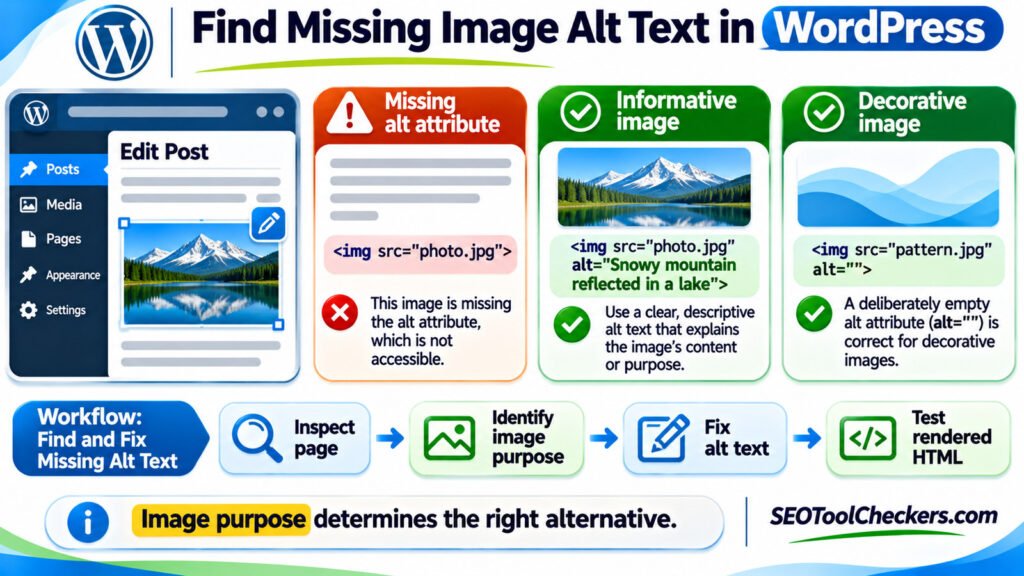
To find missing image alt text in WordPress posts, inspect the images on the published page, identify which <img> elements lack an alt attribute, and review empty or unclear descriptions in context. Fix meaningful images in the WordPress Image block or Media Library, then verify the HTML actually shown to visitors. Do not automatically label every empty alt value as an error: a purely decorative image should usually use alt="" so screen readers can ignore it.
Three Alt Text Conditions That Mean Different Things
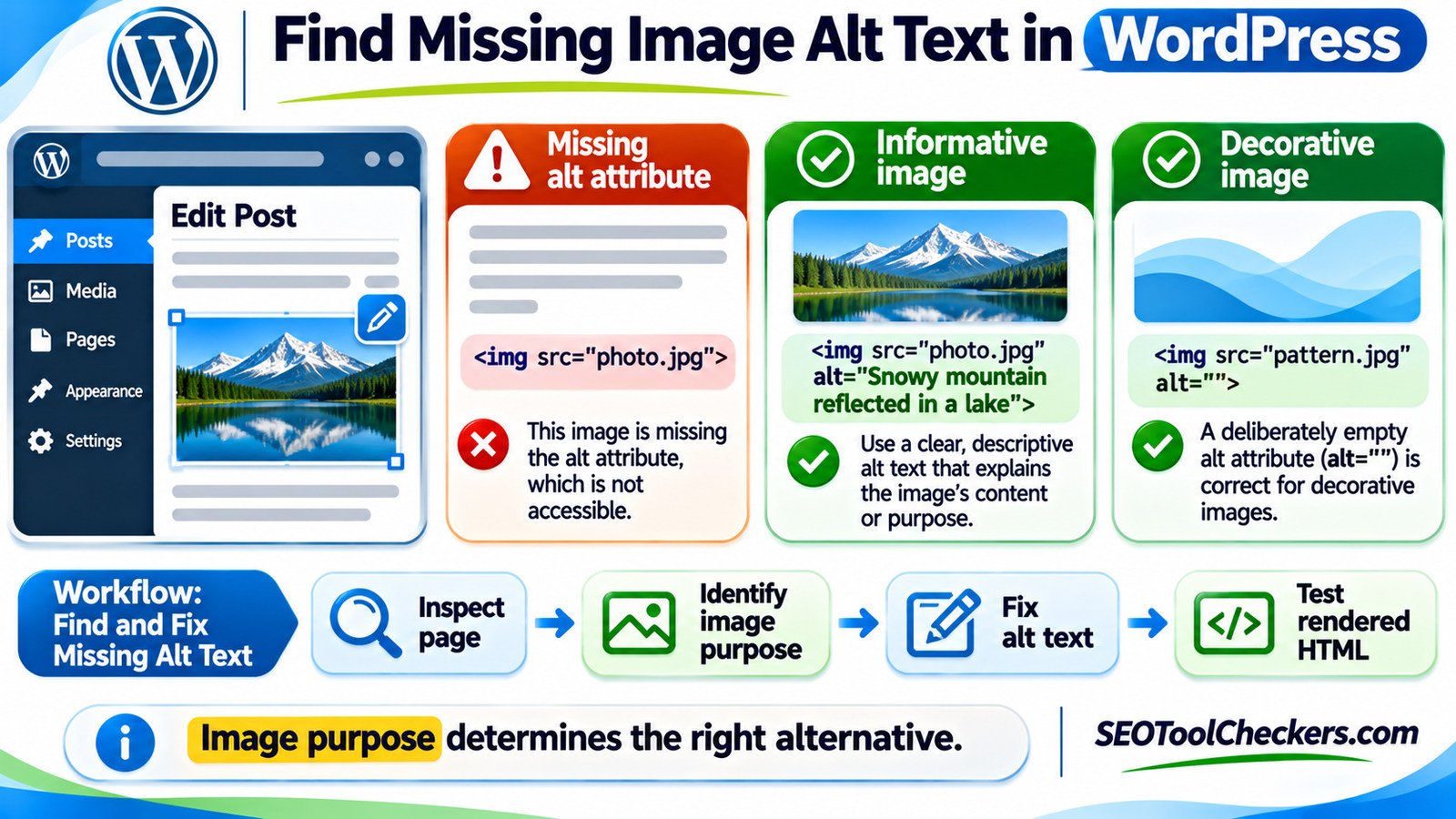
An accessibility audit should begin with the image’s purpose, not a bulk count of empty fields. A post can contain one serious omission, several perfectly valid decorative images, and a descriptive attribute that still fails to explain the photograph.
| Rendered HTML | What it means | Recommended action |
|---|---|---|
<img src="photo.jpg"> |
No alt attribute |
Investigate and add a suitable text alternative or intentionally empty alt, as appropriate |
<img src="pattern.jpg" alt=""> |
Present but empty | Correct if purely decorative or fully redundant; otherwise describe its meaning |
<img src="photo.jpg" alt="picture"> |
Present but uninformative | Rewrite to identify what matters about the image on this page |
<img src="trail.jpg" alt="Hikers crossing a suspension bridge above a forested valley"> |
Specific and contextual | Keep if this is the relevant information the reader would otherwise miss |
Missing and empty are not synonyms. Screen readers may announce a filename or image URL when the alt attribute is absent. An explicitly empty value communicates that the image need not be announced. Neither a file title nor a WordPress caption automatically replaces the element’s alt attribute.
Find Images With Missing Alt Attributes on a Published Page
Open a representative post on your public website first. Editing screens show stored settings, but the browser’s rendered HTML reveals what a theme, block, shortcode, or plugin ultimately outputs. This difference matters for featured images, galleries, related-post cards, page builders, and image widgets.
- Open the published URL rather than relying only on the WordPress editor preview. Load the page and scroll through areas that lazy-load images.
- Inspect a specific image. Right-click it, choose Inspect, and locate the corresponding
<img>element in the browser’s developer tools. - Look for the
altattribute. If it is absent, review the image’s role. If it is empty, ask whether the image adds meaningful information. - Repeat across templates. Audit a regular post, a category page, the homepage, a gallery, and any product or author templates used on the site.
- Record the issue. Note the page URL, image identifier, displayed purpose, current alt value, and the WordPress location that controls it.
The SEOToolCheckers Image Alt Text Checker is the main related tool for this workflow. Follow the options available on its live interface, and manually review the meaning of reported images before making changes. A checker can identify patterns, but it cannot reliably decide whether every illustration is decorative or informative.
A browser-console check for missing attributes
If you are comfortable with browser developer tools, the following read-only JavaScript example lists images without an alt attribute on the current rendered page. Open the Console on a page you control, paste the example, and review the returned elements:
const missingAlt = [...document.querySelectorAll('img')]
  .filter(img => !img.hasAttribute('alt'));
console.table(missingAlt.map(img => ({
  src: img.currentSrc || img.src,
  html: img.outerHTML.slice(0, 180)
})));
This code does not edit your site or upload anything. It deliberately excludes alt="" images because those require a separate human judgment. It also cannot inspect images not yet added to the page, CSS background images, or every possible shadow-DOM component. Use it as a quick sample, not a complete accessibility certification.
Fix Alt Text in the WordPress Block Editor
For an image inserted directly into a post, the most useful place to edit alt text is often the Image block itself. Open Posts > All Posts, edit the affected article, select the image, and use the block’s settings sidebar to locate Alternative text. In supported current editors, an image can also be designated as decorative.
Write the description according to the surrounding paragraph. A photograph supporting a hiking guide might need the trail conditions or a landmark, not a long list of everything visible. Save the post, open the published URL again, and inspect the image element to confirm the new value reached the page.
Important WordPress behavior: the Image block can store alt text for that particular occurrence of the image. A value edited in the block does not automatically become the Media Library default, and changing the Media Library entry does not guarantee that every previously customized instance will change. Check the rendered occurrence you intend to fix.
Update the default alt text in the Media Library
Navigate to Media > Library, open the relevant image, and edit its Alt Text field. This provides the default description used when the image is inserted into WordPress content through supported workflows. It is especially useful when an image is repeatedly used in a consistent role. If the same photo appears on different pages for different reasons, however, each placement may need context-specific wording.
Do not confuse WordPress’s Title, Caption, and Description fields with the HTML alt attribute. A caption is normally visible to everyone; an alt alternative is used when image content needs a nonvisual equivalent. They can complement one another, but populating the caption alone does not fix a missing alt attribute.
What About Featured Images, Galleries, and Image Cards?
Some images do not appear as editable Image blocks inside the body of a post. A featured image may be displayed automatically above an article, in a related-post card, or in a category archive. In many standard WordPress rendering paths, attachment alt metadata supplies the default value, but a theme or plugin can customize the final output.
| Where the image appears | First place to check | What to verify on the site |
|---|---|---|
| Image inside a post | Image block alt setting | Its specific <img alt="..."> in the published post |
| Featured image | Featured-image attachment in Media Library | Single-post and archive templates may output it differently |
| Gallery image | Image entry and gallery block/plugin settings | Each gallery item and any lightbox behavior |
| Logo or clickable thumbnail | Theme template, navigation block, or plugin | The image or linked control announces its purpose |
| Page-builder or shortcode image | Specific widget/module settings | Rendered markup after the builder/plugin runs |
When a theme uses the same image as a linked post thumbnail, consider whether the card already contains a descriptive linked title. Repeating exactly the same text can create unnecessary screen-reader repetition. If the image is the only link content, it must provide an accessible destination or action. The Link Text Checker is a useful companion for examining image-only and otherwise unclear links.
If you change the framing of a photo, recheck that the alt text still matches what visitors see. The Image Resizer and Cropper belongs in the image-editing workflow, but changing dimensions or cropping does not itself fix accessibility text.
Choose Alt Text Based on What the Image Actually Does
An informative image conveys something the reader needs. A decorative image contributes atmosphere or styling without adding essential information. A functional image starts an action or leads to another page. These categories determine the right alternative more reliably than image file type or location in WordPress.
| Image purpose | Example | Appropriate alternative |
|---|---|---|
| Informative photo | Photo showing a cracked laptop screen | alt="Crack running diagonally across the laptop display" |
| Decorative visual | Wave pattern separating two sections | alt="" |
| Functional image link | A printer icon that opens printing | alt="Print this guide", if no equivalent accessible link label is supplied |
| Chart or diagram | Graph of traffic trends by month | Brief identifying alt text plus a fuller visible explanation or data table |
| Screenshot for instruction | WordPress sidebar showing the alternative-text field | Describe the location or action needed, not merely “WordPress screenshot” |
For charts and dense infographics, a one-sentence alt description often cannot convey the data. Include the essential figures and relationships in nearby ordinary text, a table, or a linked detailed description. The same applies when instructional content exists only as text inside an image: make that information available as real page text whenever possible.
There is no magic character count that guarantees good alt text. Usually one concise sentence is enough for a simple image, while complex visuals require additional accessible explanation. Avoid alt="image", filenames such as IMG_0234.jpg, or repeated keyword phrases. Google uses useful alt text and nearby content to understand images, but keyword stuffing makes the experience worse rather than improving it.
Why Alt Text May Still Be Missing After You Save It
When the WordPress editor appears correct but the public page still lacks the attribute, investigate where the output is generated. The issue may not be the image record you edited.
- Wrong instance: the same photo is used in multiple posts; you updated the default, not the customized block on the affected page.
- Theme or plugin output: a custom gallery, slider, featured-image template, or page builder generates its own
<img>markup. - Cached HTML: the server, page cache, or CDN may still deliver an older page. Purge the relevant cache and reload before evaluating the result.
- External media: an image inserted using a third-party URL or custom HTML may not correspond to an editable WordPress Media Library attachment.
- Different image formats: CSS backgrounds do not have an
altattribute. If a CSS background communicates important information, supply its meaning elsewhere in accessible content.
Responsive images deserve a separate check. A WordPress image may include srcset and sizes to choose different source files at different widths. Those attributes help the browser select an image, but they do not replace the alt text on the <img>. Use the Responsive Image Loading Checker for a complementary review of responsive delivery, then inspect the rendered alt attribute itself.
A Practical Alt Text Audit You Can Repeat
For a large WordPress site, prioritize shared templates and high-traffic content instead of editing random files one by one. Start with the homepage, a typical article, an archive, and any image-heavy templates. Audit image-only links and meaningful diagrams first, then work through the remaining posts.
- Export or record the affected page URLs and the location of each questionable image.
- Separate truly missing
altattributes from intentionally empty values. - Decide the correct category: informative, functional, decorative, or complex.
- Write a concise, context-specific alternative, or keep
alt=""when appropriate. - Update the responsible WordPress block, attachment, theme template, or plugin field.
- Clear relevant caches and inspect the newly rendered HTML.
- Repeat on mobile layouts and reusable cards that may render the same image elsewhere.
Do not use a bulk process that fills every empty field with the filename or post title. That turns valid decorative images into noise and creates repetitive, unhelpful descriptions. Use automation to find candidates, not to replace the editorial judgment behind each text alternative.
Alt text is part of a wider accessibility review. The ARIA Attribute Checker can complement it for complex controls, while the HTML Landmark Checker and Heading Structure Checker address navigation and page structure. None of these individual checks proves complete WCAG conformance.
Frequently Asked Questions
Should every WordPress image have text in its alt field?
No. Every relevant HTML image generally needs an alt attribute, but purely decorative images should normally have an empty value, alt="". Meaningful and functional images need an appropriate nonempty alternative unless equivalent accessible wording is already supplied in context.
Will editing the Media Library alt text update all old posts?
Not reliably. The Image block can store an alternative for one placement. Existing instances may keep their customized text, while templates and plugins may use attachment defaults. Check the exact published page after editing either location.
Is missing alt text an SEO ranking penalty?
There is no justified universal claim that a missing attribute triggers a specific ranking penalty. Descriptive alt text improves accessibility and helps search systems interpret relevant images. It should be written for the image’s purpose, not as a shortcut to rankings.
Does adding an image title or caption fix missing alt text?
No. WordPress image titles and visible captions have different roles. Supply the correct alternative text in the relevant image or template output, and use captions when they add helpful visible context.
The First Fix to Make
Choose one important WordPress post and inspect its images in the published HTML. Fix any meaningful image that has no alternative text, and preserve explicitly empty alt values for genuinely decorative visuals. Then check featured images and repeated cards where a theme can generate different markup. The goal is not to fill every field: it is to make every meaningful image understandable without seeing it.