Robots.txt Blocking Googlebot? How to Find the Wrong Rule
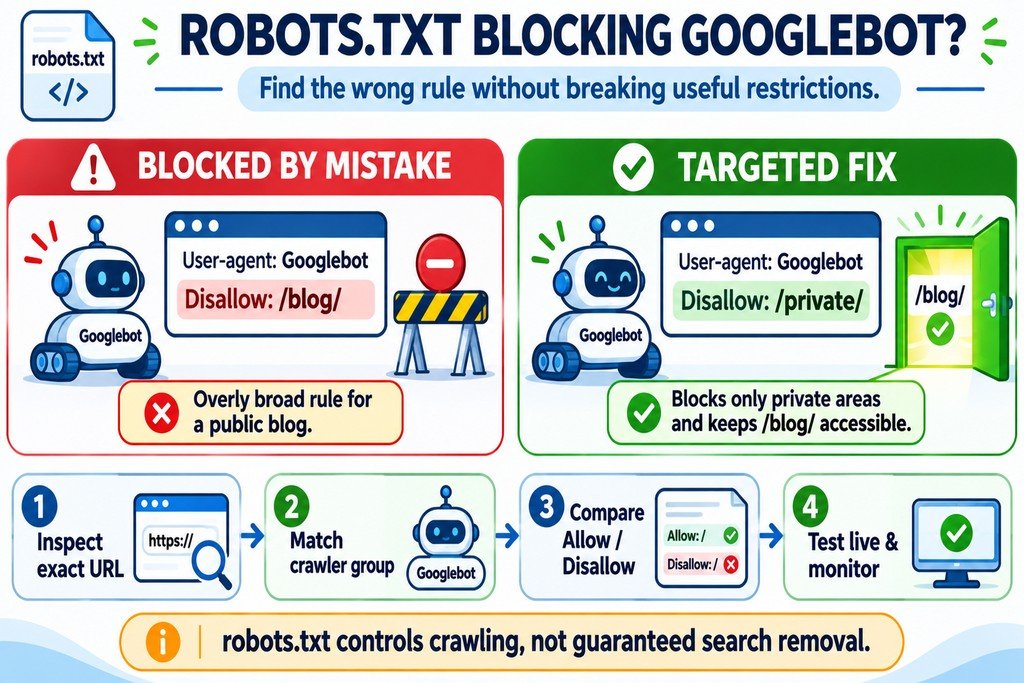
How Do You Find a Robots.txt Rule That Blocks Googlebot?
Inspect the exact URL in Google Search Console, open the robots.txt file for that URL’s protocol and host, and identify which user-agent group and path rule apply to Googlebot. Check broad Disallow directives, more specific Allow exceptions, and wildcard patterns before editing anything. Then test the affected URL again and verify that restrictions on genuinely unnecessary paths still behave as intended. A crawl block is not the same as a noindex directive.
Trace the Blocking Rule Before You Change Robots.txt
A public article can be published, linked from the menu, and included in the sitemap yet remain inaccessible to Googlebot because of one line in robots.txt. Often the mistake is a rule written for a staging site, an old category, or a whole folder when the owner meant to block only a few URLs.
Do not solve the problem by deleting the entire file. A better approach is to diagnose the precise path and the crawler that is blocked, change the narrowest relevant rule, then retest. The Robots.txt Generator and Tester provides a useful place to draft and review candidate directives, but Google’s own URL Inspection data remains the reference for Google’s access to a live URL.
1. Confirm That Robots.txt Is the Actual Blocker
Open Google Search Console for the correct property and inspect the full canonical URL. Look at the Page indexing details and the reported Crawl allowed? status, where available. Use Test Live URL to check current access if the stored report reflects an older crawl. Google’s last known status and a fresh live test can legitimately differ after recent changes.
A message such as Blocked by robots.txt points to a crawl restriction. By contrast, Crawled – currently not indexed is not automatically a robots.txt issue; Google already fetched that page. A 403 response, login wall, or server timeout also needs a different fix. For a broader diagnostic, review the page with the Website Indexability Checker, then corroborate its findings in Search Console.
Record the exact URL, its latest Google-reported status, the date of that report, and whether the live test is allowed. This creates a reliable before-and-after comparison.
2. Open the Correct Robots.txt File
For https://www.example.com/blog/guide/, inspect https://www.example.com/robots.txt. The robots.txt rules of https://example.com/, http://www.example.com/, and a separate subdomain do not automatically apply to this URL. Protocol, hostname, and nonstandard port matter.
Make sure the live response is actually the robots.txt file. A content delivery network, hosting cache, or security service can serve a different version from the one shown in your editor. Compare the browser-visible file with the latest fetched version shown in Search Console’s robots.txt report, when available for your property.
If your server returns an error instead of the file, investigate that before rewriting rules. Google generally treats most robots.txt 4xx responses other than 429 as if there were no file, whereas persistent 5xx failures can interrupt crawling or lead Google to use a cached version.
3. Identify the Googlebot Group, Not Just the Word “Disallow”
Robots.txt groups begin with User-agent: and contain rules for a crawler or a set of crawlers. User-agent: * is the fallback group. A matching User-agent: Googlebot group takes priority over that generic group for Googlebot, even if a global rule looks more permissive.
User-agent: Googlebot
Disallow: /articles/

User-agent: *
Allow: /
Result: Googlebot is blocked from /articles/seo-checklist/. The general Allow: / does not undo the specific Googlebot group’s restriction. To fix this, adjust the Googlebot group itself or remove it if it is unnecessary; do not assume moving the global group above it changes the result. Google combines multiple groups that specify the same crawler.
Googlebot-Image and some other Google crawlers can have their own applicable rules. If the problem concerns images rather than ordinary webpages, check the correct crawler identity instead of interpreting every bot as Googlebot.
4. Read the Path Rule That Matches Your Exact URL
For Google, rule matching is based on the URL path. The longest matching rule is normally the most specific; if equally specific Allow and Disallow rules conflict, the less restrictive rule wins. Paths are case-sensitive. A trailing slash, a wildcard, or an end-of-URL marker can change which pages are blocked.
| Rule | What it matches | Typical mistake |
|---|---|---|
Disallow: / |
Every path on the applicable origin | Leaving a staging-site rule on production |
Disallow: /blog |
Paths starting with /blog |
Unintentionally blocks /blogger/ too |
Disallow: /blog/ |
Pages inside the /blog/ directory |
Blocks all public articles in that folder |
Disallow: /*.pdf$ |
Paths ending in .pdf |
Blocks important downloadable PDFs |
Disallow: /News/ |
Uppercase /News/ paths |
Assuming it also matches lowercase /news/ |
Google supports * as a wildcard and $ as an end-of-URL marker. Unlike some firewall rule languages, robots.txt does not use regular expressions. Test several real URLs rather than relying only on whether a rule looks plausible.
5. Work Through an Accidental Blog Block
Suppose an editor discovers that https://example.com/blog/technical-seo/ is blocked. The current robots.txt contains:
User-agent: *
Disallow: /blog/
Disallow: /internal-search/
Both lines affect Googlebot because there is no more specific Googlebot group. The first blocks every public blog article, while the second may be an intentional restriction on a low-value internal-search route. The correct repair is to remove only the rule that should not exist:
User-agent: *
Disallow: /internal-search/

Sitemap: https://example.com/sitemap_index.xml
Now the blog is crawlable by default. The retained restriction remains in place. Only publish a sitemap URL that actually exists on your site, and remember that a sitemap entry does not override a robots.txt block.
6. Use an Allow Exception Only When It Is the Best Fix
Some directories contain a mixture of public and low-value pages. In those cases, a more specific Allow rule can make sense. Imagine that most pages under /catalog/ should remain uncrawled but a documented public resource should be accessible:
User-agent: Googlebot
Disallow: /catalog/
Allow: /catalog/public-guides/
Googlebot can crawl /catalog/public-guides/setup/ because the more specific allow rule wins. It still cannot crawl /catalog/internal-options/. However, this exception does not necessarily suit other crawlers, and it is not a reason to keep an unnecessary broad restriction. If the whole catalog is valuable public content, remove the broad block instead.
Important: a robots.txt path that starts with / is not a universal command to other websites. It applies only to the origin serving the file. Also, adding Allow: / at the top of a group does not automatically override a longer matching Disallow rule.
7. Check WordPress and Rank Math Before Saving
In WordPress, the visible robots.txt file might be generated virtually by the CMS or an SEO plugin, or it might be a physical file stored at the web root. If you use Rank Math, its editing screen is typically under Rank Math SEO → General Settings → Edit robots.txt with Advanced Mode enabled. A physical file can take precedence over Rank Math’s virtual editor, so edits inside WordPress may not alter what Google receives.
- Back up the current robots.txt content and note when you made the change.
- Confirm whether hosting, a physical file, WordPress, or another plugin serves the live rules.
- Make the smallest required edit in the actual source of truth.
- Clear relevant server or CDN caches if they continue to serve the old file.
- Open the live robots.txt URL again in a fresh session and confirm the response.
A normal WordPress installation often disallows /wp-admin/ while permitting the /wp-admin/admin-ajax.php endpoint. Do not remove useful administrative crawl restrictions merely to make a validator display all green checks. A crawl directive is also not access control; sensitive files require real authentication.
8. Retest the Exact URL and Monitor the Change
After publishing the correction, inspect each previously blocked URL in Search Console. Use the current live test where available and compare its crawl allowance with the earlier report. Search Console’s robots.txt report can show Google’s fetched versions, parsing issues, and last fetch information. It also offers a robots.txt recrawl request for important changes.
Google generally caches robots.txt for up to 24 hours, sometimes longer if fetching fails. A successful local test therefore does not prove that Google has switched to the new version immediately. Neither a recrawl request nor an unblocked page guarantees indexing. The final page must still return usable content without a noindex instruction or other indexing obstacle.
Use the XML Sitemap Validator to check whether intended URLs are listed correctly, and the Bulk HTTP Status and Redirect Checker to spot a destination that now redirects or fails. For pages dependent on JavaScript, the Source vs Rendered HTML Comparison can support a separate rendering review once crawling is allowed.
Common Outcomes After a Robots.txt Fix
| What you see | What it suggests | Next step |
|---|---|---|
| Live test still says crawling blocked | Wrong origin, cached file, or another matching rule | Compare the file Google fetched and test the exact URL |
| Robots.txt is allowed but page says noindex | An indexing directive is now visible | Review the page’s robots meta or HTTP headers |
| Crawl allowed but destination redirects | The original URL is not the final page | Inspect the redirect target and canonical signals |
| Crawl allowed but page not indexed | Other indexing or content factors remain | Review coverage status, usefulness, duplicates and internal links |
| Some image assets remain blocked | Separate asset paths or crawler rules apply | Inspect image URLs, resources and rendering details |
When the page becomes crawlable, continue with the Canonical Tag Checker if Google chooses an unexpected preferred URL. A robots.txt repair restores access; it does not settle canonicalization or content-quality questions.
Frequently Asked Questions
Does Disallow: / block the entire website?
Yes, for crawlers governed by that group, it matches the site’s paths. It does not make the site private, and URLs may still appear in search results without their content being crawled.
Why is Googlebot blocked if User-agent: * allows everything?
A more specific User-agent: Googlebot group takes precedence for Googlebot. Check its rules first; a permissive wildcard group is not automatically combined with it.
Can I use robots.txt to remove a page from Google?
Not reliably. A disallowed URL may still appear if Google knows about it through links. To exclude a publicly reachable page from indexing, Google must be able to crawl it and see a valid noindex directive. Use access controls for confidential material.
Does a sitemap override robots.txt?
No. Including a URL in an XML sitemap helps discovery but does not grant crawling permission when a matching robots.txt rule disallows it.
How soon will Google see my corrected robots.txt?
Google generally caches robots.txt for up to 24 hours, although server or network errors can extend that period. The Search Console robots.txt report can help you confirm whether Google fetched an updated version.
Should I delete robots.txt to make indexing easier?
Usually not. First identify whether the offending directive is genuinely wrong. Removing all restrictions can expose crawlers to duplicate, low-value, or resource-intensive URL patterns, while still offering no indexing guarantee.
Final Check Before You Close the Issue
For each affected page, write down the exact URL, selected user-agent group, effective matching rule, intended crawl policy, edit made, and fresh test result. Keep a copy of the previous file in case the change affects a different section unexpectedly. Fix the specific mistaken rule, preserve useful boundaries, and verify what Google sees.