Why WordPress Category Pages Return 404 After Permalink Changes
Build redirect rules for common permalink structure changes.
Why Do WordPress Category Pages Show 404 Errors After a Permalink Change?
WordPress category pages can return a 404 after permalink changes when the site’s rewrite rules are stale, the category URL base has changed, or a category path conflicts with another route. Server routing, plugins, and custom taxonomy code can also be responsible. First copy the actual category URL from WordPress, then save Settings → Permalinks once to refresh rewrite rules. If the error remains, identify the underlying route conflict before adding redirects.
WordPress Permalink Rule Converter
Build redirect rules for common permalink structure changes.
Convert simple WordPress permalink structures to redirect rules
Supports WordPress date, category, author, post ID and post-name tokens used as complete path segments. Generates Apache, Nginx and Redirection-plugin examples. The converter rejects unsupported or potentially looping patterns; check all server rules in staging before using them.
Diagnosing Category Archive 404s Without Breaking Your Permalinks
A category archive helps readers navigate related posts, but its address is controlled by more than the permalink pattern for individual articles. After a URL change, the blog may load normally while a path such as /category/guides/ fails. That does not necessarily mean the category or its posts were deleted.
Before editing server rules or installing another redirect plugin, establish whether the old address changed or the intended current address is actually broken. The checks below help distinguish outdated rewrite rules, changed category bases, conflicting paths, and server-level problems. They also explain when a permanent redirect is appropriate and when fixing the route is the safer option.
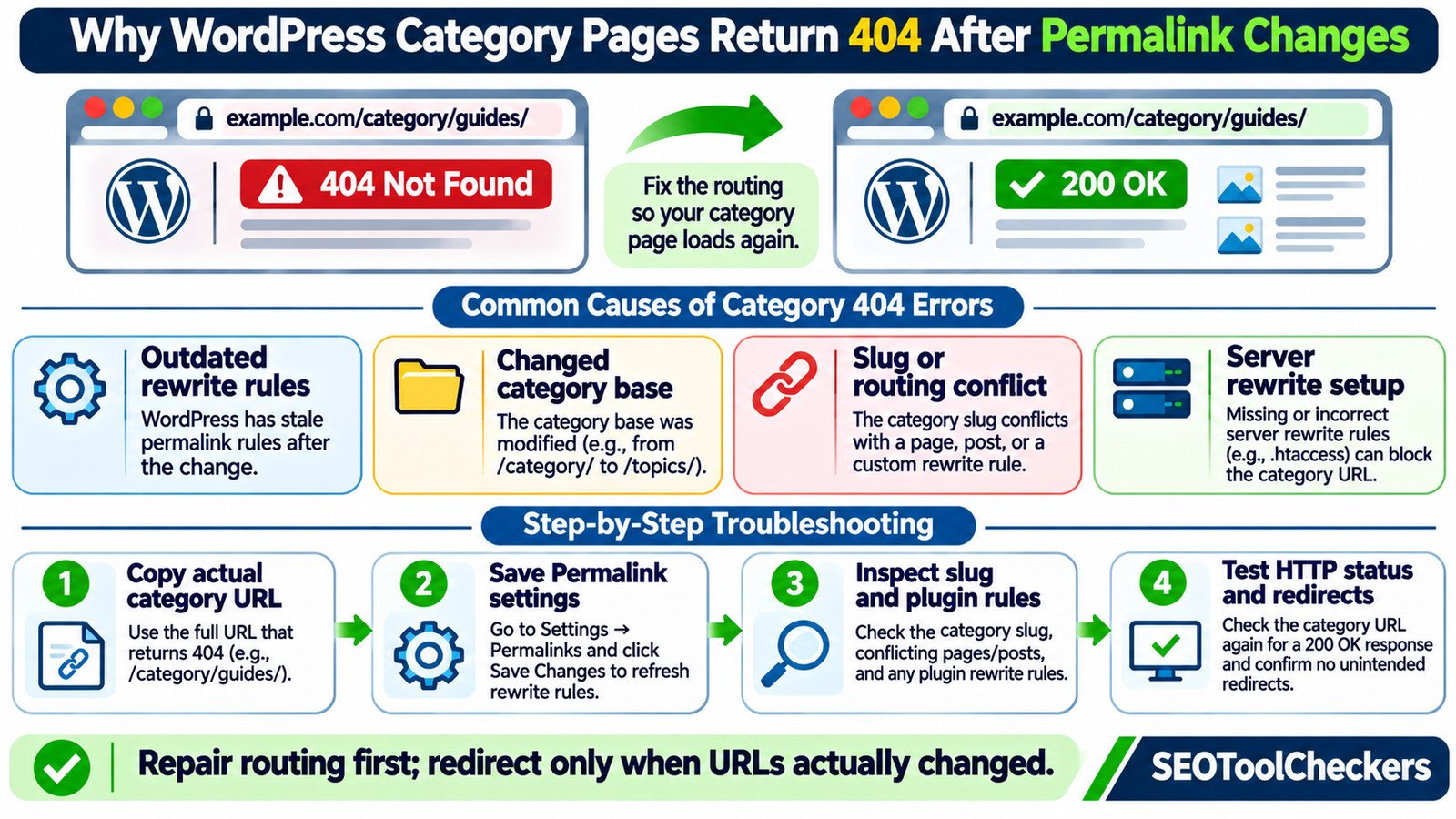
Category Archives and Post Permalinks Are Different URLs
WordPress creates archive URLs for categories assigned to posts. With the default category base, a term whose slug is guides may be available at https://example.com/category/guides/. A custom category base of topics can instead produce https://example.com/topics/guides/.
The post permalink structure, such as /%postname%/ or /%category%/%postname%/, controls individual post URLs. The separate Category base setting controls the prefix for category archive addresses. Changing one setting does not mean WordPress will automatically redirect every previously used category URL.
Start in Posts → Categories. Confirm the category exists, inspect its slug, and choose View to obtain the URL WordPress currently generates. Compare that address with the broken link from your menu, sitemap, or search results. This is more reliable than guessing a URL from the category’s display name.
Identify the Type of 404 Before Applying a Fix
| What you observe | Likely area to investigate | First useful check |
|---|---|---|
| Only old category URLs fail | Category base or slug changed | Open the current View link in Posts → Categories |
| All pretty category URLs fail | Stale rewrite rules or server routing | Save Permalinks, then retest an archive |
| One category path fails | Term slug, route collision, or custom rule | Compare the exact path with pages and post types |
/category/guides/page/2/ fails |
Pagination, page count, or archive rewriting | Verify page two genuinely exists |
| Browser shows Not Found but HTTP status is 200 | Theme or application-level error display | Inspect the response status and template behavior |
| URL repeatedly redirects | Conflicting redirect rules or normalization | Inspect each hop in the redirect chain |
Use the Bulk HTTP Status and Redirect Checker to inspect representative archive responses. A real HTTP 404 and a page that merely displays “not found” while returning 200 are different problems, and the remedy depends on the actual response.
Step 1: Confirm the Category Exists and Use Its Real URL
- Open Posts → Categories in WordPress administration.
- Find the category and verify its Slug, including any intended parent category.
- Use View and copy the full current URL, including its trailing slash if present.
- Compare the URL with links in navigation menus, breadcrumbs, widgets, and the XML sitemap.
- Check whether the failure occurs on a single archive or every category archive.
A category may legitimately have no published posts, but an empty archive alone is not proof that the underlying route is invalid. Check the site’s actual template and response code. For deeper triage, compare the archive link with the numeric category query form, such as /?cat=12 where 12 is the actual term ID, to help distinguish a query that works from a pretty-permalink route that fails. Do not assume a sample ID belongs to your site.
Step 2: Refresh WordPress Rewrite Rules Safely
Go to Settings → Permalinks and click Save Changes without necessarily changing the selected permalink pattern. This normally refreshes WordPress’s rewrite-rule cache. Then open the affected category archive in a fresh browser session and check its HTTP status. When the problem is simply stale rewrite rules, that may resolve it.
Before changing live settings on a business-critical site, record the current permalink structure and take a current backup. If the fix fails, do not repeatedly toggle settings at random. A refresh cannot resolve a genuine path collision or a misconfigured server.
Developers sometimes use flush_rewrite_rules() after registering a new taxonomy or changing rewrite definitions. WordPress documents that this is relatively expensive; it should not be executed on every page load. The administrative save action is usually the appropriate first troubleshooting step for a site owner.
Step 3: Check the Category Base and Slug Collisions
Under Settings → Permalinks → Optional, inspect Category base. WordPress normally uses category if a custom base is not supplied. If you changed that base from category to topics, the old path can become invalid even though the archive at the new path is functioning.
Look for overlapping routes. For example, a static page at /topics/, a custom post type with the same base, or a plugin that removes the category prefix may interact with archive matching. A collision is a possibility, not a diagnosis from the URL alone; confirm by checking the active rules and each path’s intended owner.
Be especially careful with plugins that remove /category/ entirely. Core WordPress normally retains a category base; prefix-removal behavior comes from a custom configuration or plugin. If you recently installed such a plugin, test whether disabling its custom rewrite behavior on a staging site restores the archive route.
The WordPress Permalink Rule Converter can help document intended URL-pattern changes for review, but a conversion aid cannot by itself repair live server routing, plugin code, or rewrite registration.
Step 4: Review Apache, Nginx, and Hosting-Level Routing
WordPress’s readable URLs depend on correct request routing to the application. On Apache, the site’s .htaccess setup commonly handles these rewrites; on Nginx, equivalent rules belong in the server configuration rather than .htaccess. Managed hosting, reverse proxies, and CDN rules can add another layer.
If all non-homepage pretty URLs are failing, suspect a wider server-level issue before focusing only on categories. If posts and pages work but category archives fail, focus on taxonomy rules, the category base, and plugin conflicts. Do not paste a generic rewrite snippet over an existing production configuration without first checking the server type, installation path, and host-specific settings.
On Apache-based hosting, compare any custom rules against the site’s required WordPress block and review file permissions. On Nginx, ask the host to verify that unresolved requests reach WordPress. The Htaccess Redirect Generator is useful for planning Apache redirects, but it is not a substitute for diagnosing Nginx rules or an archive rewrite conflict.
Step 5: Isolate Plugin or Custom-Taxonomy Rewrite Conflicts
Plugins that manage SEO URLs, rewrite category bases, or add post types and taxonomies can change how requests are interpreted. A custom taxonomy may register a rewrite slug identical to an existing category base. WordPress’s register_taxonomy() function explicitly supports custom rewrite slugs and hierarchical behavior, so plugin code can be a direct source of unexpected routes.
Use a staging copy to test recently changed plugins one at a time. Record the original configuration, deactivate a suspected feature, refresh permalink rules once, and test the same category. If the route works again, inspect the plugin’s slug or rewriting settings rather than removing unrelated SEO functionality. When multiple plugins add redirects, use the Redirect Rule Tester to check individual source and destination patterns before deploying changes.
Never diagnose a rewrite collision by permanently disabling every plugin on a busy production website. A controlled test is safer and makes the cause reproducible.
Worked Example: Old Archive URL Versus the Current Path
Suppose a site changes its category base from category to topics and keeps a term slug of guides. These are illustrative URLs, not results from a live WordPress test.
| Requested URL | Expected interpretation | Appropriate decision |
|---|---|---|
/category/guides/ |
Old category archive | 301 redirect to its matching new archive if permanently moved |
/topics/guides/ |
Current category archive | Should return 200 when the archive is available |
/topics/guides/page/2/ |
Second archive page | Check that enough published posts exist for page two |
/category/unknown-term/ |
No matching current category | Review individually; a genuine 404 may be correct |
One-to-one mapping preserves the topic and visitor intent. If URLs genuinely moved, build an approved redirect map with the Website Migration URL Mapper, then test the final responses. If the intended archive URL has not changed, fix its routing instead of hiding the defect behind a redirect.
Check Pagination, Canonicals, and Internal Links After the Repair
Test the archive’s first page and its next page when it exists. A request for page two should not be treated as broken if the category has only enough posts for one page. Check any changed trailing-slash behavior, internal pagination links, and whether the category’s canonical URL matches the actual preferred page.
Update menus, breadcrumbs, and other internal references to the final working archive URL. The Internal Links and Anchor Text Analyzer can support this clean-up. If an archive moved, avoid unnecessary 301 chains by linking directly to the destination rather than first linking through an old category address.
Finally, inspect the sitemap for category URLs if your SEO setup includes them. Use the XML Sitemap Validator and verify that submitted URLs are intentional, accessible, and not leftover paths from an earlier category-base configuration. A sitemap alone does not repair the broken rewrite rules.
What to Retest Before Marking the 404 Fixed
- Category archive first page returns its intended HTTP status and displays the right posts.
- Parent categories and child-category URLs work if your site uses nested terms.
- Pagination links behave correctly for categories with multiple archive pages.
- Old, genuinely moved category URLs redirect once to relevant new destinations.
- Navigation, breadcrumbs, and other internal links use the final URL.
- Canonical and robots directives are still intentional, especially after SEO plugin changes.
- There are no unexpected redirect loops, generic homepage redirects, or new 404 spikes.
Where the affected archive should be searchable, the Website Indexability Checker can support a follow-up review of crawl and indexing signals. A 200 response is necessary for a normal published category archive, but it does not on its own guarantee indexability or search rankings.
Frequently Asked Questions
Will saving permalinks delete any WordPress categories?
No. Saving the permalink settings refreshes route handling; it does not delete category terms or posts. Still record settings and back up a production site before making changes.
Why do posts work while category pages show 404?
Posts and categories can be matched by different rewrite patterns. A category-base change or taxonomy-rule collision may affect archives without affecting single posts.
Can I remove the category base completely?
Not through the standard core setting alone. Plugins or custom rewrite code may remove it, but doing so can create ambiguous URLs, so test collisions, pagination, and redirects carefully.
Should I redirect all broken categories to the homepage?
No. Redirect a moved category to a genuinely relevant destination. For an archive that no longer exists and has no appropriate replacement, a real 404 or 410 may be correct. Irrelevant mass redirects may be treated as soft 404s.
Does noindex cause a category page to show HTTP 404?
No. A noindex directive affects indexing instructions; it does not normally change an HTTP 200 response into a 404. Check both status and indexing directives separately.
How do I know whether the repair worked?
Open the exact category URL, confirm the correct archive and HTTP status, follow category pagination and internal links, then repeat checks on a few other categories. Monitor subsequent crawl errors and ensure the sitemap no longer points at obsolete paths.
For the next step in this WordPress workflow, see how to diagnose custom post type permalink failures.
You can also convert redirect rules between WordPress plugins.
Official Documentation and Technical References
- WordPress — Settings Permalinks screen explains the configurable permalink and archive settings.
- WordPress — Customize permalinks documents category-base behavior.
- WordPress Developer Resources — flush_rewrite_rules() documents refreshing rewrite rules and its cost.
- WordPress Developer Resources — register_taxonomy() documents custom taxonomy rewrite options.
- Google Search Central — Site moves explains redirects when a page’s URL changes.