Extract Plain Text From HTML for a Content Audit
Turn HTML into readable text without executing scripts.
How Do You Extract Plain Text From HTML for a Content Audit?
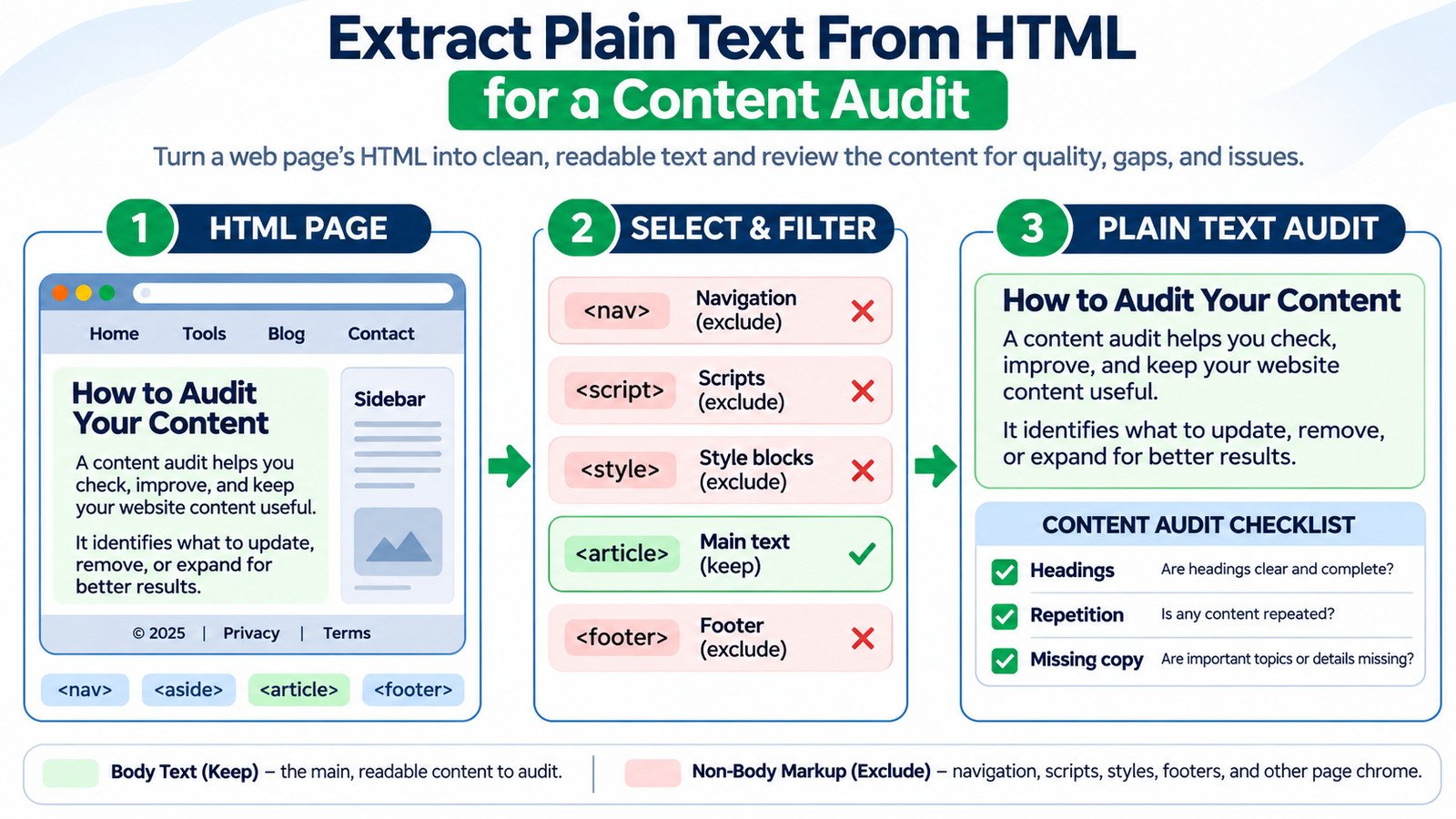
To extract plain text from HTML, convert the page markup into readable copy, then separate the main article from navigation, scripts, styling, and repeated template elements. The resulting text helps you review coverage, repetition, clarity, and missing information without getting distracted by HTML tags. A text extraction is a useful audit input, not proof of what search engines indexed: different conversion methods can produce different results, especially on JavaScript-driven websites.
HTML-to-Text Converter
Turn HTML into readable text without executing scripts.
Turn Website HTML Into a Reliable Content Audit
A webpage contains more than the article a visitor came to read. Its HTML may include menus, footer links, product cards, breadcrumbs, hidden interface text, scripts, and reusable WordPress blocks. If you simply strip every tag and count the remaining words, those elements can distort your assessment of the page.
A better content audit begins with an explicit question: what does the main page actually explain, and what is still missing? Start with the source you intend to evaluate, extract its readable text, and review the output against the live page. The HTML-to-Text Converter is the relevant starting point for converting supplied markup. For a thorough audit, combine the converted text with a visual check of the page and, when search visibility matters, evidence from Google Search Console.
Decide What You Want to Measure Before Extracting Text
Not every content audit needs the same text. A page-quality review usually focuses on the primary article or product description. A sitewide language review may also include navigation, calls to action, and footer wording. A technical investigation may need the full HTML, including content that a plain-text conversion normally discards.
Write down the page URL, its purpose, the primary reader question, and the date of your snapshot. Then define the area being evaluated. For an informational post, that is often the content inside an <article> or <main> element, although websites do not all use semantic containers consistently. The element name is a clue, not automatic proof that its text is the right audit sample.
Understand the Difference Between Source HTML and Rendered Content
Source HTML is the markup returned by the server. Rendered content is the page after the browser has processed HTML, CSS, and JavaScript. On a conventional WordPress article, the two versions may contain almost the same copy. On a JavaScript application, the initial source can be little more than a page shell, while the readable text appears only after scripts run.
This matters because extracting text from the original source may falsely suggest the page is empty. The opposite can happen too: a raw extraction may include hidden interface strings and scripts that no visitor sees. A useful audit identifies which version was converted instead of treating all extracted text as equivalent.
A Worked HTML-to-Text Example
Consider this simplified page fragment. It has useful article copy, but also a navigation link, a footer, an image description, and a script. The example is illustrative: it shows a sensible audit method, not a claimed test result from any particular online converter.
<nav><a href="/tools/">All Tools</a></nav>
<main>
  <article>
    <h1>How Canonical URLs Work</h1>
    <p>A canonical URL signals a preferred page
    when several URLs contain similar content.</p>
    <h2>When to Check a Canonical</h2>
    <p>Check it after changing URL parameters.</p>
    <img src="diagram.jpg" alt="Canonical URL diagram">
  </article>
</main>
<footer>Privacy Policy</footer>
<script>const siteVersion = 2;</script>
For an article-copy audit, the desired text is the heading and the two explanatory paragraphs, with the subheading preserved as a section boundary:
How Canonical URLs Work

A canonical URL signals a preferred page when
several URLs contain similar content.

When to Check a Canonical

Check it after changing URL parameters.
Notice what is missing: the menu, footer, JavaScript statement, and image’s alt attribute. That is intentional for this particular copy review. However, the image’s alternative text still matters to accessibility and image context, so audit it separately. A full-page text extractor might include the navigation and footer; a different extractor may also flatten headings and paragraphs into one long line. Always inspect the actual output before drawing conclusions.
Which HTML Content Should You Keep, Exclude, or Review Separately?
| Page component | Typical audit treatment | Why it matters |
|---|---|---|
| Main headings and paragraphs | Keep | They communicate the page’s core answer and supporting detail. |
| List items and table cells | Keep with structure | Flattening can destroy comparisons, sequence, or context. |
| Navigation, breadcrumbs, footer | Usually exclude from article-copy counts | Repeated template text can inflate totals and repetition. |
| Scripts, styles, HTML comments | Exclude from readable-copy review | Code is not ordinary editorial text. |
| Image alt text and link destinations | Audit separately | Important signals may not appear in plain extracted copy. |
| Tabs, accordions, hidden panels | Inspect case by case | Legitimate user-accessible content may not be initially visible. |
| SEO title, meta description, JSON-LD | Check with dedicated methods | These are not the same as the visible article body. |
For an audit spreadsheet, keep a separate field for excluded template text or important non-body elements. That makes the review repeatable without pretending those elements have no value.
A Seven-Step Workflow for Auditing Extracted Page Copy
- Choose a representative URL. Record the canonical page address you intend to review. If you are auditing a large site, include different templates such as blog posts, product pages, and landing pages rather than assuming one example represents all of them.
- Capture the relevant HTML. Use the page source when you want the server-delivered document. Use the rendered document when JavaScript supplies the actual body copy. Keep a copy of the original input for reproducibility.
- Select the main content. Where possible, isolate the article or main container before conversion. If you must convert the whole document, remove obvious navigation and footer text manually from the audit sample, but keep the raw output for comparison.
- Convert and inspect the result. Paste the markup into the HTML-to-Text Converter and examine the text it returns. Check whether paragraphs, headings, list boundaries, whitespace, and special characters survive in a useful form.
- Clean formatting without rewriting facts. Remove accidental duplicate blank lines, broken spacing, and pasted artifacts. The Text Cleaner and Formatter can support this stage. Preserve meaningful capitalization, headings, numerical details, and citations while preparing the review copy.
- Audit substance, not just length. Identify the question answered in the opening, unsupported claims, missing steps, dated details, vague headings, repeated explanations, and sections that do not serve the reader’s task. If a count is useful, use the Word and Character Counter as a measurement aid, not a target to hit.
- Validate findings against the page. Reopen the live page. Verify whether suspected missing content is actually inside an interactive panel, embedded image, table, or JavaScript component. Record concrete fixes and prioritize changes that improve accuracy, task completion, or usability.
Use a Content Audit Sheet That Produces Actionable Decisions
A large export of plain text is not itself an audit. Give each URL a short decision record: page purpose, main reader question, extracted-content source, strengths, omissions, stale information, repeated text, evidence checked, proposed edit, and reviewer. An action column keeps the process from turning into a collection of subjective scores.
For example, suppose a guide explains how to choose a canonical URL but never distinguishes a canonical hint from a redirect. Your finding should not be “low word count.” It should be “add a short decision section explaining when a canonical is appropriate and when a redirect is required.” That is a correction an editor can actually make.
Why Plain Text Alone Cannot Diagnose Indexing Problems
Extracted text cannot tell you whether Google has indexed a URL, selected its canonical version, or processed all its JavaScript content. It also cannot establish whether a page is blocked by a robots directive, returned a server error, or was omitted from search results. The same copy can exist in a page source, a browser-rendered document, and an indexed version with different timing and context.
When search visibility is the concern, inspect the URL in Google Search Console. Compare its indexed information with a live test where appropriate. Google provides details such as the crawled page information, live rendered screenshot when available, and the Google-selected canonical in the indexed report. Use those diagnostics to investigate discrepancies; do not infer them from a word count or from an HTML-to-text conversion.
Common Extraction Mistakes That Lead to Bad SEO Decisions
- Counting template text as unique content: menus and footer links repeated on every URL make pages look longer and more similar than their main sections really are.
- Assuming every missing sentence is missing online: some copy is inserted after page load or appears only when a panel is opened.
- Stripping tags with a simple regular expression: HTML parsing is more complex than matching angle brackets. Use a parser designed for HTML when reliable extraction matters.
- Flattening tables: the meaning of a product comparison can depend on row and column relationships that plain text does not preserve.
- Confusing content quality with extraction length: a concise page may serve its purpose better than a padded page with many repeated phrases.
- Overlooking invisible characters: pasted text may carry unusual spaces or formatting marks. Use a Unicode and Invisible Character Inspector when spacing behaves strangely.
Comparing an Updated Draft With the Published Page
When an audit leads to a rewrite, save both the original extracted copy and the revised version. Then use the Text Comparison Tool to spot deletions, reordered explanations, and changes in factual statements. Review differences with the original HTML nearby: a removed heading or list item may signal a structural change, not merely new wording.
If your workflow begins with Markdown notes, the Markdown and HTML Converter is related to formatting the revised content. Conversion back to HTML should be followed by a visual WordPress preview, because correct text does not guarantee correct heading levels, link targets, or table markup.
Questions Editors Ask About HTML-to-Text Audits
Does converting HTML to text remove all code and hidden content?
Not always. Behavior depends on the extractor. A basic method using an element’s textContent can include script and style text; a rendered-text method is more sensitive to visibility. Check the result instead of assuming a particular filter was applied.
Should navigation and footer copy be deleted from the website?
No. Excluding them from an article-only measurement is not a recommendation to remove them. Navigation and footer elements may be essential to usability, site structure, and internal discovery.
Can extracted text prove that Google can read an article?
No. It proves only that the chosen extraction method found text in the supplied document or rendered view. Use Google’s inspection tools for crawl and rendering investigations.
Is there an ideal word count for an audited page?
There is no universal count. Assess whether the page answers its intended query with enough detail, accuracy, and clarity. Count words to describe a draft or compare versions, not to manufacture a ranking target.
The Final Standard Is Reader Usefulness
Plain-text extraction is most valuable when it removes visual distraction and exposes the actual explanation. Use it to find gaps, confusing passages, unsupported details, and content that repeats without helping. Then return to the rendered page to confirm presentation and accessibility. A completed audit should leave you with specific changes to make, the evidence behind them, and a way to verify the changes after publication.
When extracted copy comes from converted markup, see Markdown to HTML for WordPress: Formatting Without Broken Tags; to compare the resulting length fairly, use Why Word Counts Differ Between WordPress and HTML Tools.